Moving StoresChecked against the product on
Run and export reports
The Reports page gives you tables of sales, products, categories, channels, customers and discounts for any period of up to 366 days, and exports each report as CSV, up to 50,000 rows.
On this page
Before you start
- A role that can view analytics: Owner, Admin and Manager by default.
Reports are detailed tables for any period, and each one exports as CSV so you can work on it in Excel or send it to your accountant.
Run a report
Step 1: Open Reports
From the sidebar, open Sales › Reports. The page opens on the Sales report.
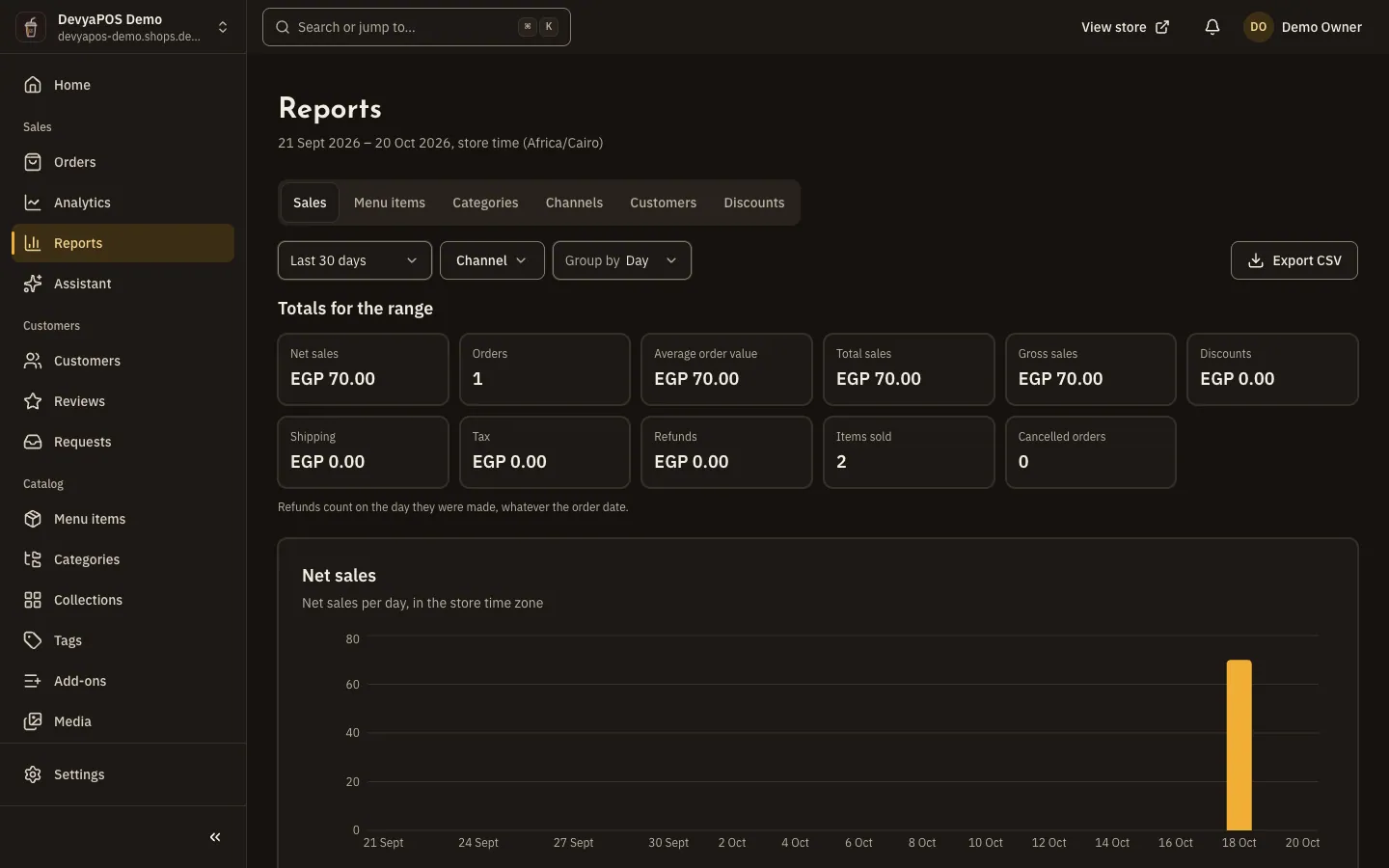
Fig. 1 —The range shows its dates and the store time zone used for the sums. Step 2: Pick the report
Choose Sales, Products (in restaurant stores, Menu items), Categories, Channels, Customers or Discounts.
Step 3: Pick the period
Under Date range, choose a preset or a Custom range of up to 366 days. The range is shown in store time.
Step 4: Filter the results
Pick one location or all of them, and set the Channel if you need to.
Step 5: Export the report
Click Export CSV. Every row of the open report downloads, up to 50,000 rows.
What each report holds
| Report | What it shows |
|---|---|
| Sales | Group by day, week or month, and Week starts on Monday, Saturday or Sunday. Columns: orders, items sold, gross sales, discounts, shipping, tax, total sales, refunds, net sales, average order value and cancelled orders. |
| Products | Show products or variants, Sort by revenue or units sold, with a category filter. Columns: units sold, revenue, orders, returned and share of revenue. |
| Categories | Each category on its own, or rolled up into Top-level categories. |
| Channels | Break down by channel, fulfilment, payment method, location or carrier, with orders, total sales, average order and share of sales. |
| Customers | New accounts, New guest records, Orders from new customers and Orders from returning customers, and a Top customers table. |
| Discounts | Each coupon (code or automatic) with its uses, discount given, sales and average order. Promotions aren't here; their results are in Analytics. |
Other exports in the dashboard
- Customer list: Export CSV on the Customers page exports the customers that match your filters, up to 50,000 rows, for Owner and Admin by default. See the customer list.
- Analytics: Export CSV on the Analytics page downloads the figures for the period you are viewing.
Why does a refund show on a different day from the order?
Because refunds count on the day they were made, whatever the order date.
What if a report has more than 50,000 rows?
Shorten the period or filter by location or channel, then export each part separately.
Are the dates in my time zone?
Every report is in the store's time zone, and its name shows with the range you picked.