Moving StoresChecked against the product on
Understand shopper accounts and guest checkout
Shoppers on your store can create an account with an email and password, or check out as a guest. See what they find in their account, and how their orders, saved items and details reach your dashboard.
On this page
Every store on Moving Stores has accounts for its shoppers. From their account a shopper follows their orders, addresses and reviews, and what they do there shows on their profile on the Customers page of your dashboard. They can also buy without an account.
Creating an account and signing in
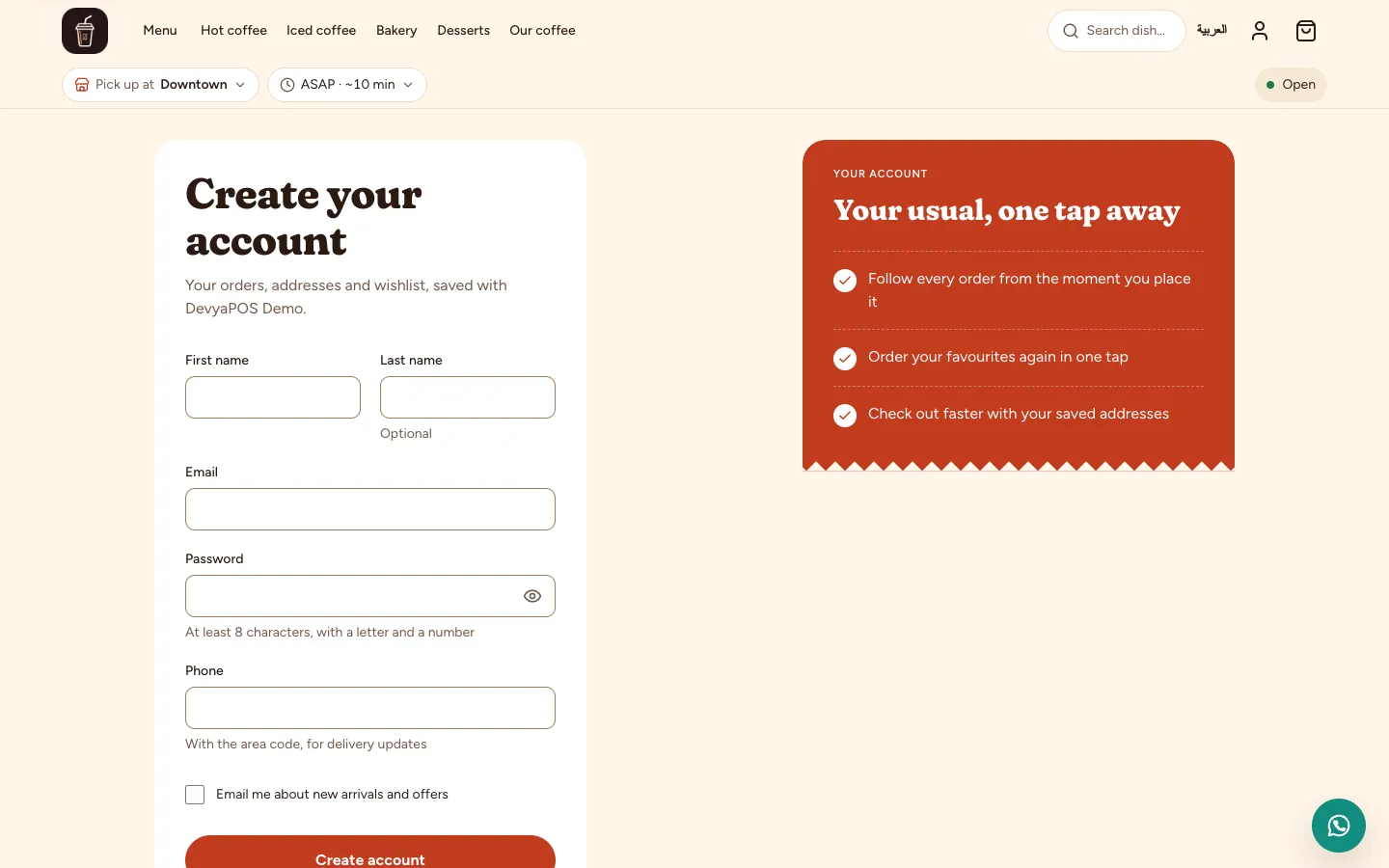
- Create your account: the shopper enters a first name, last name, email and a password of at least 8 characters with a letter and a number, plus an optional phone. They can tick Email me about new arrivals and offers, and accept the terms when your store asks for it.
- Email verification: they get a verification email whose link works once and expires after 48 hours. Once verified, orders they placed earlier as a guest with the same email show in their account.
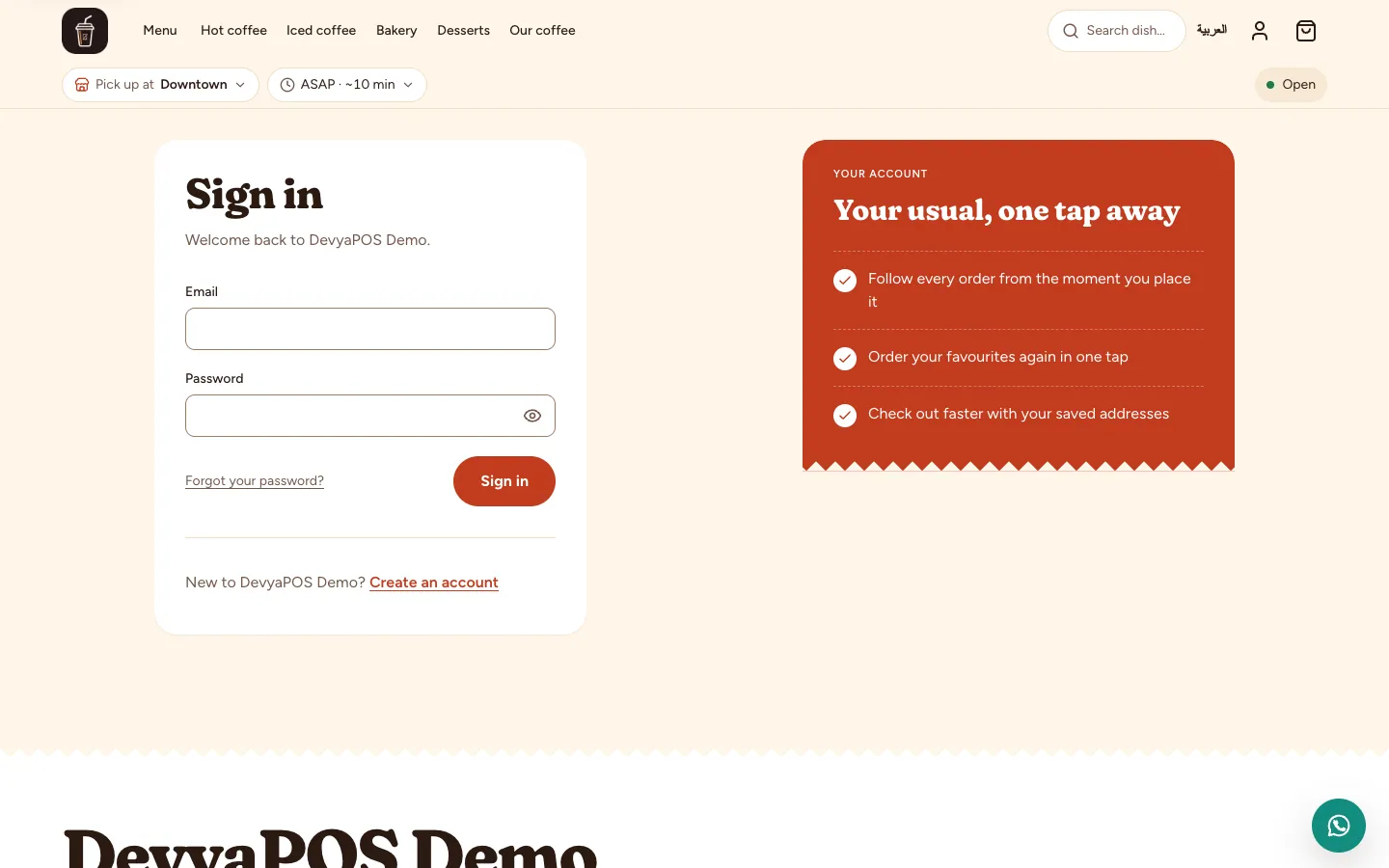
- Sign in: with email and password. After too many wrong attempts, sign-in locks for 15 minutes.
- Forgot your password?: sends a reset link that works once and expires in an hour.
Guest checkout
When Guest checkout is on in Settings › Checkout, the sign-in page offers Continue as a guest, so the shopper can order without an account; they appear in your customer list as a Guest. After the order, a guest who gave an email is offered an account with that email to follow the order.
What shoppers find in their account
| Page | What the shopper can do |
|---|---|
| Overview | See their latest order and total spent, and a reminder to verify their email if they haven't. |
| Orders | Follow each order, and pay, cancel, upload a transfer receipt, request a return, review or reorder, as the order allows. |
| Returns | Follow the return requests they sent. |
| Addresses | Save up to 20 addresses as Home, Work or Other, and pick a default. |
| Wishlist | See the products they saved. |
| Reviews | Write a review once an order arrives: stars, a headline, text and up to 4 photos, and edit or delete it. |
| Requests | See their messages to the store and your replies. |
| Profile | Edit their name, phone, gender, date of birth, language for messages and marketing consent, change their email (entering their current password) or password, or delete their account. |
Saved items without an account
Shoppers can tap the heart on any product before signing in. The products are kept in their browser and shown on the Saved items page with an invitation to sign in, and the first time they sign in on that browser they move into their account wishlist. A guest's saved items never reach your dashboard; the customer profile shows the account wishlist only.
Can shoppers sign in with their phone number?
No. Shoppers sign in to their accounts with their email and password.
How does a shopper delete their account?
From Profile, they click Delete my account. This erases their name, contact details, addresses, wishlist and reviews, and their orders stay on record without their personal details. They can't delete it while they have orders or returns in progress.
Why don't older orders show in a shopper's account?
Orders they placed as a guest appear once they verify the email they used for them.
Can I create an account for a customer from the dashboard?
You can add a record for them on the Customers page, and if they later register with the same email, the record becomes theirs. See Manage your customer list and profiles.