Moving StoresChecked against the product on
Edit your home page in the visual editor
The visual editor shows your real home page so you can edit its sections, words and style in place. Every change is saved as a draft, and shoppers see nothing until you click Publish.
On this page
Before you start
- Editing needs the Manage home page, banners & menus permission; without it the editor opens as View only.
The editor shows your home page with your store’s real data: click any section to edit it, and type over any text where it stands. Links inside the preview don’t navigate, so a stray click never takes you out of the editor.
Open the editor
- From Online store › Designs: click Customize on the card of the design you want to preview in.
- From Online store › Home layout: click Open the visual editor, which opens it in your store’s current design.
- From a sample store preview: click Use my content.
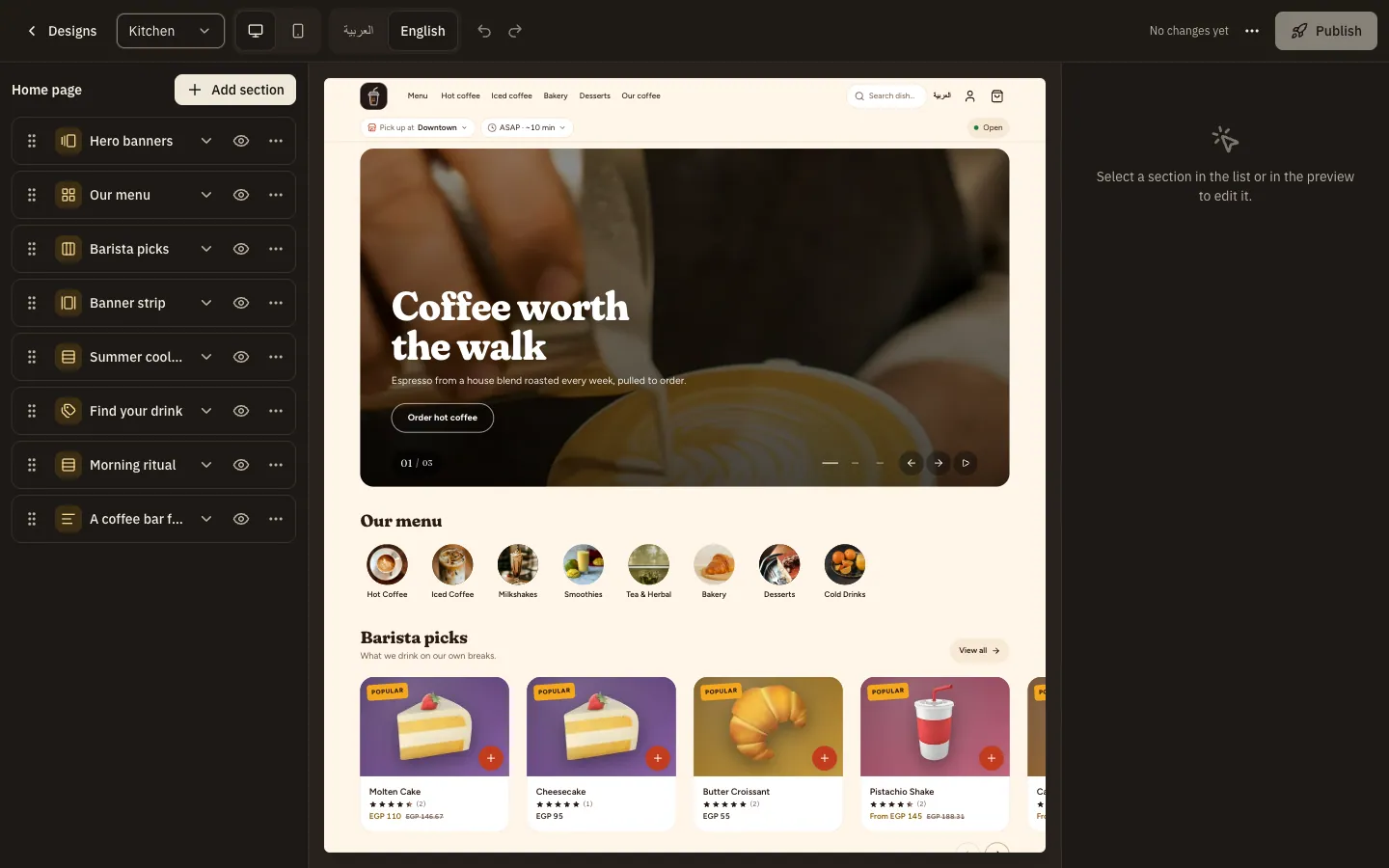
If you open it in a design other than your store’s, a notice reminds you that you are previewing your content in that design, and that your store keeps its current design until you publish and switch.
Edit the sections
Step 1: Choose what to preview in the toolbar.
Design switches the design on show, Screen size switches between Desktop and Phone, and Preview language between Arabic and English.
Step 2: Pick a section in the Home page panel or in the preview.
Click any text in the preview and type over it, one language at a time. Or edit it in the Content tab of the Settings panel: title and subtitle, picture, and what the section shows.
Step 3: Change how the section looks in the Style tab.
Set the Layout, Colours, Alignment, Spacing and the heading’s font and size, and use Show on to show the section only on Phones or only on Tablets and desktops. Reset style puts the section back as it was.
Step 4: Add a section or reorder them.
Click Add section and pick its type. Drag sections to reorder them, hide one with the eye button, and choose Duplicate or Remove from the section’s menu; after a removal an Undo button appears.
Step 5: Watch the save status.
It moves from Unsaved changes to Saving… and then Draft saved, a moment after you stop editing.
Section types
| Section | What it shows |
|---|---|
| Hero banners and Banner strip | The live banners placed there. Here you change only their words and order. |
| Category grid, Brand strip and Tag tiles | The categories, brands or tags you pick. |
| Product rail | Products you pick, or an automatic listing such as New arrivals or Best sellers. |
| Collection rail | The products of one collection; it can’t be published without one. |
| Promotion banner and Flash sale | A live promotion you pick, or the best live one; the section hides when there is none. |
| Text block | Formatted text in Arabic and English, with up to two buttons. |
| Image banner and Image with text | A picture with a heading, text and a button, up to 6 blocks. |
| Columns | Columns that each have a picture, a heading, a line and a link. |
Publish or discard the draft
Step 1: Click Publish.
The Publish your home page? dialog says shoppers see this version as soon as you publish, and that your draft is then cleared. If you are previewing another design, an option to switch your store to it too appears for members with Manage store profile & branding.
Step 2: Confirm with Publish.
The message Your home page is live. appears.
Step 3: To throw away every change, open More actions and choose Discard draft.
Your unpublished changes are deleted, and the editor reloads your live home page.
Do customers see my edits as I type?
No. What you change in the visual editor is a draft until you click Publish. The classic Home layout list, on the other hand, applies its changes at once.
Can I undo after closing the tab?
No. Undo keeps up to 100 steps in the open browser tab only, and they are lost on reload. The draft itself stays saved.
Why does a section show in the editor but not on my store?
The store skips sections that have nothing to show, such as an empty category grid or a promotion banner with no live promotion. Sections hidden on that kind of screen, or scheduled outside their dates, don’t show either.
What if a teammate edits the draft at the same time?
The status shows Saved in another tab: choose Load latest to see their version, or Keep mine to save yours over it.