MovingChecked against the product on
Find your way around the dashboard
A tour of the Moving Stores dashboard: the sidebar and its groups, the store switcher, search and the command palette, what needs your attention, order alerts, the account menu and keyboard shortcuts.
On this page
The dashboard works in Arabic and English. It has a sidebar for getting around, a top bar for search, alerts and your account, and the open page in the middle. The first page you see is Home: sales figures, recent orders and what needs your attention.
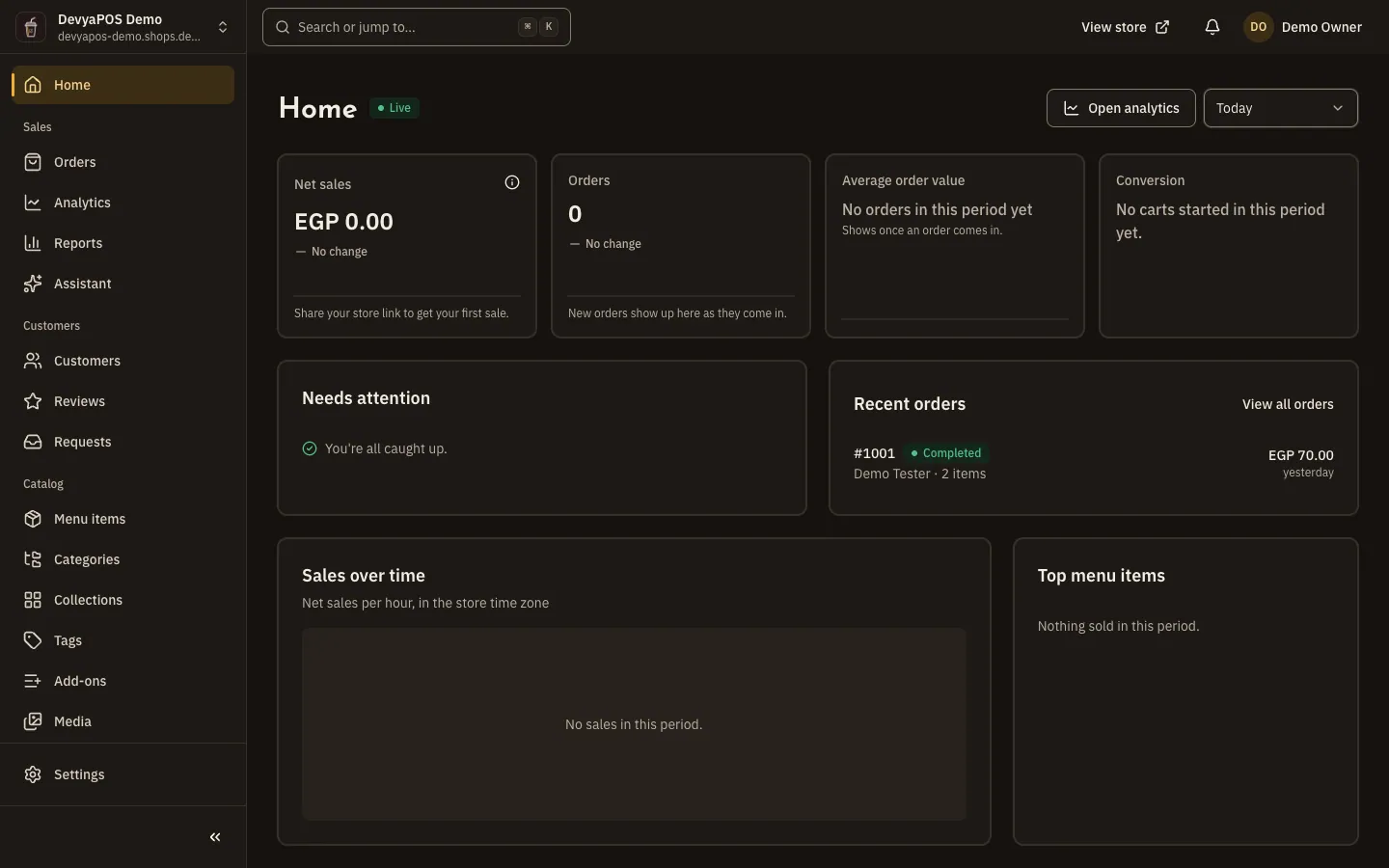
The sidebar
The store switcher sits at the top, with the page groups below it. Members only see the pages they have permission for, and some names change with the business type:
| Group | What's in it |
|---|---|
| Sales | Orders, Returns when they are on, Analytics and Reports. |
| Customers | Customers, Reviews when they are on, and Requests. |
| Catalog | Products (Menu items for restaurants), Categories, Collections, Tags and Media; Brands for shops and Add-ons for restaurants. |
| Inventory (Branches for restaurants) | Stock and Locations (Branches for restaurants). |
| Marketing | Coupons, Promotions and Banners. |
| Online store | Home layout, Designs, Navigation, Pages, FAQs, Listing pages and View store; Return policies for shops, or when returns are on. |
Settings is pinned below the groups, with six groups of its own: Store, Selling, Notifications, Team, Plan and Integrations. You can collapse the sidebar to icons with the button at its foot, and on a phone you open it from the menu button at the top.
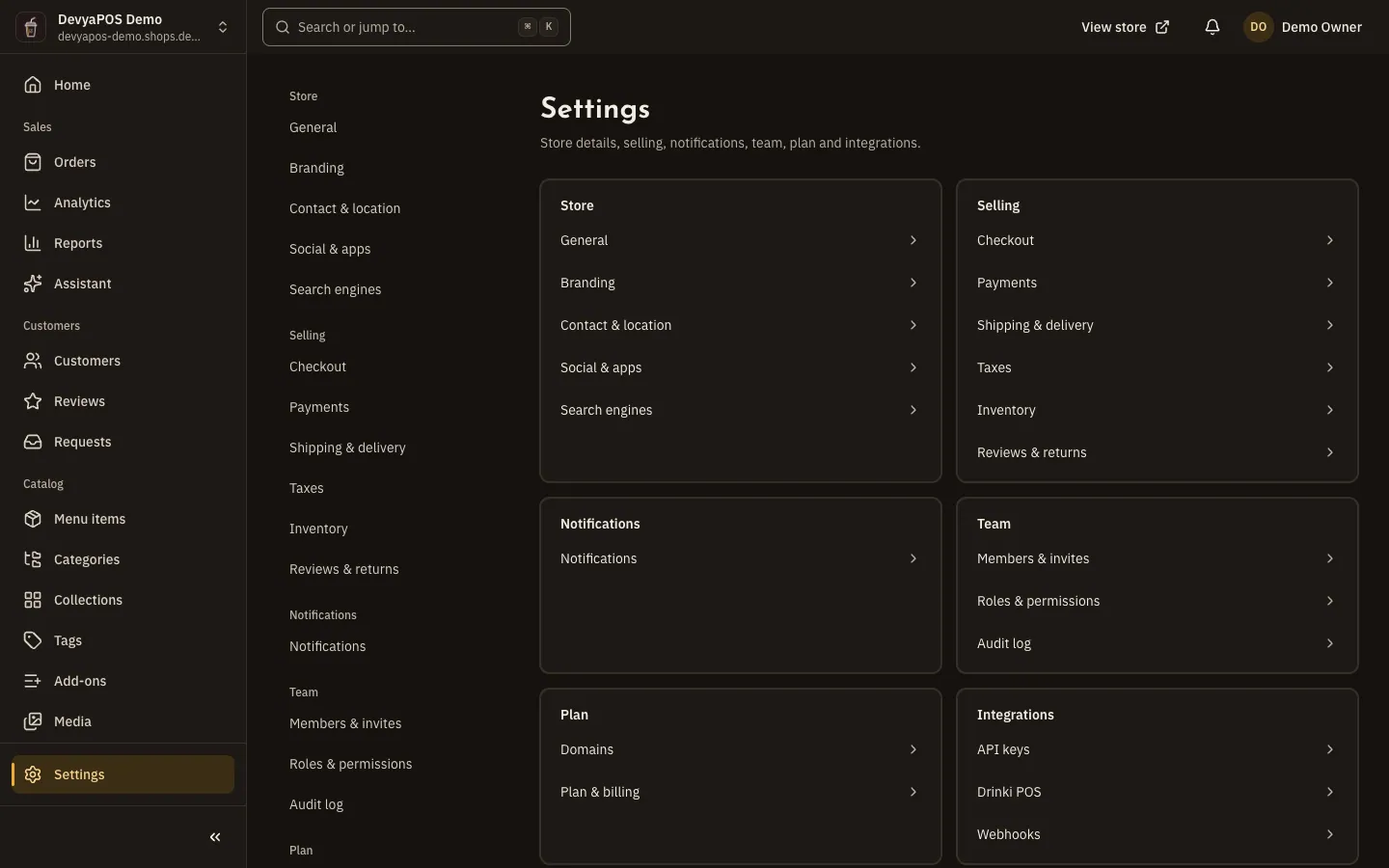
The top bar
- Search or jump to… opens the command palette: search orders, products, customers and returns with at least two characters, jump to any page, or run an action such as New product, New order, Invite a team member or Switch store….
- View store opens your storefront in a new tab.
- The Needs attention bell counts what is waiting for you, such as New orders, Awaiting payment, To fulfil and Low stock, and each counter opens its list.
- The account menu: My account, Security, Language, Theme, Table density, New-order sound, New-order notifications and Sign out.
When a new order arrives, an alert appears inside the dashboard. Each device keeps its own choice for sound and notifications, and the browser keeps the sound silent until you click on the page once, so you see Turn on order sound.
Keyboard shortcuts
| Shortcut | What it does |
|---|---|
Ctrl+K or ⌘K | Open the command palette |
Ctrl+S or ⌘S | Save the current form |
Esc | Close the top dialog |
/ | Focus the page search |
? | Show keyboard shortcuts |
g then h, o, p, c or s | Go to Home, Orders, Products, Customers or Settings |
Single-key shortcuts don't fire while you type in a field, and you can turn them off with Single-key shortcuts in the account menu.
When a page won't open
- “You don't have access to this page”: your role lacks the permission, so ask the store owner for it.
- “This page isn't available for your store”: the page belongs to the other business type, such as Add-ons, which is for restaurants.
- A section marked Upgrade required: your current plan doesn't include it; click See plans to see the plans that do.
Why don't I see Returns or Reviews in the sidebar?
They disappear when you turn them off in Settings › Selling › Reviews & returns. Returns are off by default for restaurants.
How do I change the dashboard's language?
With Language in the account menu, or in My account › Preferences. Your choice is yours alone and doesn't change the store's default language.
How do I move between my stores?
Click the store switcher at the top of the sidebar and pick the store, or type Switch store… in the command palette.