MovingChecked against the product on
Use the Accounting app with Moving POS
The Accounting app is a double-entry set of books for your business in Egypt or Saudi Arabia, on its own or with Moving POS. Till sales reach the books only once the Moving team sets up the hand-off for your account, and you can try the app free for 14 days.
On this page
Before you start
- An account in the Accounting app: the Moving team sets it up for Moving POS customers, or you start with a free trial.
The Accounting app is separate from the till and the back office: it has its own sign-in and users, and a system and database for your business alone. Every figure in it is an entry in the journal, and a mistake is fixed with a reversing entry, never by editing one.
What the app does
- Journal, Chart of accounts and Periods.
- Receivables, Payables and Bank.
- Tax invoices you issue from the app itself, with E-invoicing settings for them.
- Tax reports and the VAT return, at 14% in Egypt and 15% in Saudi Arabia.
- Hand-off: what has reached the books from the till's day closes.
The company's country in its profile decides tax and e-invoicing, not the business type.
How till sales reach the books
Once it is set up, each business day a branch closes is posted: sales and VAT, cost of sales, and cash over/short, in one balanced entry per source per day per branch, never one per order. Revenue is taken from the payments, so it lands on the day the money arrived. A late hand-off never holds up the day close.
Step 1: In the Accounting app, open Hand-off.
The Day-close hand-off page shows Ledger readiness (Ready or Not ready), The accounts a day close needs and the Fiscal period.
Step 2: Check What the books received.
Each day and branch shows Posted or No entry.
Step 3: Send a missing day again from the back office.
On Today › Dashboard, the Days and transfers that never reached the books card shows for anyone with the Read & replay the accounting hand-off permission. Fix the cause, then click Send again.
Try Accounting free for 14 days
Step 1: Open the free trial page and fill in the form.
Enter Your name, Company name, Work email and Mobile number, and under Where is the business? choose Egypt or Saudi Arabia.
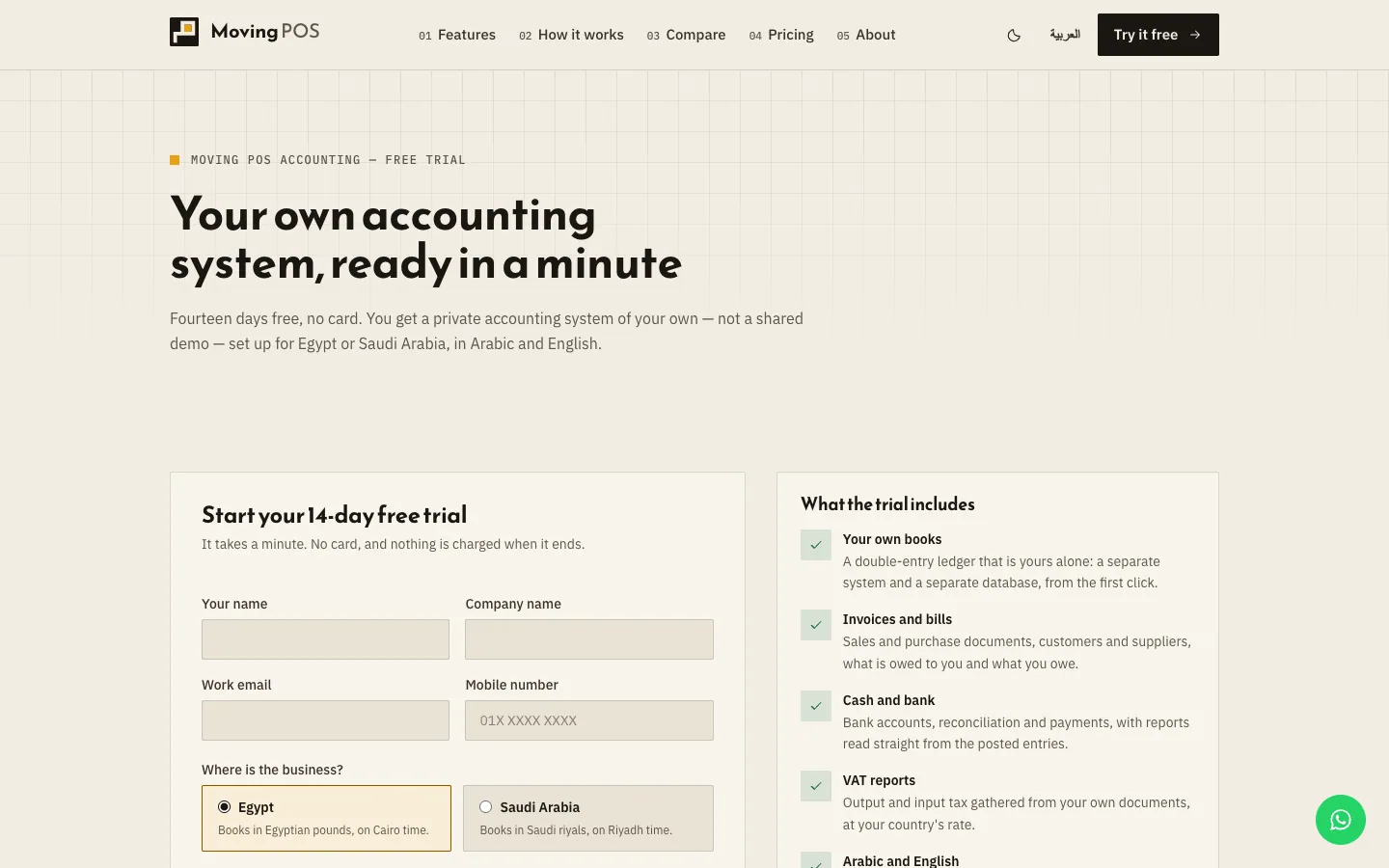
Fig. 1 —No card is needed, and the link and setup token appear on the same page. Step 2: Click Start my free trial.
Your link and the Setup token appear. Save the token before you leave the page: it isn't shown again or sent by email.
Step 3: Click Open the setup wizard and enter the token.
Then go through the steps: Language, Company, Chart of accounts, First period, Administrator, Opening balances (optional) and Review.
You get a system of your own, not a shared demo. The trial is free with no card, nothing is charged when it ends, and each email can have one running trial. After it ends, the trial's books are deleted after a short grace period, so export what you want to keep before then. The trial covers Accounting only; your Moving POS account is created by the Moving team.
Does every till invoice reach the books?
No. Each branch's day close arrives as grouped entries, once the Moving team has set up the hand-off for your account.
The trial page shows Sign-ups are paused for the moment. What do I do?
Message us on WhatsApp and we will set up your trial by hand. If We are setting up more trial systems shows instead, we have your details and will contact you within one business day.
Do I sign in to Accounting with my till account?
No. The Accounting app has its own sign-in and users.