Moving StoresChecked against the product on
Manage locations and branches
Locations are the places you keep stock in or take orders from; restaurants call them branches. Add one, set its hours and how customers order from it, and pause orders when a branch is busy.
On this page
Before you start
- The Manage locations & delivery zones permission to add and edit locations.
- The Pause or resume orders at a location permission to pause a branch's orders.
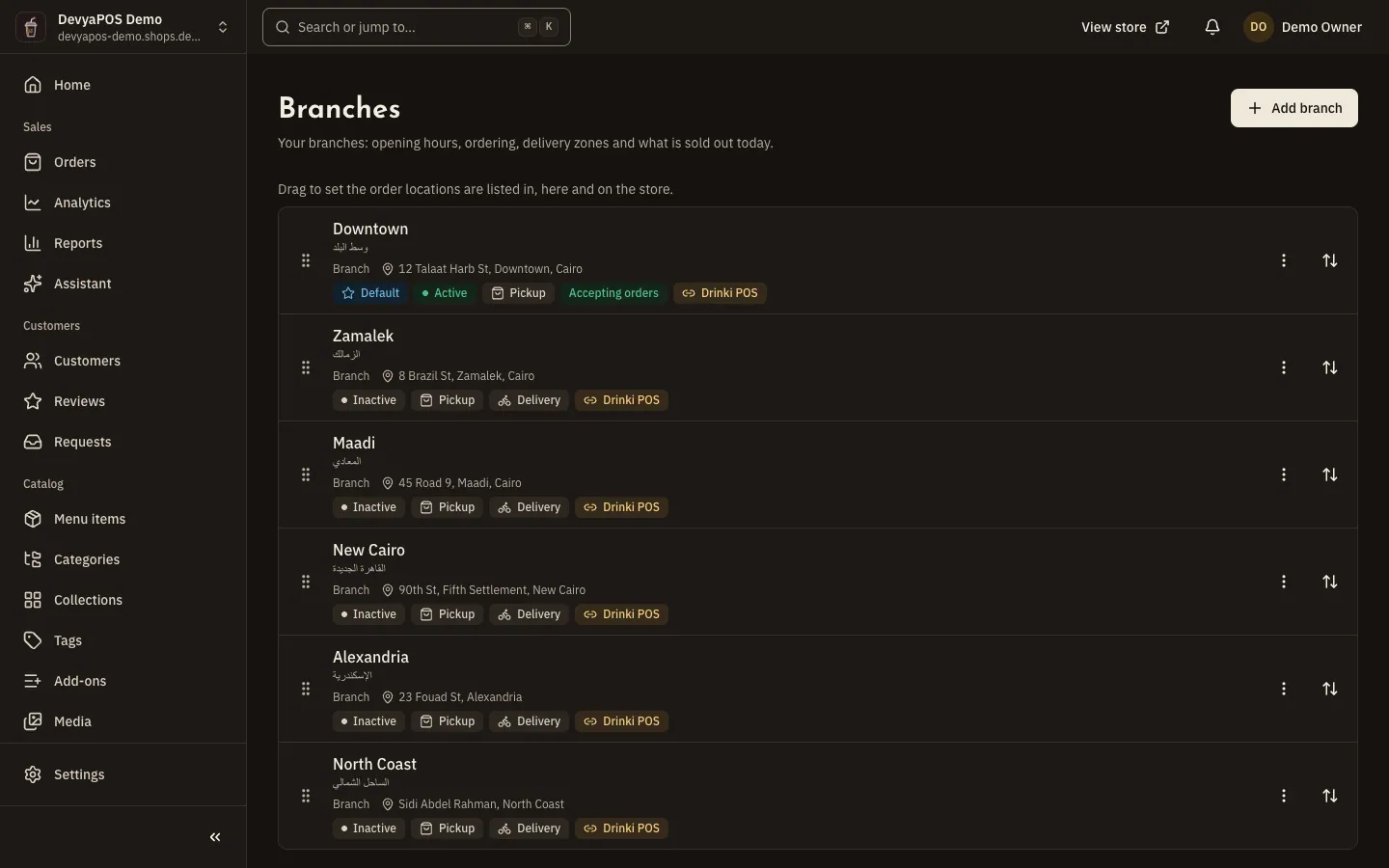
Shops find the page under Inventory › Locations, restaurants under Branches › Branches. Each location has a type: Warehouse, Shop or Branch. Every store starts with one default location, and your plan sets how many can be active.
Add a location or branch
Step 1: Open the page
From the sidebar, open Inventory › Locations (Branches › Branches for restaurants), then click Add location (or Add branch).
Step 2: Fill in the details
Type the Name and choose the Type, then add a Code (letters, digits and hyphens, up to 20, shown on transfers and picking lists), the Address, City, Map pin, Phone and Email.
Step 3: Activate and create it
Leave Active on (Sell online from this branch for restaurants), then click Create. Inactive locations take no orders and are hidden on the store.
In the list, drag locations to set the order they appear in, here and on the store.
Hours and special dates
On the Hours tab, add one or more intervals per day with Add hours, and use Copy to all days to repeat a day's hours across the week. An interval that ends before it starts runs past midnight. Under Special dates, click Add a date for holidays, Ramadan or events: a day that is Closed all day or has different hours, with a note customers see.
Ordering from the location
On the Ordering tab, turn on Pickup so customers can collect orders there. Restaurants also get:
- Delivery from the branch to its delivery zones, and a Minimum order for the branch.
- Preparation time, up to 240 minutes, shown to customers as the earliest ready time.
- Scheduled orders with Days ahead (0 to 14) and Slot length (15, 30 or 60 minutes).
- Online orders to pause a branch's orders for a while: click Pause orders and choose how long, such as an hour, Until tomorrow’s opening or Until I resume, then Resume orders when you're back. Orders already placed aren't affected.
Restaurant branches also have a Delivery zones tab (details in pickup and delivery zones) and a Sold out tab to stop items that ran out at this branch until The end of today or until you put them back on sale yourself.
Default location and deleting
From each row's actions, choose Make default, View stock or Delete. The default location always stays active, so make another one the default before deactivating it. A location that holds stock or has orders can't be deleted; you're offered Deactivate instead.
Can a staff member work at one branch only?
Yes. Open the member in Settings › Team › Members & invites and pick their branches under Locations. Details in team and permissions.
My branch's hours say they come from Drinki POS. Why?
The branch is linked to Moving POS (shown in the dashboard as Drinki POS). Saving here replaces the hours until the till sends new ones.
Why can't I activate a new location?
Your plan limits how many locations can be active. Deactivate one you don't need, or choose a plan with more in plan and billing.