Moving StoresChecked against the product on
Import and export products with a CSV file
Export your products to a spreadsheet, or add and update many at once from a CSV file, with a check of the file before anything is saved.
On this page
Before you start
- The Import & export catalogue permission.
The Import and export page opens from the Import / export button on the product or menu item list. The file has one row per variant and opens in Excel and Google Sheets.
Export products
Step 1: Open the page
Open Catalog › Products, apply filters if you want only some products, then click Import / export.
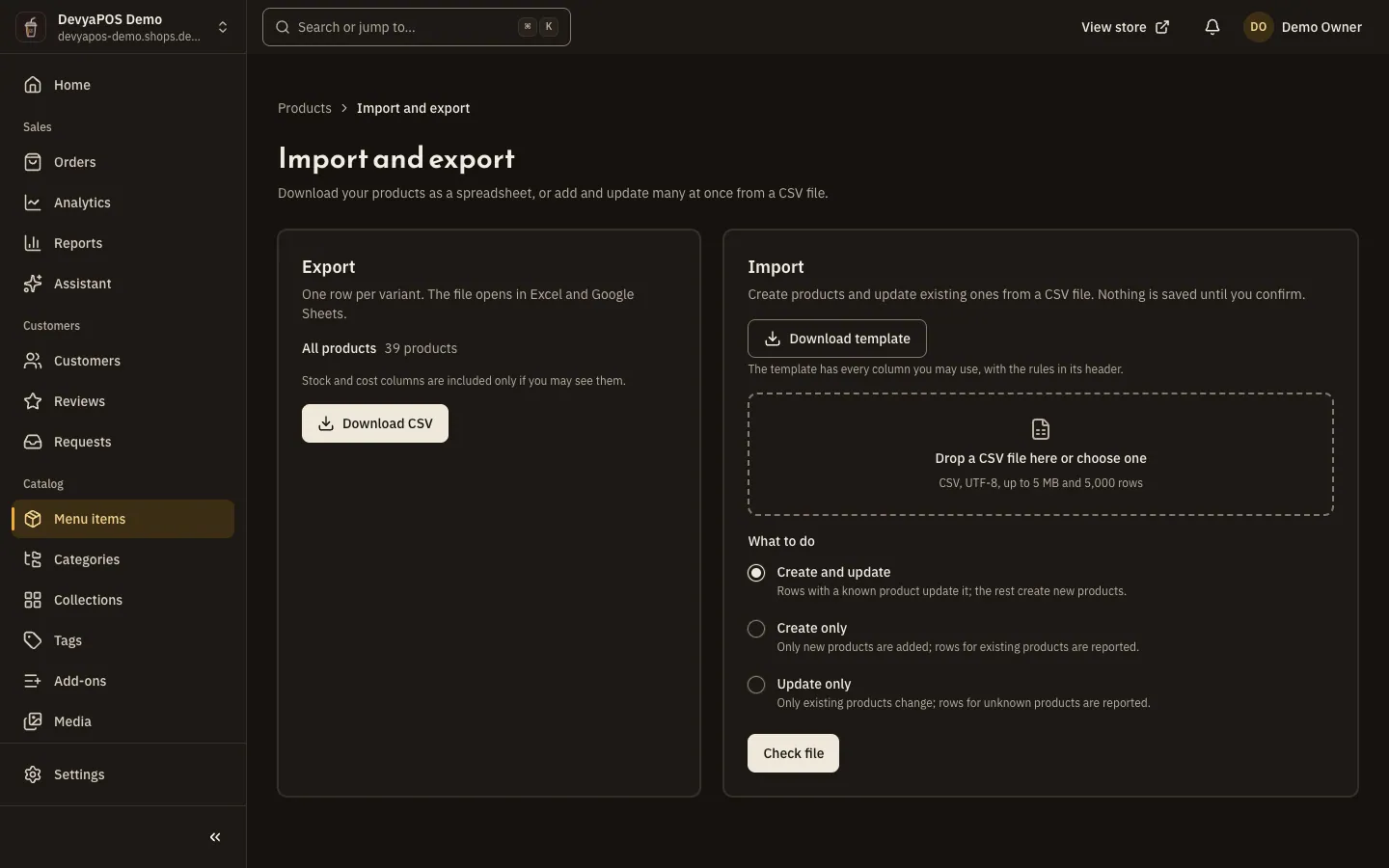
Fig. 1 —Export sits in one card and import in another, on the same page. Step 2: Choose the products
Under Export › Which products, choose Products matching the filters on the Products page or All products.
Step 3: Download the file
Click Download CSV. Stock and cost columns are included only if you may see them.
Import from a file
Step 1: Prepare the file
Under Import, click Download template; it has every column you may use, with the rules in its header. You can also edit a file you exported.
Step 2: Upload the file
Drop the file on the area or choose it, then pick under What to do: Create and update, Create only or Update only.
Step 3: Check before saving
Click Check file. The report, Check results — nothing has been saved yet, counts the products and variants created, updated and failed, and lists errors and warnings by row and column.
Step 4: Import
Click Import now. When Import finished appears, click View products.
File rules
- A UTF-8 CSV file, up to 5 MB and 5,000 rows.
- The only required column is
slug; rows that share aslugare variants of the same product. - The
imageUrlscolumn takes addresses of images already in the media library; the import never fetches images from other sites. - The
onHandcolumn sets stock at the default location only and needs the Adjust stock permission; thecostcolumn needs View & edit product costs. - Products with errors are skipped, and every other product is saved on its own. The import respects the number of products your plan allows.
Does the file import images from outside links?
No. Upload the images to the media library first, then put their addresses in the imageUrls column.
Does an import change stock?
Yes, if you fill in the onHand column and have the Adjust stock permission; the change is logged in the stock movements with the reason Import.
What if the file has errors?
The import skips only the products with errors, and the report lists up to 500 errors and warnings.