Moving StoresChecked against the product on
Analyse your sales
The Analytics page shows how your store is doing over a period you pick, compared with another: sales, customers, the conversion funnel, best sellers, channels, discounts and abandoned carts.
On this page
Before you start
- A role that can view analytics: Owner, Admin and Manager by default.
Analytics is one page for reading how your store performed over a period you pick, compared with the previous period or the same period last year. All figures are in the store's time zone.
Pick the period and comparison
Step 1: Open Analytics
From the sidebar, open Sales › Analytics. The page starts on the last 30 days, compared with the previous period.
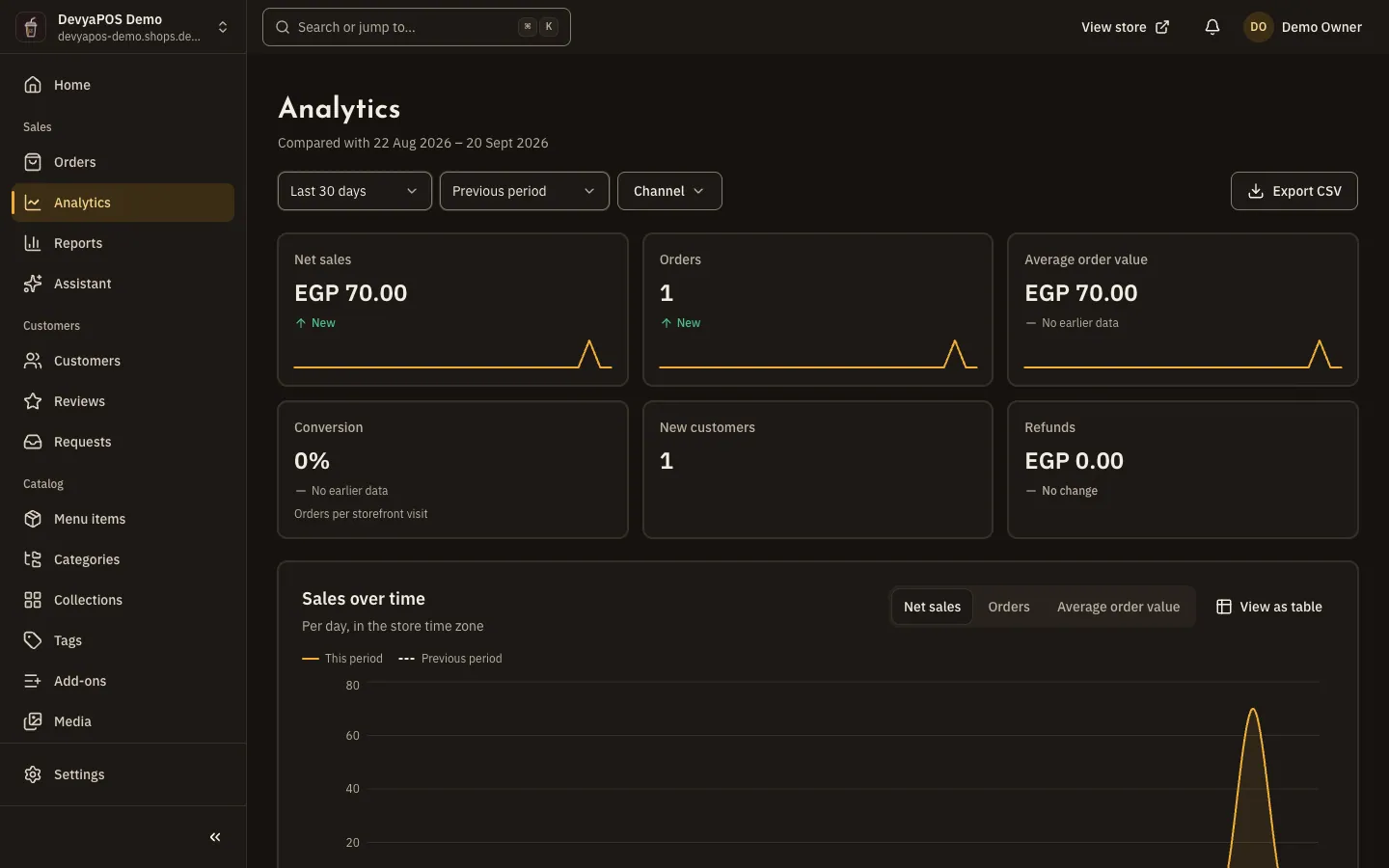
Fig. 1 —Each figure shows the change from the comparison period. Step 2: Pick the period
Choose Last 7 days, Last 30 days, Last 90 days, This month, Last month or This year, or a Custom range of up to 366 days.
Step 3: Pick the comparison
Under Compare with, choose Previous period, Same period last year or No comparison.
Step 4: Filter the figures
Pick one location or all of them, and choose one or more under Channel: Online store, Admin and API.
Step 5: Download the figures
Click Export CSV to download the analytics as a file.
The sections of the page
| Section | What it shows |
|---|---|
| The figures | Net sales, Orders, Average order value, Conversion, New customers (with returning ones) and Refunds. |
| Sales over time | Net sales, orders or average order value against the comparison period: by day up to 31 days, by week up to 120 days, and by month beyond. |
| Best sellers | By revenue: Products, Categories or Collections. |
| Conversion funnel | Visits, then Viewed a product, Added to cart, Reached checkout and Ordered. |
| Customers | New and returning customers, the Repeat rate and Lifetime value. |
| Channels and branches | Where orders came from, including Sent to Drinki POS for restaurants linked to Moving POS. |
| Payments and fulfilment | Methods, Payment status and Fulfilment status. |
| Coupons and promotions | Orders with a coupon, Discount given and Sales with a coupon, plus the results of each promotion. |
| Refunds by reason | Money returned in the period, by reason. |
| Abandoned carts | Carts left with items for over an hour without an order. Customer details are hidden unless you have access to customers. |
| Low stock | Shows when products are below their threshold. |
How the funnel is measured
The funnel relies on visits your store records itself, with no cookies and no IP address, and nothing is recorded when the visitor's browser asks not to be tracked. For periods before visit tracking began, carts stand in for visits, and carts are kept 30 days only, so anything older shows as not measured. The funnel and conversion cover the whole store, so clear the location filter to see them.
Where do I see how promotions performed?
In the Coupons and promotions section here, and on each promotion's page. The Discounts report in Reports lists coupons only.
Why does the funnel disappear when I pick a location?
Visits and carts have no location until checkout, so the funnel is worked out for the whole store only.
Does my store track visitors with cookies?
No. It uses no cookies and no IP addresses, and it respects the browser's request not to be tracked.