Moving StoresChecked against the product on
Manage your customer list and profiles
The Customers page lists everyone who bought from or registered with your store. Search and filter it, add a customer by hand, open a profile to see their orders and spend and add tags and notes, then export the list as CSV.
On this page
Before you start
- A role that can view customers, which every role has by default. Adding is for Owner, Admin and Manager, and exporting and anonymizing for Owner and Admin only.
The Customers page shows everyone who bought from or registered with your store in one list: account holders (Registered) and people who ordered without an account (Guest).
Find a customer
Step 1: Open the customer list
From the sidebar, open Customers › Customers.
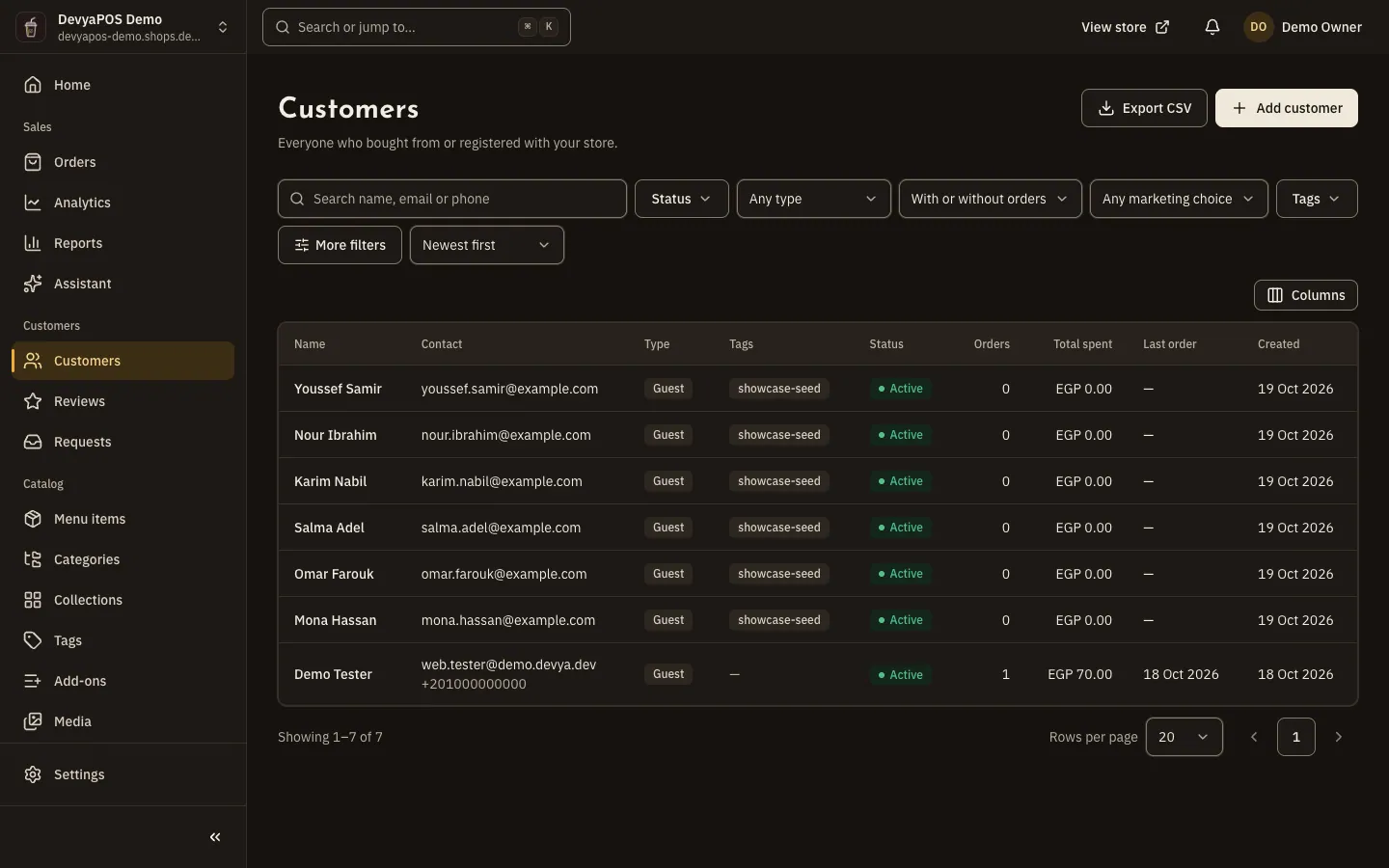
Fig. 1 —Filters sit above the table; export and add are in the page header. Step 2: Search by name, email or phone
Type part of a name, an email address or a phone number into the search box.
Step 3: Filter the list
Use the filters above the list: Status (Active or Blocked), Type (Registered or Guest), Orders (Has ordered or Never ordered), Marketing (Agreed to marketing or Not agreed) and Tags.
Step 4: Narrow it down further
Click More filters to set a date range for when customers were added and for their last order, plus Spent at least and At least this many orders, then click Apply filters.
Add a customer by hand
Add someone you serve in person or by phone, so they are on your list before they order from the store.
Step 1: Open the form
On the Customers page, click Add customer.
Step 2: Enter a name and a way to reach them
Type the First name, then an Email, a Phone number or both. At least one of the two is required.
Step 3: Fill in the optional details
You can set Language, Gender and Date of birth, and add a Staff note and Tags. Only tick They agreed to receive marketing when the customer told you so in person or by phone.
Step 4: Save the customer
Click Add customer.
The customer profile
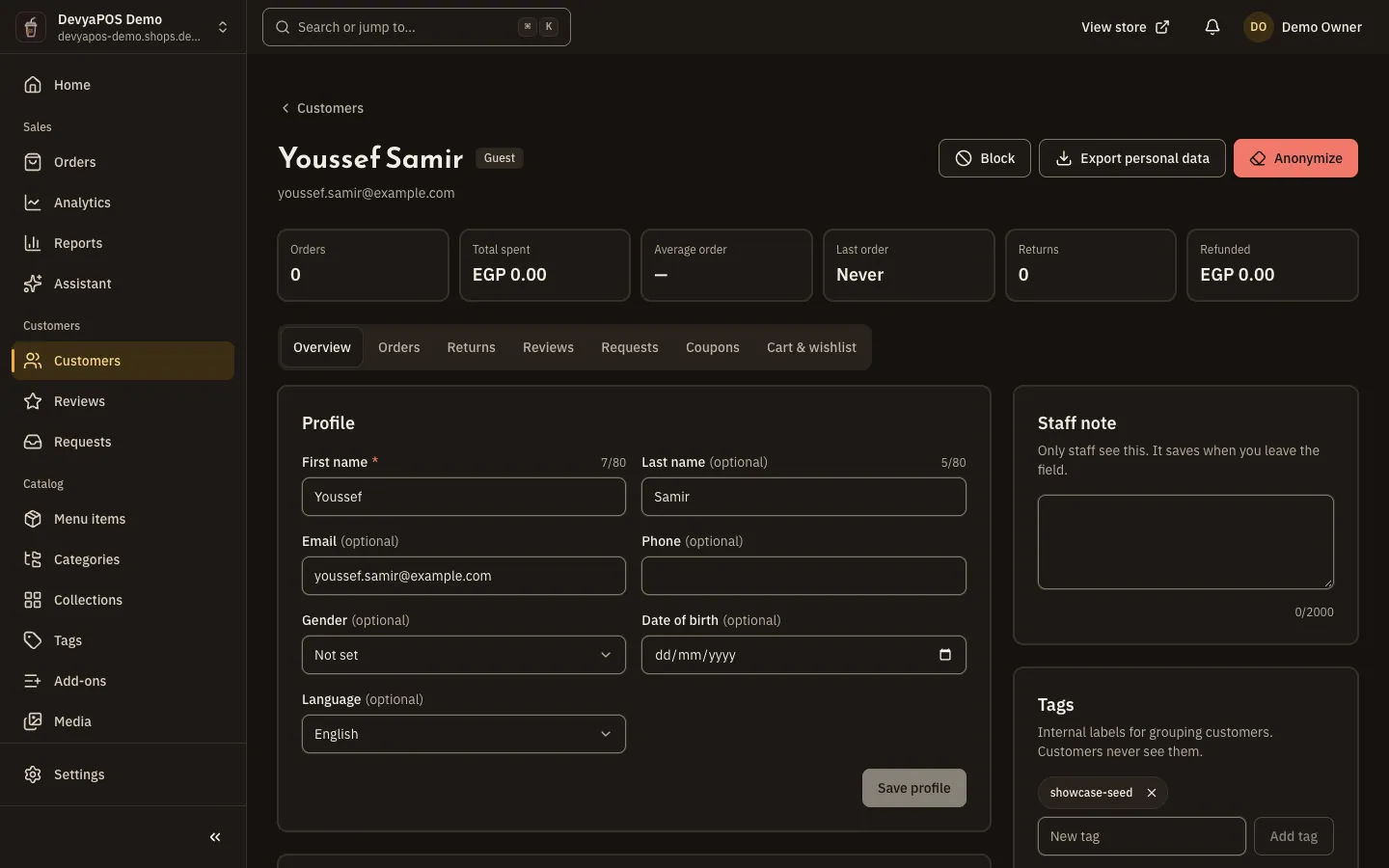
Click any row to open the customer's profile. At the top are their figures: Orders, Total spent, Average order, Last order, Returns and Refunded. Below them are the tabs Overview, Orders, Returns, Reviews, Requests, Coupons and Cart & wishlist.
- Tags: internal labels customers never see, up to 20 per customer (each 1–40 letters, digits, spaces,
-or_), saved at once. - Staff note: only your team sees it, and it saves when you leave the field.
- Email and phone: a registered customer manages their own email and phone, so you can only edit them on guest records.
- Marketing: you can only Withdraw consent; only the customer can give it.
- Addresses: you can make one the default (Make default) or remove it (Delete). Adding and editing addresses happens in the customer's account on your store.
- Cart & wishlist: the customer's active cart and their account wishlist, to view only.
Account actions
The actions sit at the top of the customer's profile (on a phone, in a menu at the top of the page), and only those that apply to the customer and that your role allows.
| Action | What it does | Who has it by default |
|---|---|---|
| Block | The customer can't sign in or check out, is signed out at once, and their open orders carry on. A reason is required and only staff see it. Undo it with Unblock. | Owner, Admin and Manager |
| Send password reset | Emails the registered customer a link to choose a new password, valid for one hour. | Owner, Admin and Manager |
| Sign out everywhere | Signs the customer out on every device; it only appears when they have active sessions. | Owner, Admin and Manager |
| Export personal data | Downloads the customer's data as a JSON file. | Owner and Admin |
| Anonymize | Erases their personal details, addresses, wishlist, cart and reviews for good; orders keep their snapshots. | Owner and Admin |
Export the customer list
Click Export CSV at the top of the customer list to download the customers that match your current filters as a CSV file that opens in Excel with Arabic intact. The file holds up to 50,000 rows.
Can I delete a customer?
There is no hard delete. Anonymize erases their personal data and keeps their orders, and it can't be undone. Customers can also delete their own account from their profile on your store.
Why can't I edit a customer's email or phone?
Because they are a registered customer, and registered customers manage their own email and phone. You can edit them on guest records only.
Why don't I see the Export CSV button?
Exporting is open to Owner and Admin only by default. Roles and their permissions are covered in Team and permissions.