Moving StoresChecked against the product on
Add contact details, social links and search appearance
Three sections decide how customers reach you and how your store appears: Contact & location, Social & apps, and Search engines.
On this page
Before you start
- The Manage store profile & branding permission.
Contact details appear in the store footer and in the emails customers receive; social links and app badges appear in the footer; the search title and description appear in search results and when someone shares your store's link.
Contact & location
Step 1: Open the section
From the sidebar, open Settings › Store › Contact & location.
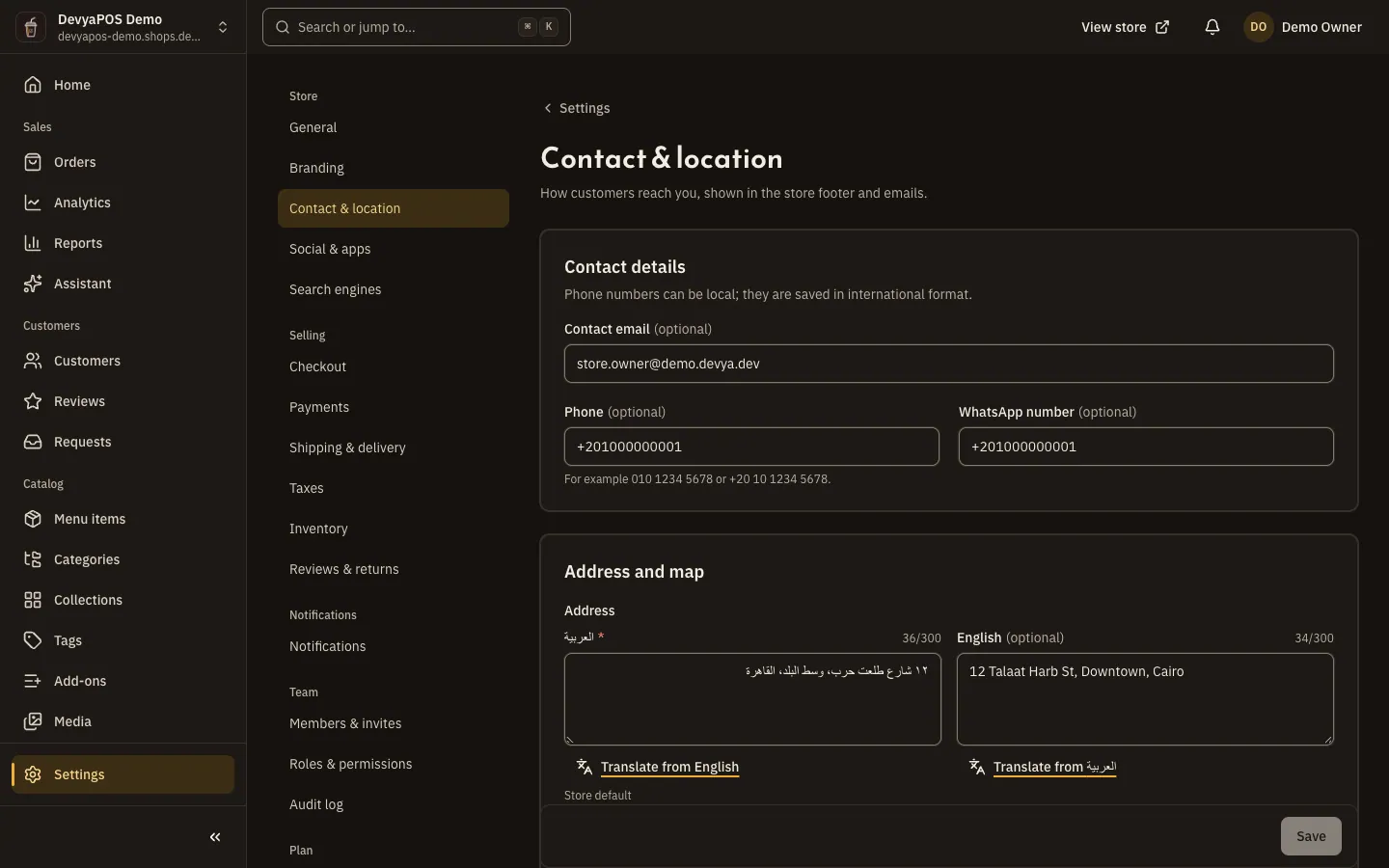
Fig. 1 —Numbers can be typed in local format; they are saved in international format. Step 2: Enter your contact details
Under Contact details, type the Contact email, Phone and WhatsApp number.
Step 3: Add the address and map
Under Address and map, type the Address, then the Latitude and Longitude together or leave both empty, and click Check the pin on a map to confirm.
Step 4: Add a working-hours note and save
Under Working hours, write a Working-hours note if you like, then click Save.
Social & apps
Open Settings › Store › Social & apps. The page has two cards, each saved on its own:
- Social links: turn on Show social links and enter your Facebook, Instagram, X (Twitter), LinkedIn, TikTok, YouTube and Snapchat links. Only links starting with
https://are accepted, and empty ones aren't shown. Turn on Newsletter sign-up to show the email sign-up form in the footer. - Mobile apps: turn on Show app download badges and add your app links on Google Play, App Store, Galaxy Store and AppGallery.
Search engines
Step 1: Open the section
Open Settings › Store › Search engines. What you write here applies to your store's home page.
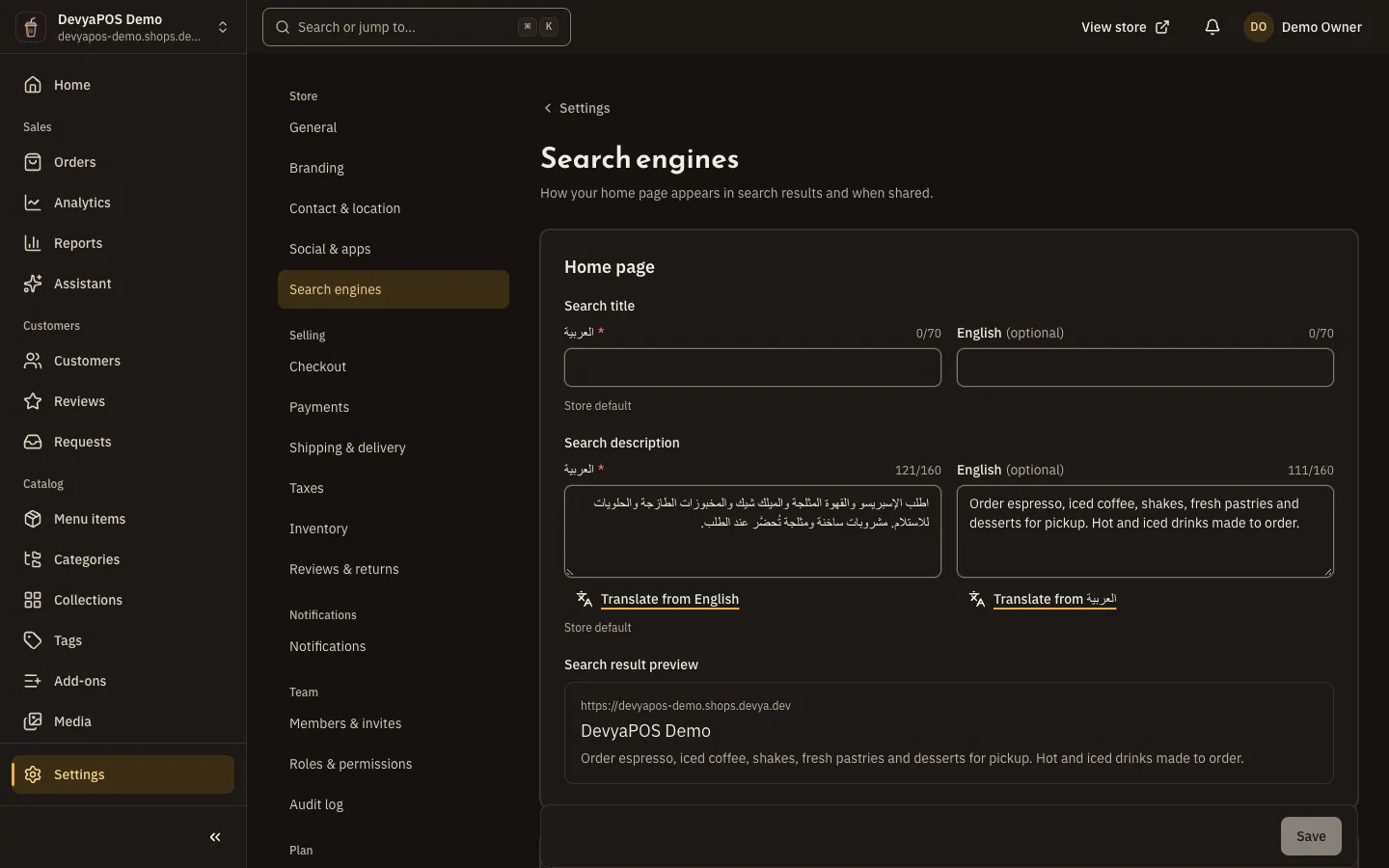
Fig. 2 —The search result preview updates as you type. Step 2: Write the search title and description
In the Home page card, write the Search title (up to 70 characters) and Search description (up to 160 characters) for each language, and check the Search result preview.
Step 3: Add a share image and save
Under Social sharing, upload a Share image — best at 1200 × 630 pixels — then click Save.
Are notifications sent to the WhatsApp number?
No. The WhatsApp number is shown to customers so they can reach you; notifications go by email only.
Can I add Google Analytics or a Meta Pixel?
The dashboard has no field for that today.
I added a link and it doesn't show on the store. Why?
Check that Show social links is on and the link starts with https://, then save the card.