Moving StoresChecked against the product on
Create a coupon or an automatic discount
On the Coupons page you create a discount code that customers type at checkout, or an automatic discount that applies by itself: a percentage, a fixed amount or free shipping, with requirements, limits and dates.
On this page
Before you start
- A role that can manage coupons: Owner, Admin and Manager by default.
Marketing › Coupons holds two kinds of discount: a Discount code that customers type at checkout, and an Automatic discount that applies at checkout by itself. Buy X get Y offers, bundles, tiers and flash sales live under Promotions.
Create a coupon
Step 1: Open Coupons
From the sidebar, open Marketing › Coupons and click Create coupon.
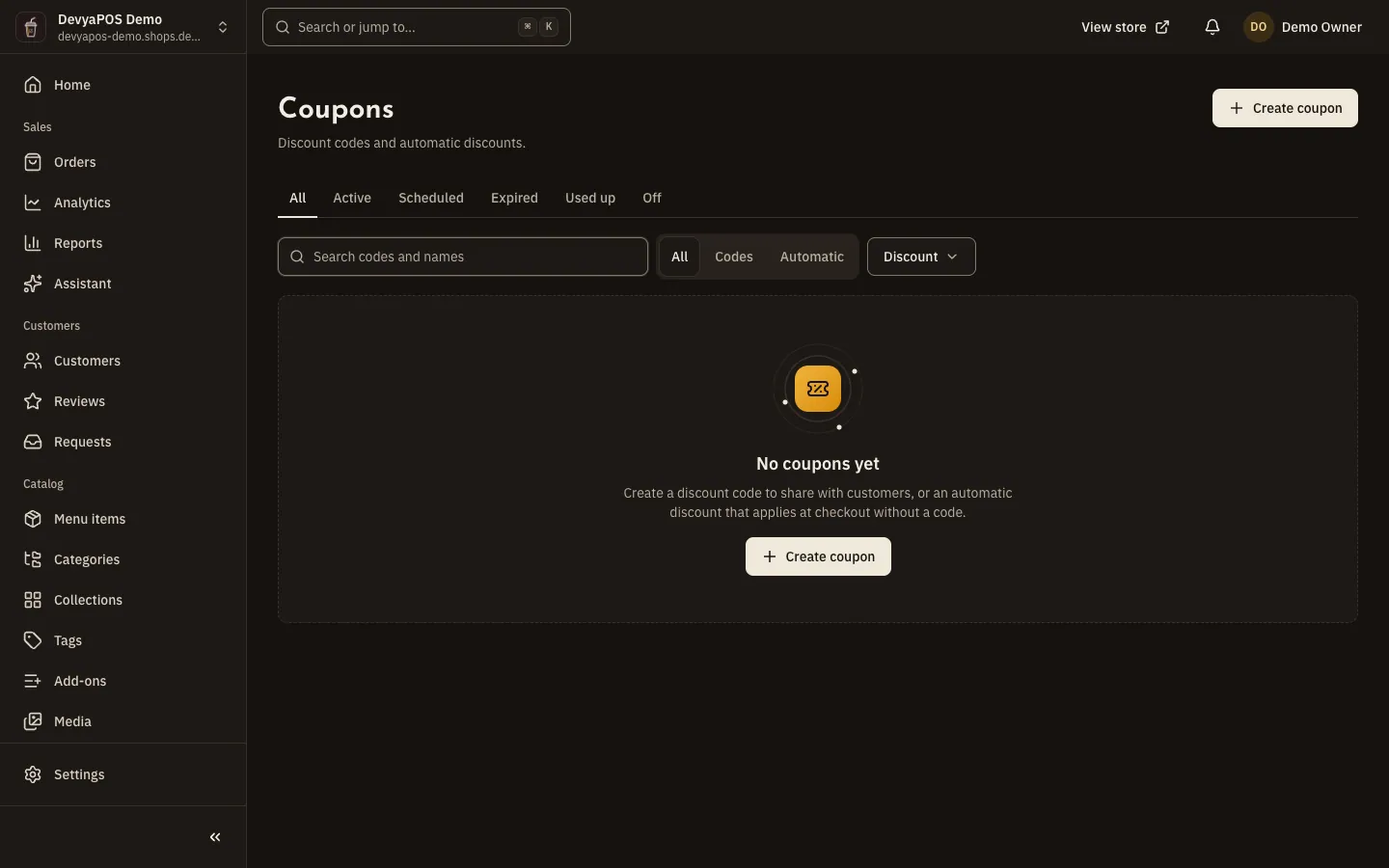
Fig. 1 —The On switch in each row pauses or resumes a coupon without opening it. Step 2: Choose how customers get it
Under How customers get it, choose Discount code or Automatic discount. For a code, type the Code or click Generate: 3 to 40 Latin letters, digits,
-or_, and customers can type it in any case.Step 3: Name it
Enter the Name in Arabic and English; customers see it in the cart and on the order. You can add Terms to show with the discount.
Step 4: Set the discount
Under Discount type, choose Percentage (from 0.01 % to 100 %, with an optional Maximum discount), Fixed amount, or Free shipping (with an optional Maximum shipping covered).
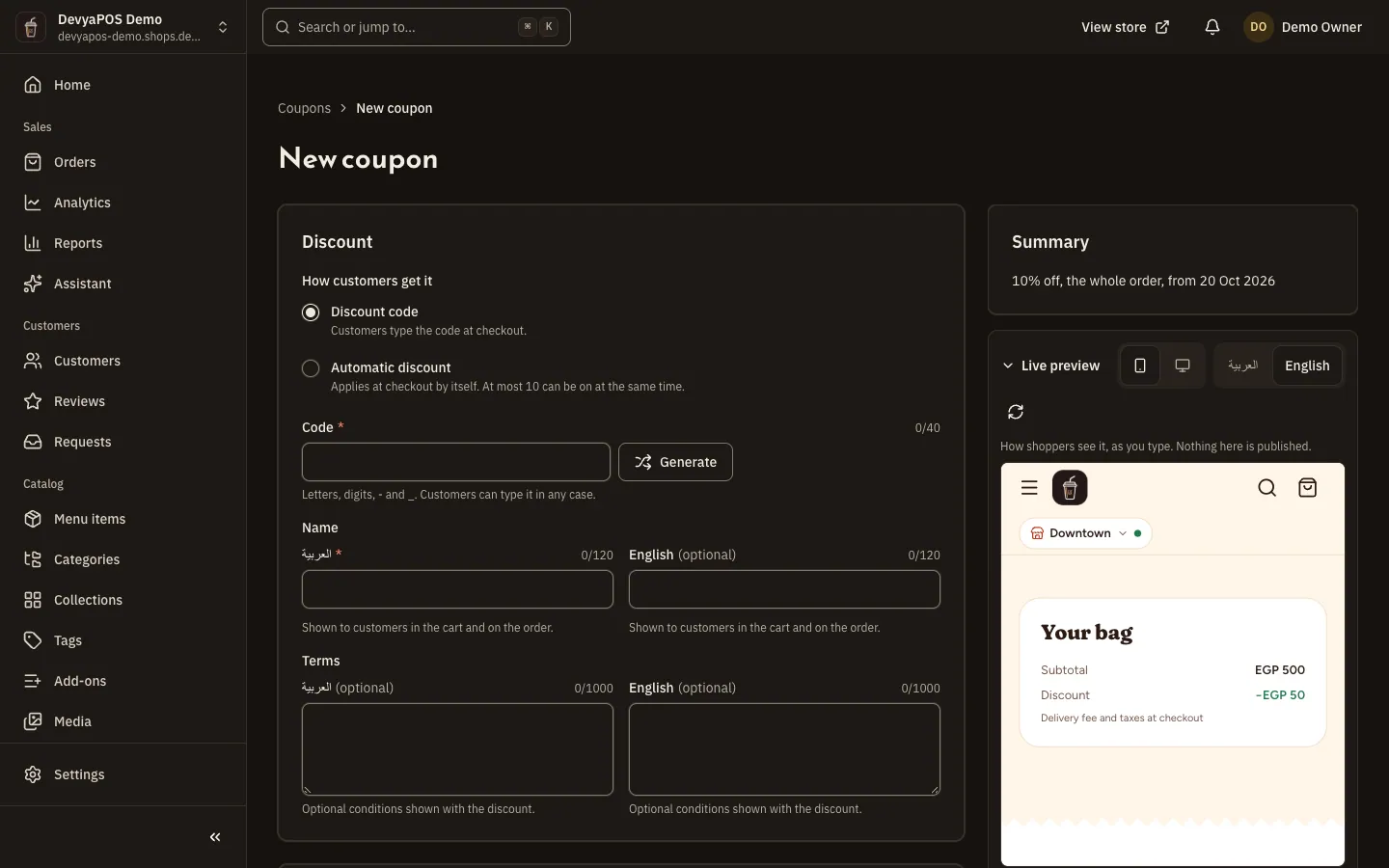
Fig. 2 —The summary at the side describes the coupon in one sentence as you fill it in. Step 5: Choose what it applies to
Under Applies to, choose Whole order or Specific items. For items, add up to 50 targets with Choose by: Category (with Include subcategories), Brand (retail stores only), Tag, Product or Collection. Then decide whether it Also applies to items already on sale.
Step 6: Add requirements and limits
Optionally set a Minimum eligible subtotal, First order only, Total uses and Uses per customer. An empty field means no limit.
Step 7: Set the active dates and save
Set Starts and Ends in store time, and leave the end empty to keep it running. Then click Create coupon.
Track and pause coupons
- Browse the list with the tabs All, Active, Scheduled, Expired, Used up and Off, and filter it by Kind (Codes or Automatic) or by discount type.
- Pause a coupon with the On switch in the list or on its page, without changing anything else.
- The Redemptions tab shows each order that used the coupon, the customer (or Guest), the discount, the status and the date, with the total discount and when it was last used.
- Once a coupon has been used, its value and what it applies to can no longer change, and it can't be deleted; turn it off instead.
How it applies at checkout
- In the cart, the shopper sees Have a promo code?. The cart takes one code, and A code replaces the automatic discount.
- To use a code, the shopper enters their email or phone at checkout, or signs in.
- At most 10 automatic discounts can be on at the same time. When the shopper types no code, the best automatic discount that fits their cart applies.
- Promotions apply first, then the coupon applies to what they leave. The Minimum eligible subtotal is compared with the subtotal after promotions, not the original one.
Can a customer use two codes on one order?
No. The cart takes one code, and a code replaces the automatic discount. Promotions may still combine with the code, depending on their settings.
Why can't I change a coupon's value?
Because it has been used; after the first use its value and what it applies to are frozen. Create a new coupon and turn the old one off.
Can I give a discount on a brand?
Yes, in retail stores only; restaurant stores have no brands.
Can I send the coupon to my newsletter subscribers?
Moving Stores has no tool for sending messages. The Newsletter sign-up form in your store's footer only collects consent, so filter the customer list by Agreed to marketing and export it as CSV to reach them with your own tool.