Moving StoresChecked against the product on
Set checkout, taxes and store rules
Decide what checkout asks customers for and how new orders are handled, set up VAT and your stock rules, and turn reviews and returns on or off.
On this page
Before you start
- The Manage checkout, tax & stock rules permission.
Four sections in the Selling group of the settings: Checkout, Taxes, Inventory and Reviews & returns. Payments and Shipping & delivery have their own articles.
Checkout
Step 1: Open Checkout
From the sidebar, open Settings › Selling › Checkout.
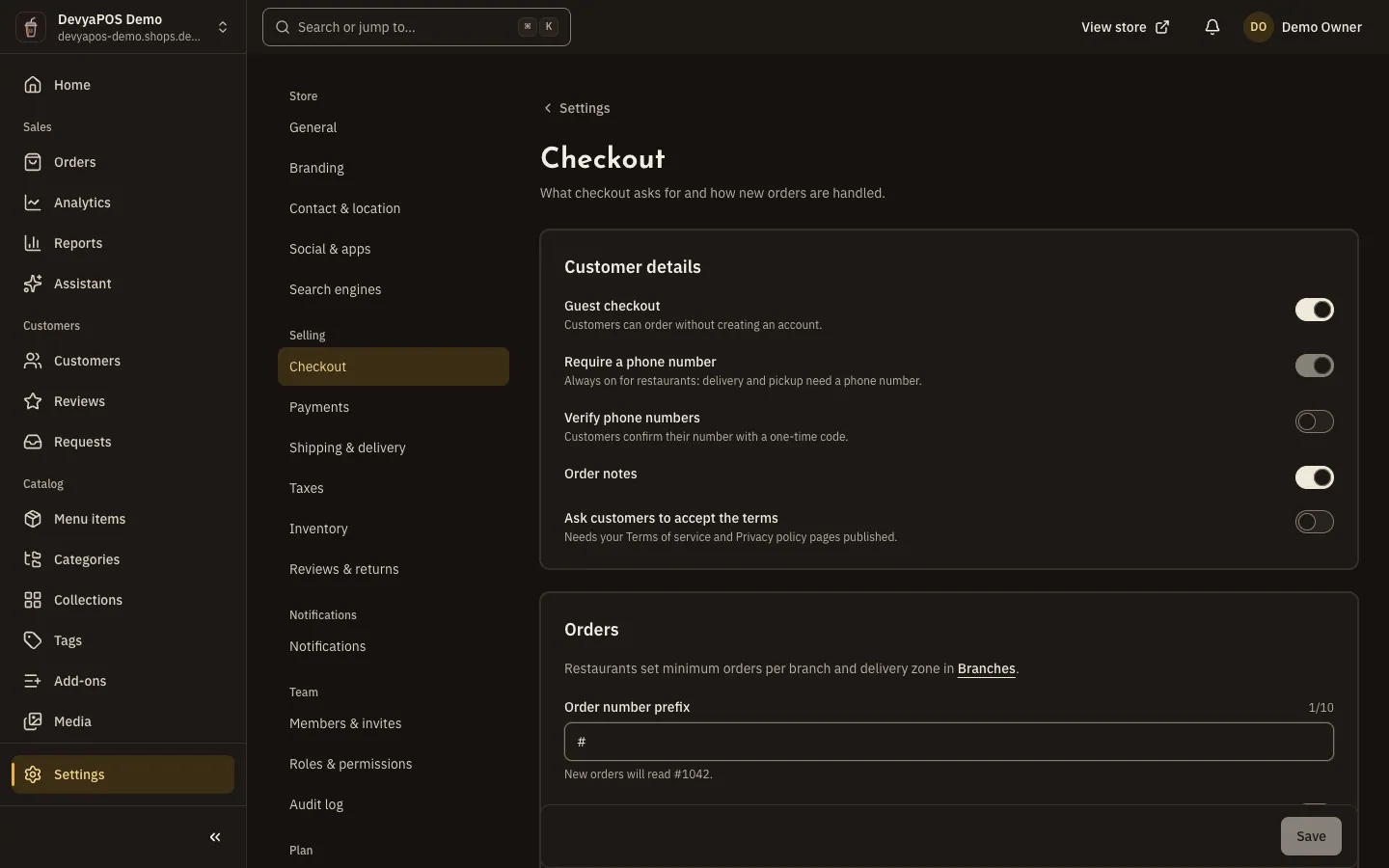
Fig. 1 —For restaurants, requiring a phone number always stays on. Step 2: Set the customer details
Under Customer details, turn Guest checkout, Require a phone number, Order notes and Ask customers to accept the terms on or off.
Step 3: Set the order rules and save
Under Orders, set the Minimum order, Order number prefix, Accept orders automatically and Unpaid online orders expire after, then click Save.
- Ask customers to accept the terms needs your Terms of service and Privacy policy pages published in Pages.
- The Minimum order is counted before discounts and delivery fees, and 0 means none. Restaurants set it per branch and delivery zone in Branches.
- The Order number prefix takes up to 10 Latin letters, digits and the symbols
#,/,_and-, and the page shows what new order numbers will look like. - Accept orders automatically makes new orders skip the “New” queue.
- The unpaid online order timeout is between 10 and 1,440 minutes, and the stock is released when it runs out.
Taxes
Step 1: Turn VAT on
Open Settings › Selling › Taxes and turn on Charge VAT.
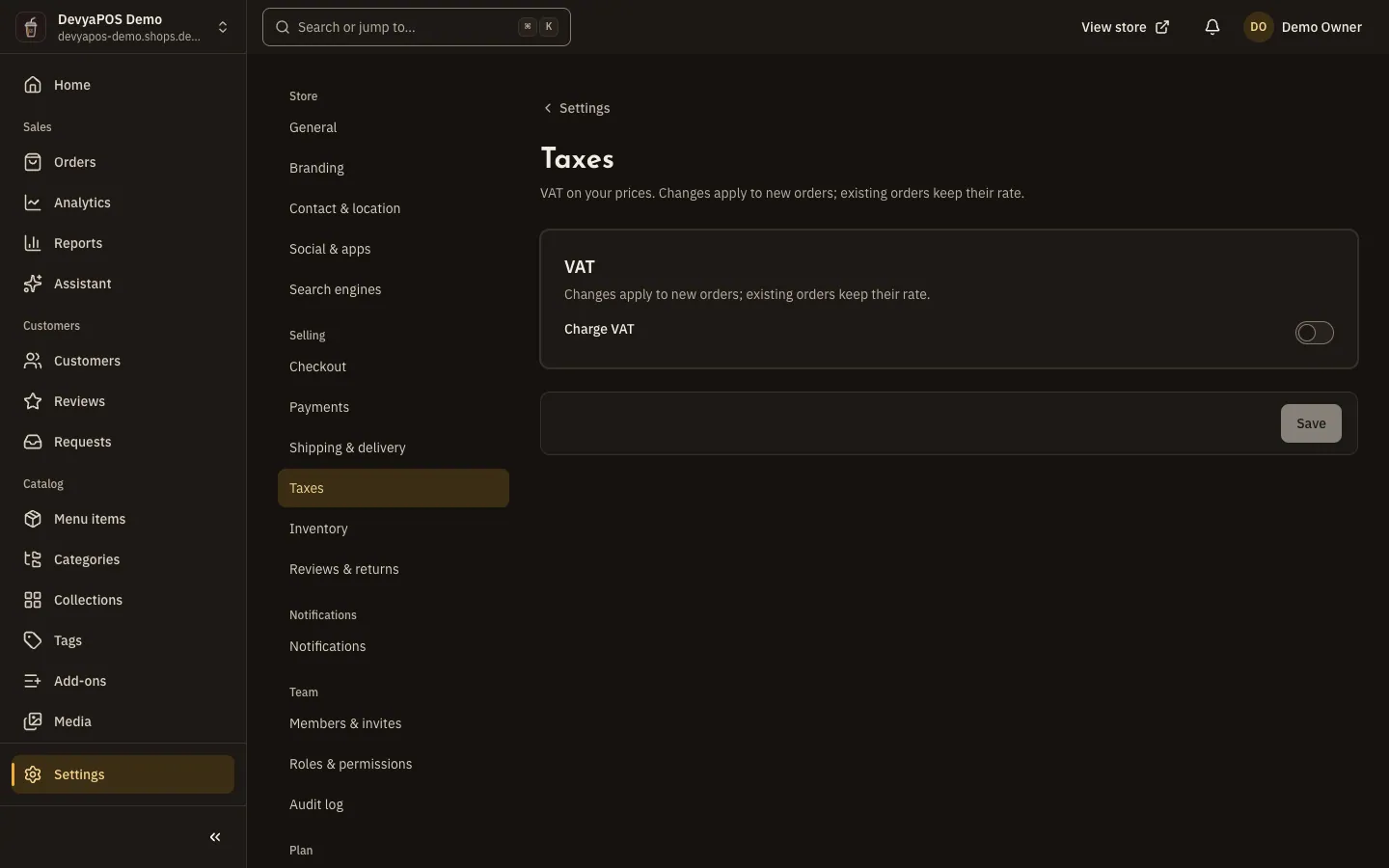
Fig. 2 —The example line shows the rate's effect on a real price before you save. Step 2: Choose how prices work
Under Your prices, choose Prices include VAT or VAT is added at checkout.
Step 3: Complete the details and save
Enter the VAT rate and VAT registration number, set Charge VAT on shipping fees and the Tax label, check the Example line, then save.
A store starts with VAT off and your country's suggested rate ready: 14% in Egypt, 15% in Saudi Arabia and 5% in the UAE. Saudi VAT numbers have 15 digits and start and end with 3. Changes apply to new orders only.
Stock rules
Settings › Selling › Inventory has two cards. New products sets what applies when a product is created — Track inventory and Allow orders when out of stock — and each product can change them. Store holds the Low-stock threshold (items at or below it are flagged and alerted) and Hide out-of-stock products (they stay reachable by their link).
Reviews and returns
In Settings › Selling › Reviews & returns, turn on Accept product reviews, and choose Approve reviews before they appear and Only verified buyers can review. Turn on Accept return requests if you take returns; turning it off blocks new requests while open returns continue. When reviews or returns are off, their page disappears from the sidebar.
Does changing VAT affect past orders?
No. Existing orders keep their rate, and changes apply to new orders only.
Why can't I turn on asking customers to accept the terms?
Publish your Terms of service and Privacy policy pages in Online store › Pages first.
I can't find the minimum order field in my restaurant store. Where is it?
Restaurants set it per branch and per delivery zone in Branches, not in checkout.