Moving StoresChecked against the product on
Turn on payment methods
Your customers can pay on delivery, by bank transfer, or online through Paymob in stores that sell in Egyptian pounds. Turn on the methods you want, put them in order, and give each its limits and instructions.
On this page
Before you start
- Changing payment methods needs the Manage payment providers permission; without it you can only view them.
In Settings › Payments you decide how customers pay at checkout. Customers see the methods in the order they have on this page, and your store needs at least one method turned on before it can launch.
The methods on offer
| Method | How the customer pays | Available to |
|---|---|---|
| Cash on delivery | Pays the courier or at pickup. | Every store. |
| Bank transfer | Transfers the amount to your bank account, and you confirm it arrived. | Every store. |
| Paymob | By card or mobile wallet through Paymob. | Stores in Egyptian pounds only. |
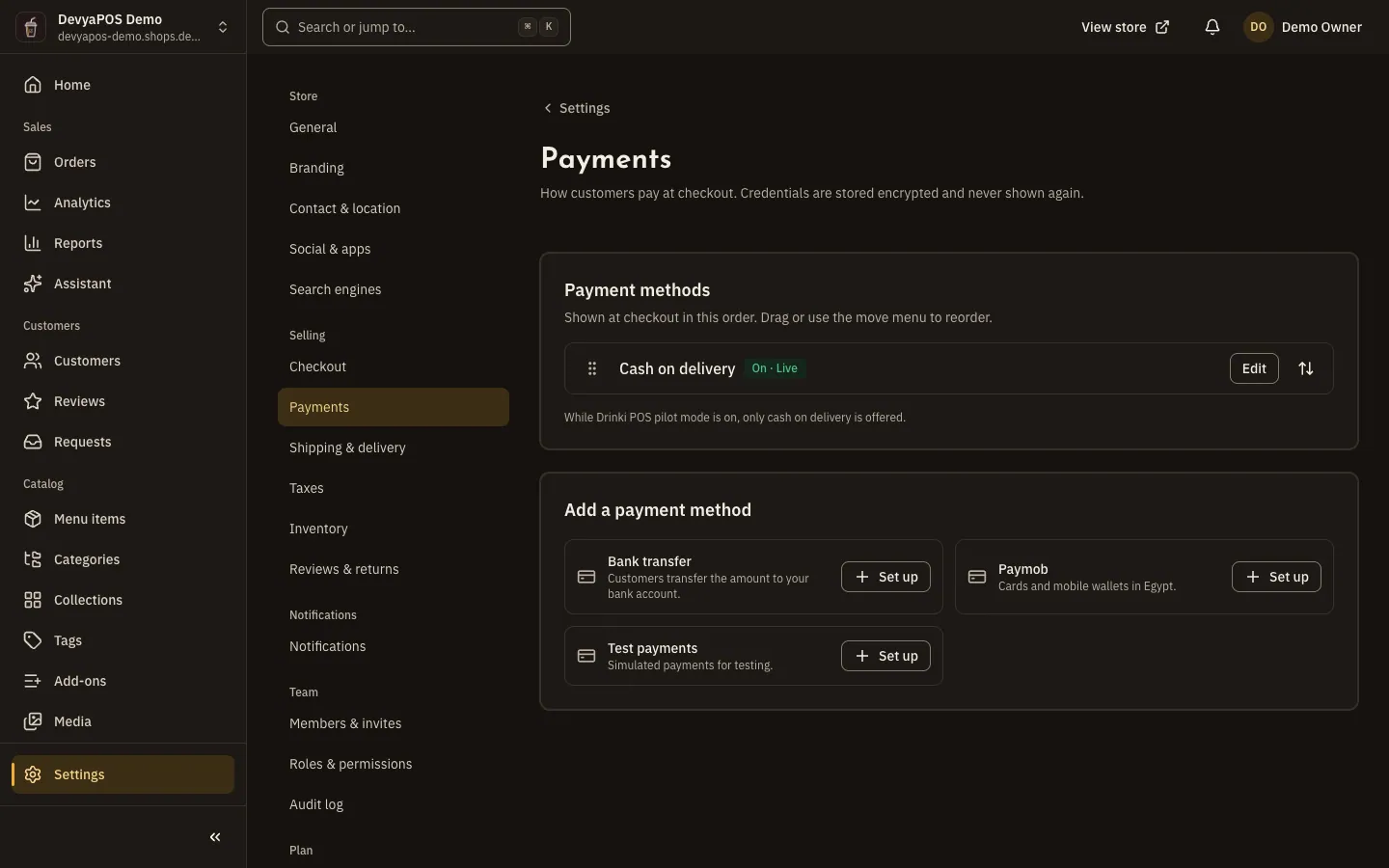
Add a payment method
Step 1: From the sidebar, open Settings › Payments.
Step 2: Under Add a payment method, click Set up next to the method.
Step 3: Fill in the shared fields if you want them.
Name at checkout (leave it empty to show the default name), Instructions for customers, shown at checkout and in the order confirmation, and Minimum order and Maximum order.
Step 4: For a bank transfer, enter the Bank name, Account name and IBAN, and the SWIFT / BIC if you have one.
Turn on Ask customers to upload a transfer receipt if you want a receipt. The order waits for your confirmation either way.
Step 5: Turn on Offer at checkout and save.
The method shows its status: Off, On · Test mode or On · Live.
Paymob needs keys and a test and live mode, so follow connect Paymob.
Cash on delivery limits and confirming transfers
- On cash on delivery, Maximum order is a cap: orders above it cannot pay on delivery.
- You can also turn off Allow cash on delivery on a particular shipping rate, which hides cash on delivery for that rate.
- When a transfer arrives, open the order and choose Mark as paid, then enter the Amount received, Bank reference and Received at. The customer’s receipt shows on the order as Transfer proof.
- Customers upload the receipt as JPG, PNG or WebP, up to 5 MB.
- When only one method can be used, it is picked for the customer at checkout.
Can I turn every payment method off?
No. The message Keep at least one payment method turned on. appears.
Can I take cards in Saudi Arabia or the UAE?
Not yet. Paymob works only for stores in Egyptian pounds, so stores in other currencies sell with cash on delivery and bank transfer.
What happens to past orders if I remove a payment method?
Only the method’s settings and credentials are deleted; orders already paid with it are not affected.