Moving StoresChecked against the product on
Set up team alerts and customer emails
Choose who gets alerts about new orders, low stock, reviews and customer requests, and edit the text of the emails your customers receive, in Arabic and English.
On this page
Before you start
- The Manage store profile & branding permission to edit.
Moving Stores notifications go by email. Open Settings › Notifications to find two cards: Staff alerts and Customer emails.
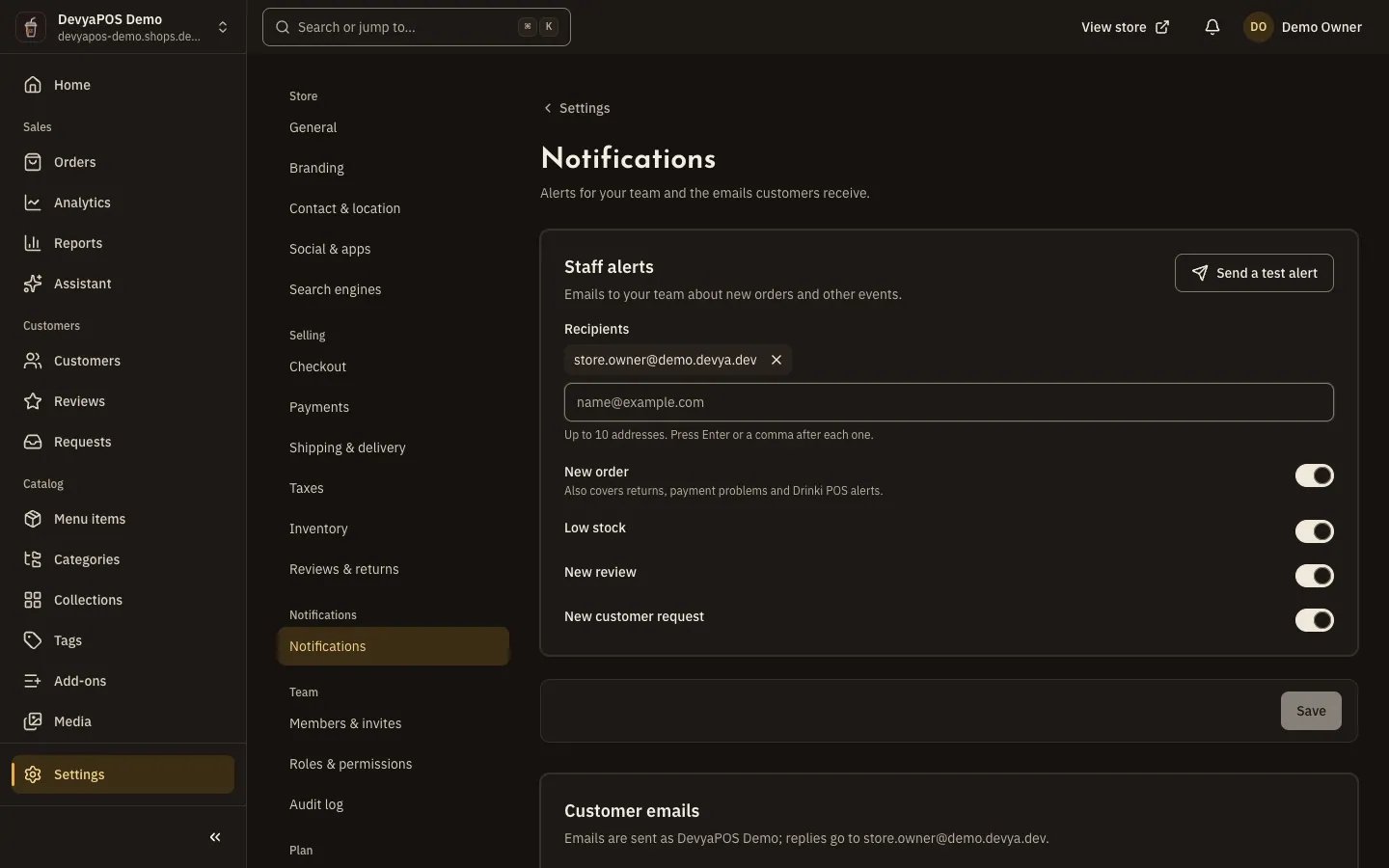
Staff alerts
Step 1: Add the recipients
In Recipients, type each address and press Enter or a comma. You can add up to 10 addresses.
Step 2: Choose the alerts and save
Turn on New order (it also covers returns, payment problems and Drinki POS alerts), Low stock, New review and New customer request, then click Save.
Step 3: Test it
Click Send a test alert to send a test alert to every recipient.
Customer emails
Emails are sent in your store's name, and customers' replies go to the contact email. These are the emails you can edit:
| When it's sent | Can be turned off | |
|---|---|---|
| Order confirmation | When the order is placed | No |
| Payment received | When a bank transfer is confirmed as received | Yes |
| Order accepted | When the store accepts the order | Yes |
| Ready for pickup | When a pickup order is ready | Yes |
| Order shipped | When it's handed to the courier | Yes |
| Order delivered | When the order is completed | Yes |
| Delivery failed | When a delivery attempt fails | Yes |
| Order cancelled | When the order is cancelled | No |
| Refund issued | When a refund succeeds | Yes |
| Note from the store | When your team sends a note | No |
| Return update | On every change to a return | No |
| Review request | 3 days after the order is completed, when reviews are on | Yes |
| Reply to a message | When your team replies to a request | No |
Edit an email
Step 1: Open the email
Click the email under Customer emails; each one carries a Customized or Default badge.
Step 2: Write the text
Choose the Language, then write the Subject, Heading and Message. Empty fields use the default shown in grey. Add order details, such as the customer's name and the order number, from Insert.
Step 3: Preview and save
Check the Preview at Desktop or Phone width, with sample data or Preview with a real order, then click Send a test to me and Save.
To stop an email that can be turned off, switch off Send this email. Reset to default removes your custom text in both languages. The order table, totals, buttons and footer are a fixed part of the layout. Five emails are always sent and can't be edited: Password reset, Email verification, Team invitation, Plan invoice and Staff alerts.
Can notifications go by SMS or WhatsApp?
No, notifications go by email only.
Where do customers' replies to store emails go?
To the Contact email in Settings › Store › Contact & location.
Can I change the whole design of an email?
You change the subject, heading and message for each language. The order table, totals, buttons and footer stay fixed.