Moving StoresChecked against the product on
Invite your team and set permissions
Invite team members by email, give each one of four fixed roles, then adjust what a role or a member can do and which branches they work at, and follow every change in the audit log.
On this page
Before you start
- The Manage team & permissions permission to invite and edit members, or View team to look only.
The Team group in the settings has three sections: Members & invites, Roles & permissions and Audit log. Above the member list you see how many of your plan's seats are used.
Invite a member
Step 1: Open the members
From the sidebar, open Settings › Team › Members & invites, then click Invite member.
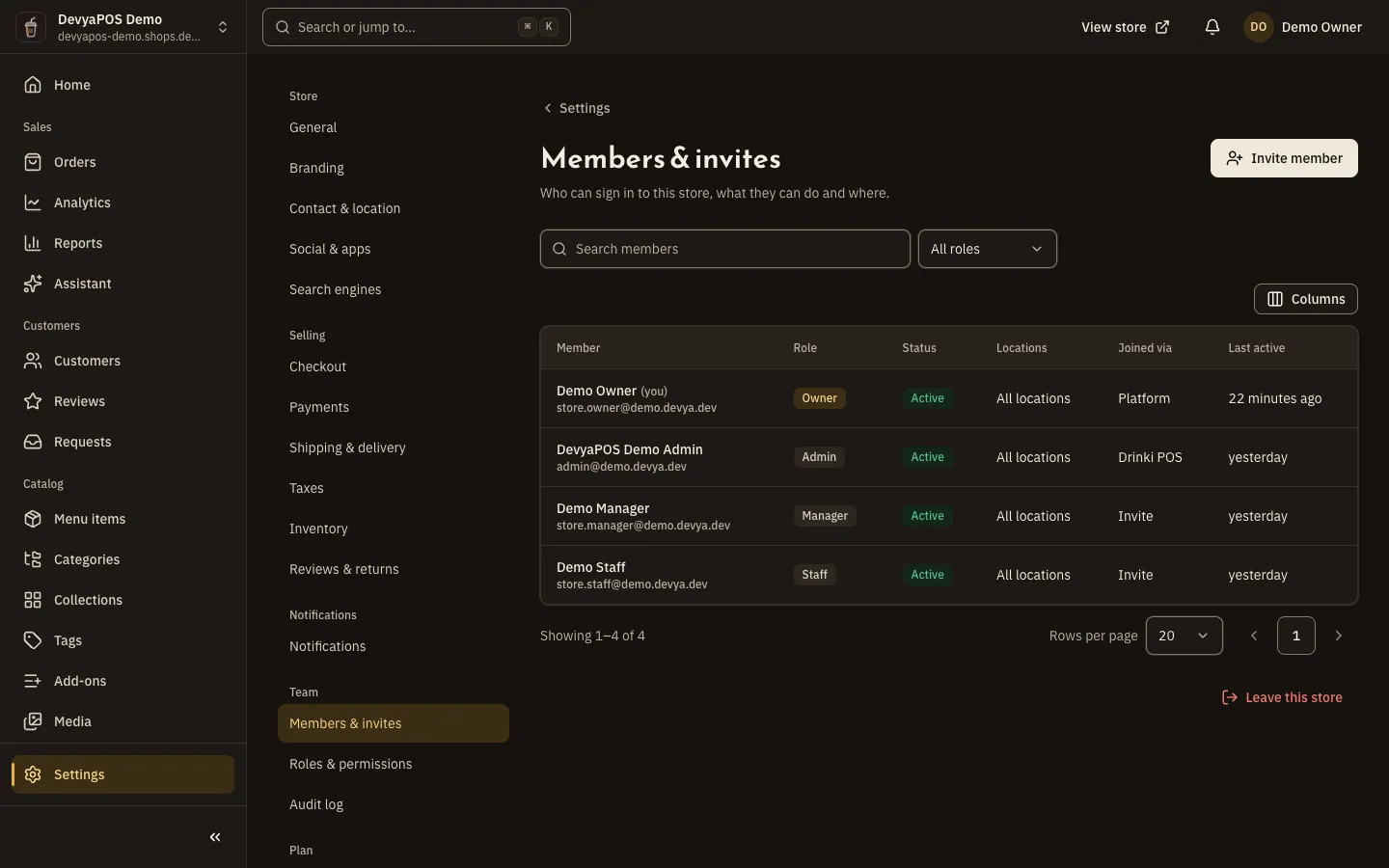
Fig. 1 —Click any member in the table to open their sheet. Step 2: Enter the email and role
In Invite a team member, type the email address and choose the Role: Admin, Manager or Staff, then click Send invite.
Step 3: Follow the invite
The invite appears under Pending invites and expires after 7 days. You can Resend or Revoke it.
Step 4: The member joins
The invitee opens the link in the invite email, creates an account or signs in, then clicks the button to join the store.
Edit a member
Click the member in the table to open their sheet. From there you can:
- Change role to a role below yours; only an owner can make someone an Owner.
- Locations: choose the branches they work at, then click Save locations. Leave every box clear to give access to all locations.
- Permissions: overrides for this member only, then Save permissions, or Reset to role defaults.
- Disable: they are signed out everywhere and the API keys they created stop working; you can enable them again later.
- Remove from store: they lose access at once, and their past actions stay in the audit log.
You can't edit a member whose role is the same as or above yours. Any member can leave the store themselves with Leave this store.
Roles and permissions
There are four fixed roles: Owner, Admin, Manager and Staff; you can't create a new one. Owners always have every permission. To change what a role can do:
Step 1: Open the roles
Open Settings › Team › Roles & permissions.
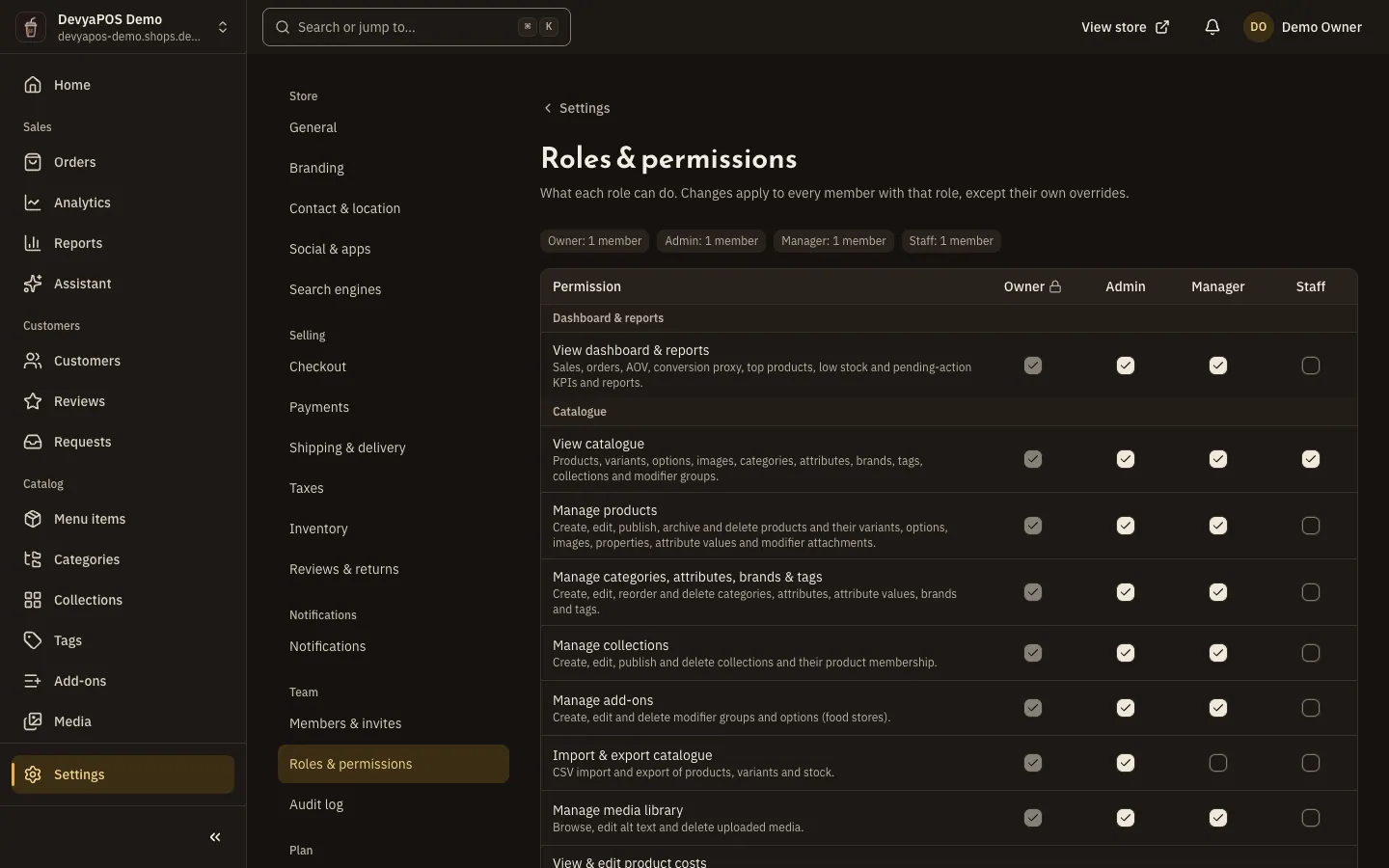
Fig. 2 —Pick the role first, then turn its permissions on or off. Step 2: Pick the role and edit its permissions
Choose the role under Role to show, then turn permissions on or off in Permissions by role.
Step 3: Save
Click Save with the role's name, or Restore defaults to undo your changes to that role.
Changes apply to every member with that role, except their own overrides, and you can only grant permissions you have. Some permissions belong to the owner alone by default:
| Permission | Who has it by default |
|---|---|
| Manage payment providers | Owner only |
| View plan & invoices and Change plan | Owner only |
| Close the store | Owner only |
| Issue refunds | Owner and Admin |
| Process orders | Every role |
The audit log
Settings › Team › Audit log lists every change to the store's settings, team, integrations and orders, and who made it. Filter by Member, Done by, Area or date, click an entry to see the Before and After values, or click Export CSV. Entries are kept for 2 years, and opening the log needs the View audit log permission.
Can I invite another owner?
Invites offer Admin, Manager and Staff only. Once the member has joined, an owner can change their role to Owner.
The seats are full. What now?
You can't invite anyone new once your plan's seats are full. Remove a member you no longer need, or choose a plan with more seats in plan and billing.
The invite expired. What now?
An invite is valid for 7 days. Send a new one with Invite member.