Moving StoresChecked against the product on
Choose a design or start from a template
A design changes your storefront’s colours, fonts and corners the moment you apply it. A template builds a draft of your home page from your own categories and products, and your live store doesn’t change until you publish.
On this page
Before you start
- Applying a design needs the Manage store profile & branding permission, and starting a template needs Manage home page, banners & menus. Without them you can still preview.
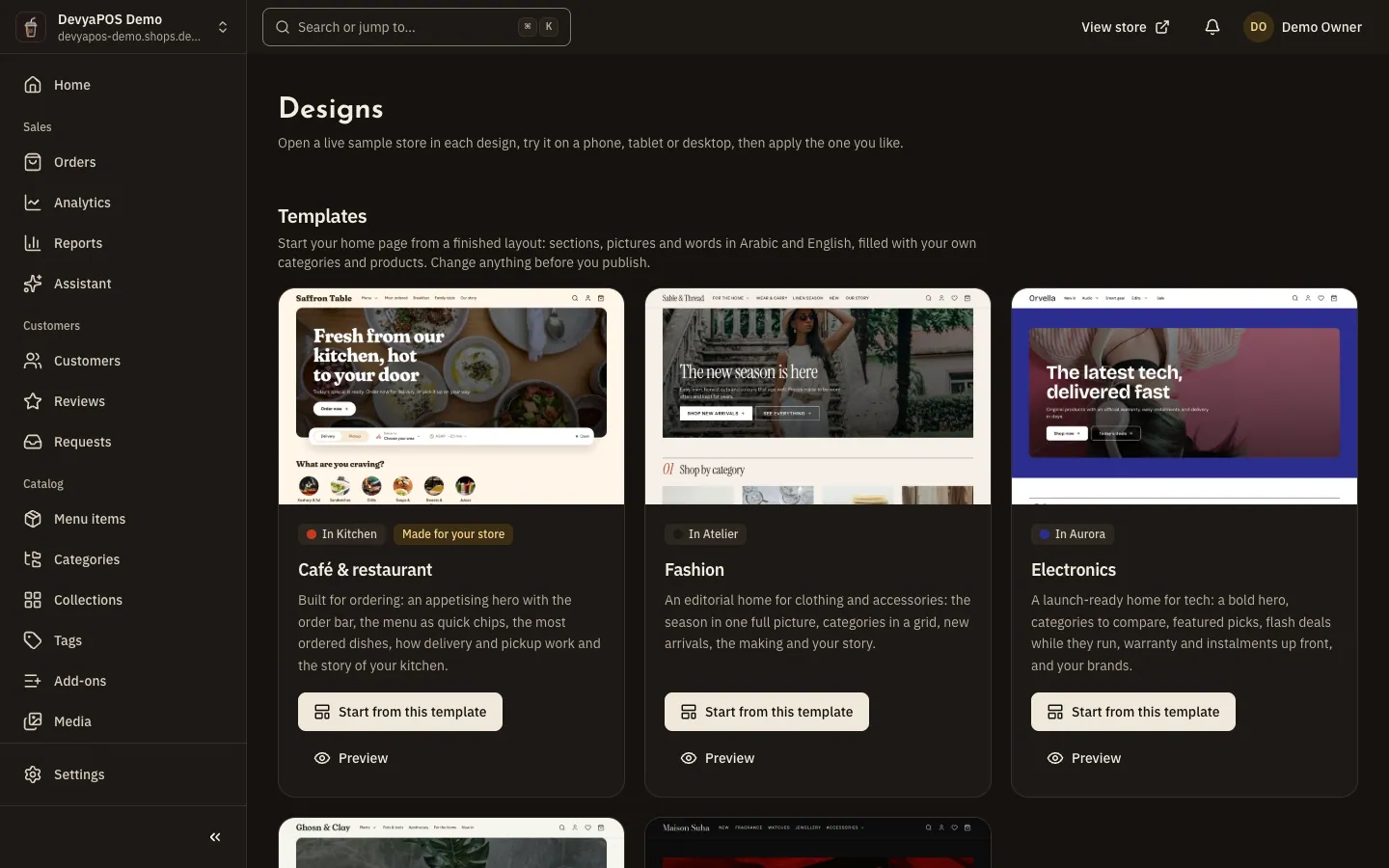
The Online store › Designs page holds two things: the Templates row at the top, and All designs below it. A design is how your storefront looks: its colours, fonts, corners and product image style. A template is a finished home page, with its sections, pictures and words in Arabic and English.
The five designs
| Design | Character |
|---|---|
| Atelier | Warm paper and ink with a vermilion accent; editorial serif headlines. |
| Kitchen | Cream, paprika and saffron; soft, generous headlines for menus. |
| Noir | Graphite and porcelain with antique gold; high-contrast Bodoni, dark first. |
| Aurora | Clean white, deep indigo and an electric violet; modern grotesque. |
| Botanica | Oat paper, moss green and terracotta; rounded and calm. |
Preview a design and apply it
Step 1: From the sidebar, open Online store › Designs.
Step 2: Click Preview on a design’s card.
A live sample store opens in that design. Switch between Phone, Tablet and Desktop, and change the language and the page: home, category, product, cart and checkout. Everything in it is sample content, and nothing is sent.
Step 3: Click Apply design on the card, or the apply button in the preview.
Step 4: Confirm in the dialog, or choose Keep my design to back out.
A message confirms that the design is now your store’s design.
Start your home page from a template
A template isn’t a new design: it is a complete home page drawn for one of the designs. All five templates are shown to every store, and the ones made for your kind of store come first with the badge Made for your store.
| Template | Design | Made for |
|---|---|---|
| Fashion | Atelier | Shops |
| Café & restaurant | Kitchen | Restaurants and cafés |
| Electronics | Aurora | Shops |
| Beauty & care | Botanica | Shops |
| Luxury | Noir | Shops |
Step 1: On the Designs page, find the Templates row at the top.
Step 2: Click Preview to see the template on its design’s sample store.
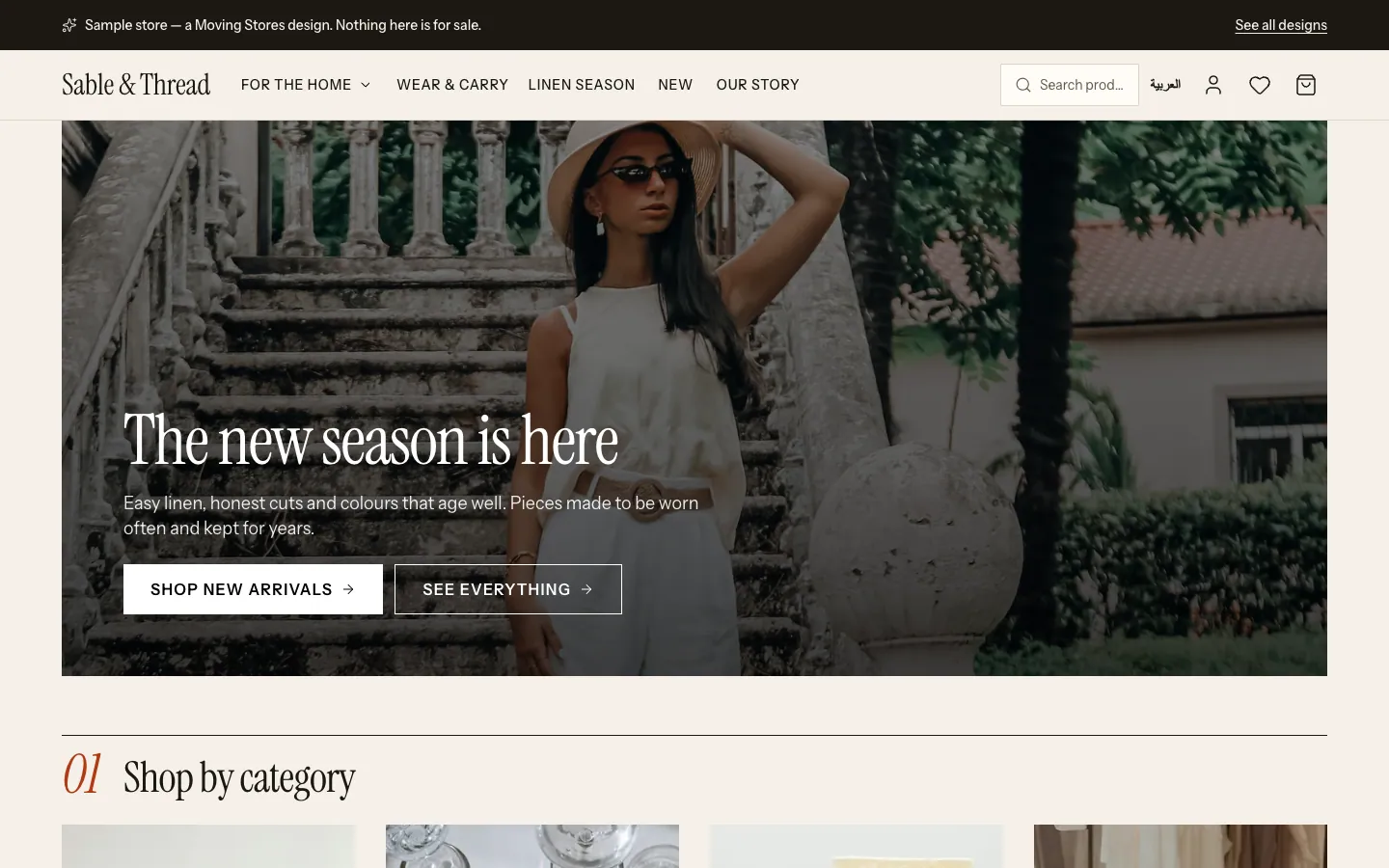
Fig. 2 —The preview shows the template with sample content; when you start from it, it fills with your own categories and products. Step 3: Click Start from this template, then confirm.
The dialog says your home page draft will be replaced by the template. If your draft has changes you haven’t published, it warns you that they will be replaced too.
Step 4: Edit the draft in the visual editor, then publish it.
The editor opens in the template’s design with a notice that the draft starts from it. Nothing goes live until you click Publish, and in the publish dialog you can switch your store to the template’s design too.
What a template does and doesn’t do
- It fills its sections from your store’s data: your categories that have live products, your tags, your brands, your first live collection and the running flash sale.
- A section that finds nothing to show is added hidden, so you can show it once its content is ready.
- Its pictures are copied into Media once, and they stay there even if you discard the draft.
- It creates no products, categories, collections or banners, and it doesn’t change your branding before you publish.
Does applying a design change my products or pages?
No. It changes only the colours, fonts, corners, product image style and the default light or dark scheme. It does replace the colours, fonts and corners you customised in Branding.
Can a restaurant use a design drawn for shops?
Yes, every design is offered to every store. Only Kitchen is drawn for the menu layout, and the Layout itself (“Shop” or “Menu”) is a separate setting in Settings › Branding.
I started a template by mistake. What now?
In the editor, open More actions and choose Discard draft. The editor goes back to your live home page, and the template’s pictures stay in Media.
Is there a limit on starting templates?
Yes: 30 starts a minute per user, and 200 a day per store. Starting the same template again reuses the pictures already copied into Media instead of copying them twice.