MovingChecked against the product on
Connect your systems with API keys and webhooks
Create an API key that reads and changes your store with the permissions you choose, and add a webhook endpoint that receives your store's events, signed, as they happen.
On this page
Before you start
- Your plan includes API and webhooks. If it doesn't, both sections show a lock and Upgrade required.
- You hold the Manage API keys & webhooks permission, which the store's Owner and Admin have by default.
- Your email address is verified; creating a key needs it.
Both screens sit in the Integrations group of the settings. A key lets your own systems read and change the store through the integration API; a webhook sends the store's events to your systems as they happen.
Create an API key
Step 1: From the sidebar, open Settings › Integrations › API keys.
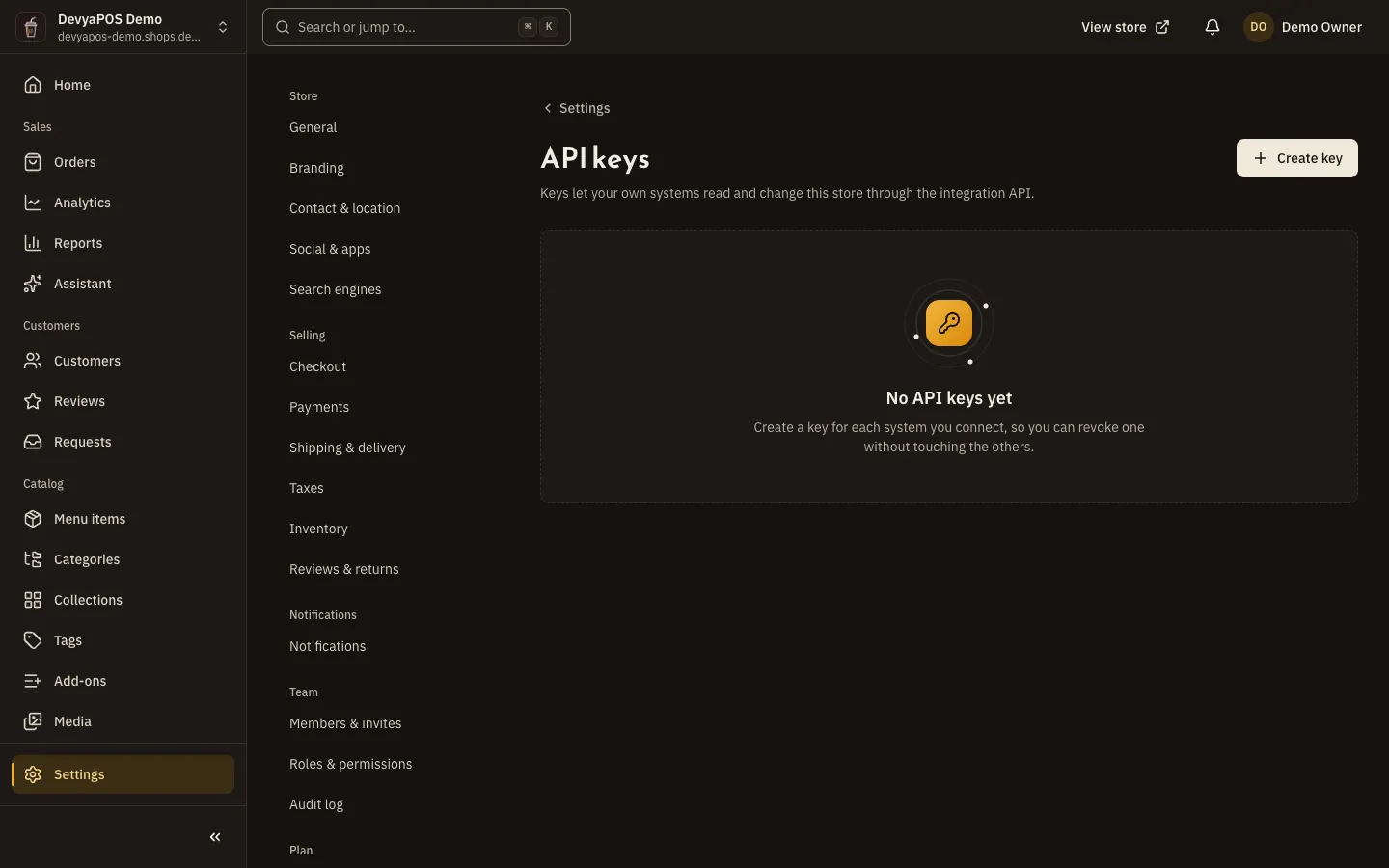
Fig. 1 —The table shows only the start of each key, and when it was last used. Step 2: Click Create key and type a Name.
Create a key for each system you connect, so you can revoke one without touching the others.
Step 3: Choose What the key can do.
Pick at least one scope from the list below. You can't grant a permission you don't hold yourself.
Step 4: Set Expires.
In 30 days, In 90 days, In a year or Never, or On a date up to two years from today.
Step 5: Copy the key from Your new API key.
The key is shown only once. Store it somewhere safe, tick I have saved it somewhere safe, then click Done.
- Read products, categories and prices and Create and change products
- Read stock levels and Adjust stock
- Read orders and Update orders and fulfilments
- Read customers
- Manage webhook endpoints
A key's status is Active, Expired or Revoked. Revoke stops anything using the key at once and can't be undone. Each store can hold up to 20 active keys, and if the member who created a key loses a permission, the key can't use it either.
Add a webhook endpoint
Step 1: From the sidebar, open Settings › Integrations › Webhooks.
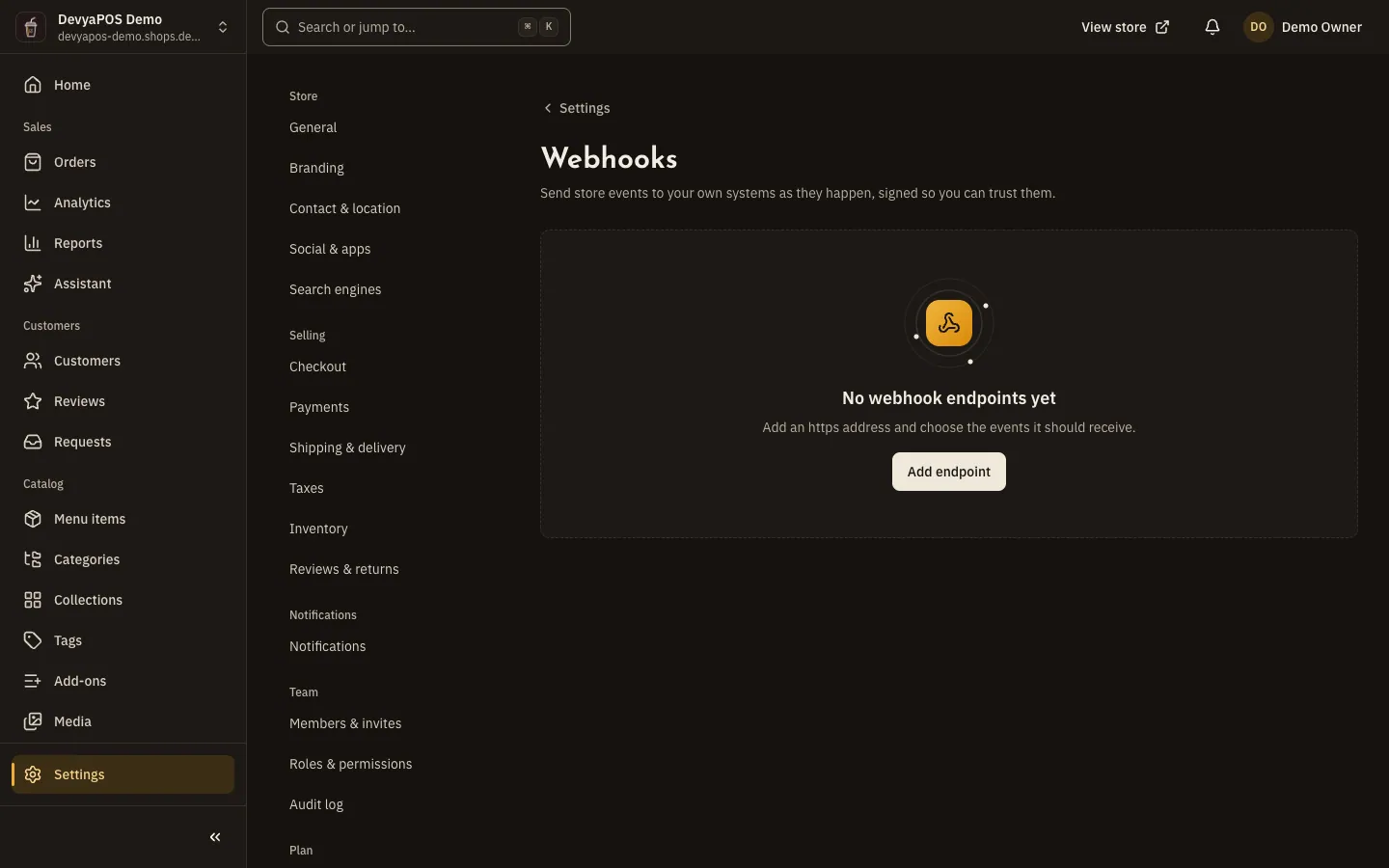
Fig. 2 —Each endpoint shows its status and its last delivery. Step 2: Click Add endpoint and type the Endpoint URL.
The address must start with
https://and be reachable from the internet; private and local addresses are refused. Add a Description if you like.Step 3: Choose the Events, or All events, then save.
Step 4: Copy the Signing secret.
The secret is shown once. Your system uses it to check that each delivery really came from your store.
Step 5: Open the endpoint and click Send test event.
The result shows the response code and how long it took, and the delivery appears in the Deliveries table.
| Group | Events |
|---|---|
| Orders | Order placed order.created, Order paid order.paid, Order status changed order.status_changed, Fulfilment status changed order.fulfillment_status_changed, Order cancelled order.cancelled, Refund succeeded order.refunded |
| Products | Product created product.created, Product updated product.updated, Product deleted product.deleted |
| Inventory | Stock changed inventory.updated |
| Customers | Customer created customer.created, Customer updated customer.updated |
| Returns | Return requested return.created, Return updated return.updated |
Events carry no personal data: only ids, statuses, quantities and amounts. Each store can have up to 10 endpoints.
Follow deliveries and retry
- Each delivery is Pending, Delivered, Retrying or Gave up. A failed delivery is retried automatically, up to 8 attempts.
- Replay failed deliveries queues again every delivery that failed since a time you choose, up to 30 days back, and each delivery has its own Replay too.
- An endpoint turns itself off after 50 failed deliveries in a row, or at once if your system answers
410. Fix the problem, then click Re-enable. - Rotate secret signs deliveries with a new secret from now on, so update your receiver before the next event.
Why can't I create a key?
If you see “Verify your email address before you create a key.”, verify your email first. You may also have reached 20 active keys: revoke one you no longer need.
I lost a key. Can I see it again?
No, a key is shown only once. Create a new key and revoke the old one.
Why does my endpoint say Disabled after failures?
Because 50 deliveries in a row failed, or your system answered 410. Fix your system, then click Re-enable and Replay failed deliveries.
Does the Moving POS link need a key from here?
No. Pairing sets up what it needs by itself. Details in Link your restaurant's store to Moving POS.