Moving StoresChecked against the product on
Moderate reviews and answer customer requests
Approve, reject and reply to product reviews on the Reviews page, and follow up contact-form messages, calls and WhatsApp messages on the Requests page, replying by email.
On this page
Before you start
- For the Reviews page to show, Accept product reviews must be on in Settings › Reviews & returns; otherwise the item disappears from the sidebar.
The Customers group in the sidebar holds two inboxes: Reviews, for what customers write about your products, and Requests, for contact-form messages and the calls and WhatsApp messages you log. Both are open to Owner, Admin, Manager and Staff by default.
Set up reviews
- Accept product reviews: turns reviews on for your store.
- Approve reviews before they appear: new reviews wait on the Reviews page until you approve them.
- Only verified buyers can review: the customer must have a completed order with the product.
All three are in Settings › Reviews & returns. Customers write their review from their account once their order arrives: stars, a headline, text and up to 4 photos.
Moderate a review
Step 1: Open Reviews
From the sidebar, open Customers › Reviews. The page opens on Pending, alongside Approved, Rejected and All.
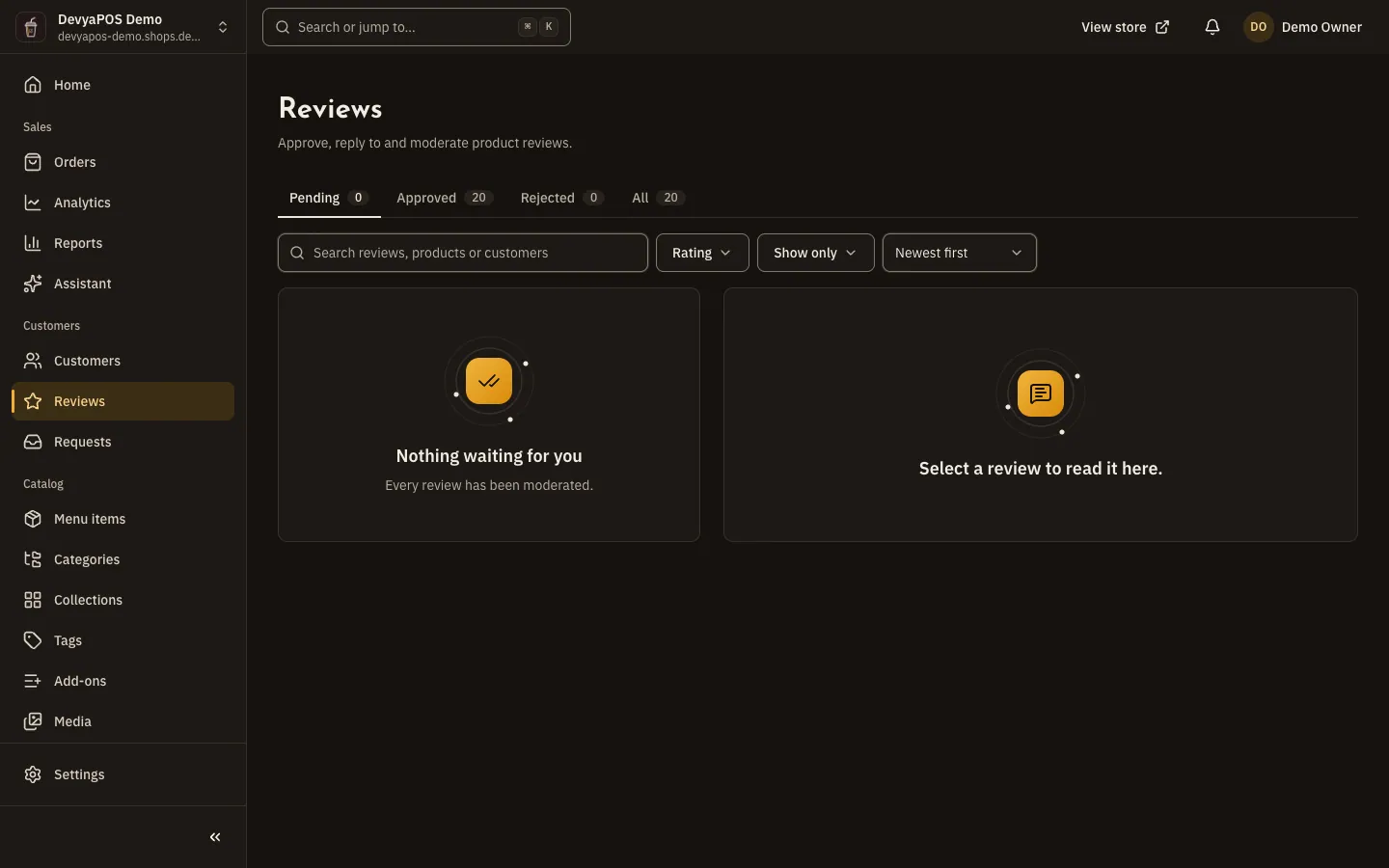
Fig. 1 —On wide screens, the selected review opens beside the list. Step 2: Read the review
Select a review to see its stars, text and photos, whether it is a Verified purchase, and the order it is linked to.
Step 3: Approve or reject it
Click Approve to publish it, or Reject and pick a reason: Inappropriate language, Not about the product, Contains personal information, Spam or Another reason. The customer can edit a rejected review and send it again.
Step 4: Reply to the customer
Write in Your reply, then click Save reply. The reply shows on the store under the review while the review is published.
- Unpublish takes a published review off the store until you approve it again, and asks for a reason. Delete removes it for good, with its photos and your reply.
- Select several reviews to approve, reject or delete them together; reviews the customer has only just edited are skipped.
- When a customer edits a published review, you see the Published version and the New submission side by side, and the published one stays on the store until you approve the new one.
- Filter by Rating, Unread, Verified purchases, With photos and more, and click Mark all as seen to clear the sidebar count. Shortcuts:
jandkmove,aapproves,rrejects.
Answer a request
Step 1: Open Requests
From the sidebar, open Customers › Requests. The page opens on To do, which is open and in-progress requests together.
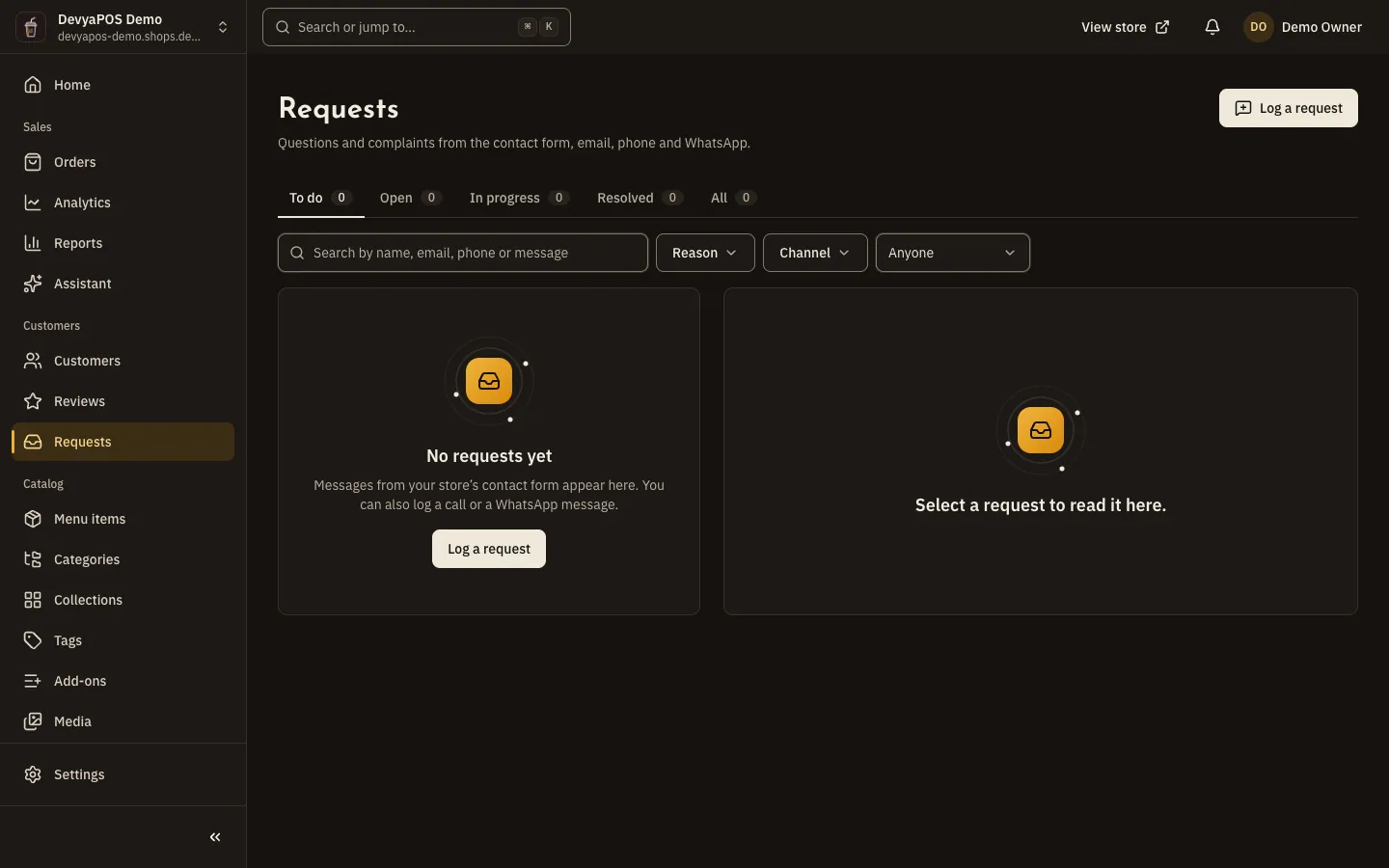
Fig. 2 —The To do tab gathers everything not yet resolved. Step 2: Pick a request
You see who sent it, its reason, channel and language, the message, and the activity thread.
Step 3: Write your reply
Choose Reply by email, write your reply, then click Send reply or Reply and resolve. The reply goes out in the request's language. For a note only your team sees, choose Internal note, then Add note.
Step 4: Assign it and close it
Set the Assignee from your team, and click Resolve when you are done. Reopen puts it back in the queue.
From the request itself you can also Reclassify it to change its subject and reply language and link it to a customer or an order, or Delete as spam to remove it for good with its notes and replies.
Log a request that came by phone or WhatsApp
Step 1: Open the form
On the Requests page, click Log a request.
Step 2: Set the channel and the sender
Under Came in by, choose Email, Phone or WhatsApp, and enter the name, email and phone. The email is required because replies are emailed to it.
Step 3: Write down the request
Set the reason and subject, fill in What they asked, choose the Reply language and Assign to, then click Log request.
Do reviews need my approval before they appear?
Only when Approve reviews before they appear is on. You can also limit reviews to customers with a completed order for the product.
Why did Reviews disappear from the sidebar?
Because Accept product reviews is off in Settings › Reviews & returns.
What does a customer fill in on the contact form?
Their name, email and phone, a reason (Inquiry, Complaint, Feedback or Other), a subject, a message of 10 to 5000 characters, and optionally an order number.