Moving StoresChecked against the product on
Run an automatic promotion
Promotions apply at checkout without a code: automatic discounts, buy X get Y, bundles, tiered discounts, free shipping and flash sales. Learn how to create and schedule them, and how they combine with each other and with coupons.
On this page
Before you start
- A role that can manage coupons, as promotions use the same permission: Owner, Admin and Manager by default.
Promotions are discounts that apply at checkout by themselves, and customers see them on the store before they check out: a badge on the product card, a struck-through price, a countdown for a flash sale, and a bar showing how far they are from free shipping.
Types of promotion
| Type | What it offers |
|---|---|
| Automatic discount | A percentage or amount off everything, or off categories, collections or products you choose. |
| Buy X get Y | The customer buys a number of items and gets others free or discounted. Leave Items they get empty to reward the same items, with the cheapest ones discounted. |
| Bundle | Two or more products, each with a quantity of 1 to 100 per bundle. Priced with a Bundle price, a percentage off, or an amount off each complete bundle. |
| Tiered discount | Up to 10 tiers by Amount spent or Number of items; the more they buy, the bigger the discount, with an optional cap. |
| Free shipping | Starts from the amount you set in Free shipping from, with an optional cap on the shipping covered. The cart shows how far the customer is. |
| Flash sale | A sale with a required end date, which the store counts down to. |
Create a promotion
Step 1: Open Promotions
From the sidebar, open Marketing › Promotions and click Create promotion.
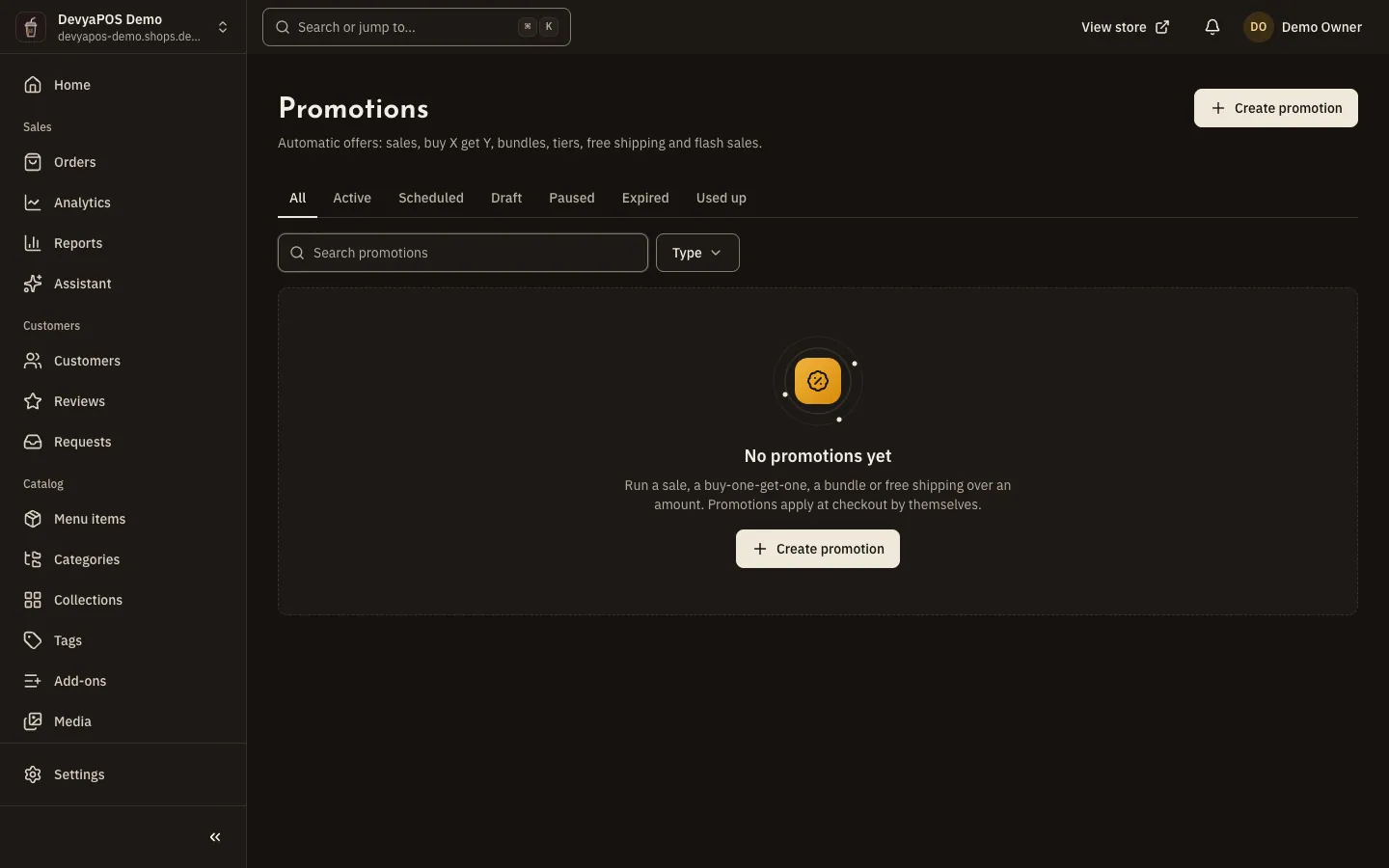
Fig. 1 —The priority column shows which promotion applies first. Step 2: Choose the type
Pick a Promotion type from the six types.
Step 3: Write the details
Under Details, enter the Name, a Badge, which is a short label on product cards, and the Banner text for promotion banners on the home page.
Step 4: Set the offer
Under Offer, fill in the fields for the type you chose, such as Customer buys and Customer gets for Buy X get Y, or Add tier for a tiered discount.
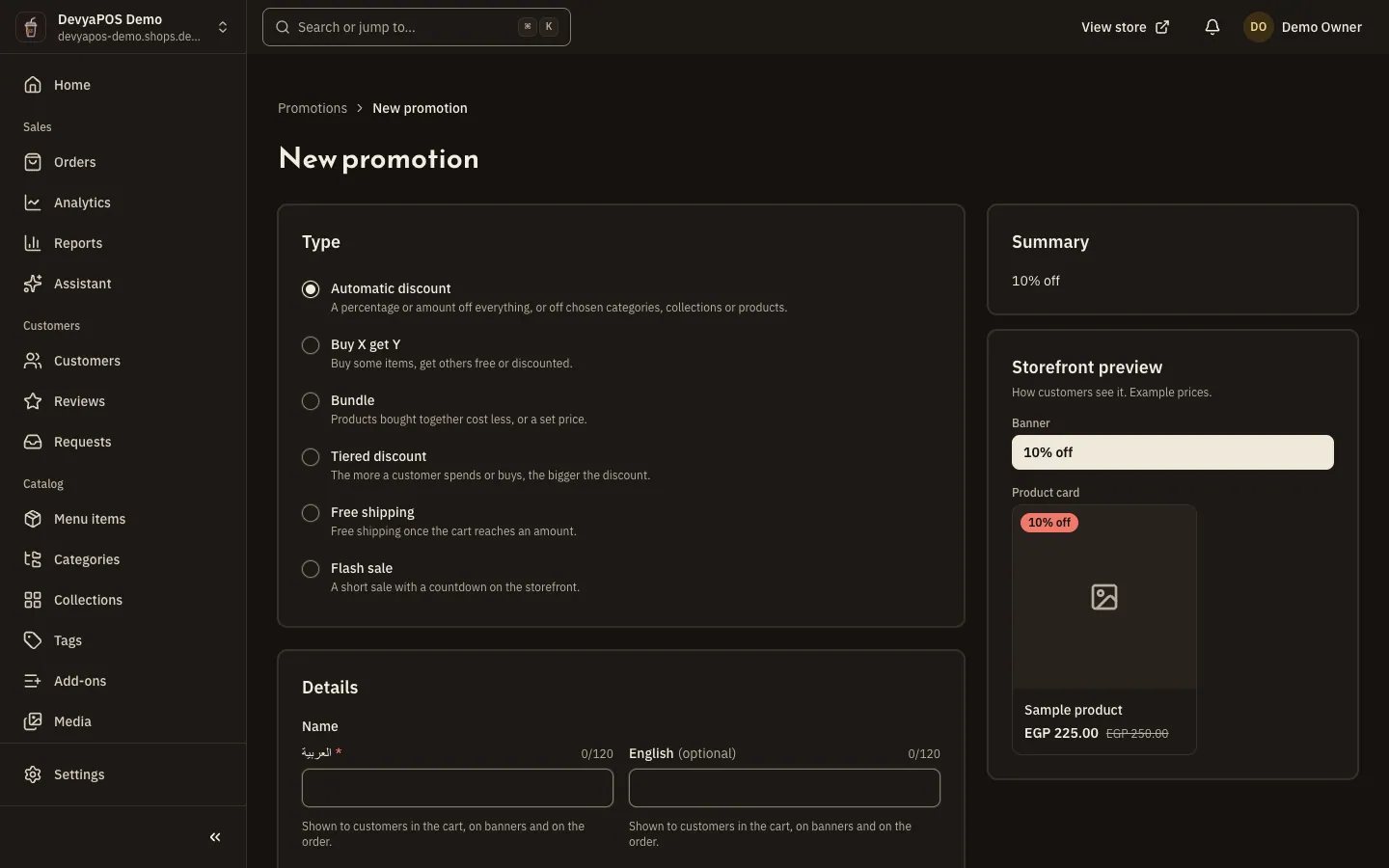
Fig. 2 —The storefront preview shows the badge and struck price the way customers see them. Step 5: Choose who gets it
Under Applies to and Who can get it, choose the items and a Minimum subtotal (of the items it applies to, before discounts), and pick Customers: Everyone, Customers with an account, Guests, Returning customers or Customers with tags (up to 20 tags, separated by commas), plus First order only if you want it.
Step 6: Set limits and schedule
Set Total uses and Uses per customer, then Starts, Ends and the Time zone (the store's by default).
Step 7: Set priority and stacking, then create it
Under Priority and stacking, set the Priority (from −1000 to 1000), Combines with other promotions and Combines with coupons. Turn on Publish when created, or leave it off to save a draft, then click Create promotion.
How promotions and coupons combine
- Promotions apply first, by Priority: the higher number goes first, and ties go to the earlier start.
- A promotion with Combines with other promotions off applies only on its own, and only if it comes first.
- After the promotions, one coupon applies to what they leave: the code the customer typed, or else the best automatic discount.
- If the cart has a promotion with Combines with coupons off, the customer gets whichever is better for them: all the promotions without the coupon, or only the combinable promotions plus the coupon.
- A coupon's minimum is compared with what the promotions leave, not the original subtotal.
Publish, pause and track results
- A promotion is a Draft, Published or Paused, and the list tabs are All, Active, Scheduled, Draft, Paused, Expired and Used up.
- From the promotion's page: Publish, Pause and Resume, and Duplicate to create a copy as a draft.
- A store can have at most 25 published promotions at the same time.
- The side of the page shows the Summary, figures for uses, revenue and discount, and the Storefront preview, and the Orders tab lists every order that used the promotion.
- Once used, a promotion's type can't change and it can't be deleted; pause it instead. Its other terms stay editable.
How do I give my best customers their own discount?
Tag them on each customer's profile, then create a promotion and choose Customers with tags under Customers. This segment, like account holders and returning customers, needs the customer to be signed in.
Why does a product card still show an offer that has run out?
The price on the card is for display and may not refresh at once; the cart works out the real discount and never applies a promotion that has run out.
Where do I see how a promotion performed?
On the promotion's own page, and in the Coupons and promotions section of Analytics.
Does Moving Stores have loyalty points or gift cards?
No. Moving Stores has no loyalty points, gift cards, store credit, referral programme or abandoned-cart emails. The loyalty programme, Moving Loyalty, is part of Moving POS.