Moving StoresChecked against the product on
Track stock and stock movements
See what is available of each variant at each location, adjust quantities after a count or a delivery, transfer stock between locations, and review the log of every change.
On this page
Before you start
- The View stock permission, and Adjust stock to adjust and transfer.
- Products with Track stock turned on.
The Stock screen shows one row per variant at the chosen location: what is On hand, what is Reserved for open orders, and what is Available to sell, with its Low at threshold and State. In a restaurant its sidebar group is called Branches.
View stock
Step 1: Open Stock
From the sidebar, open Inventory › Stock, or Branches › Stock in a restaurant.
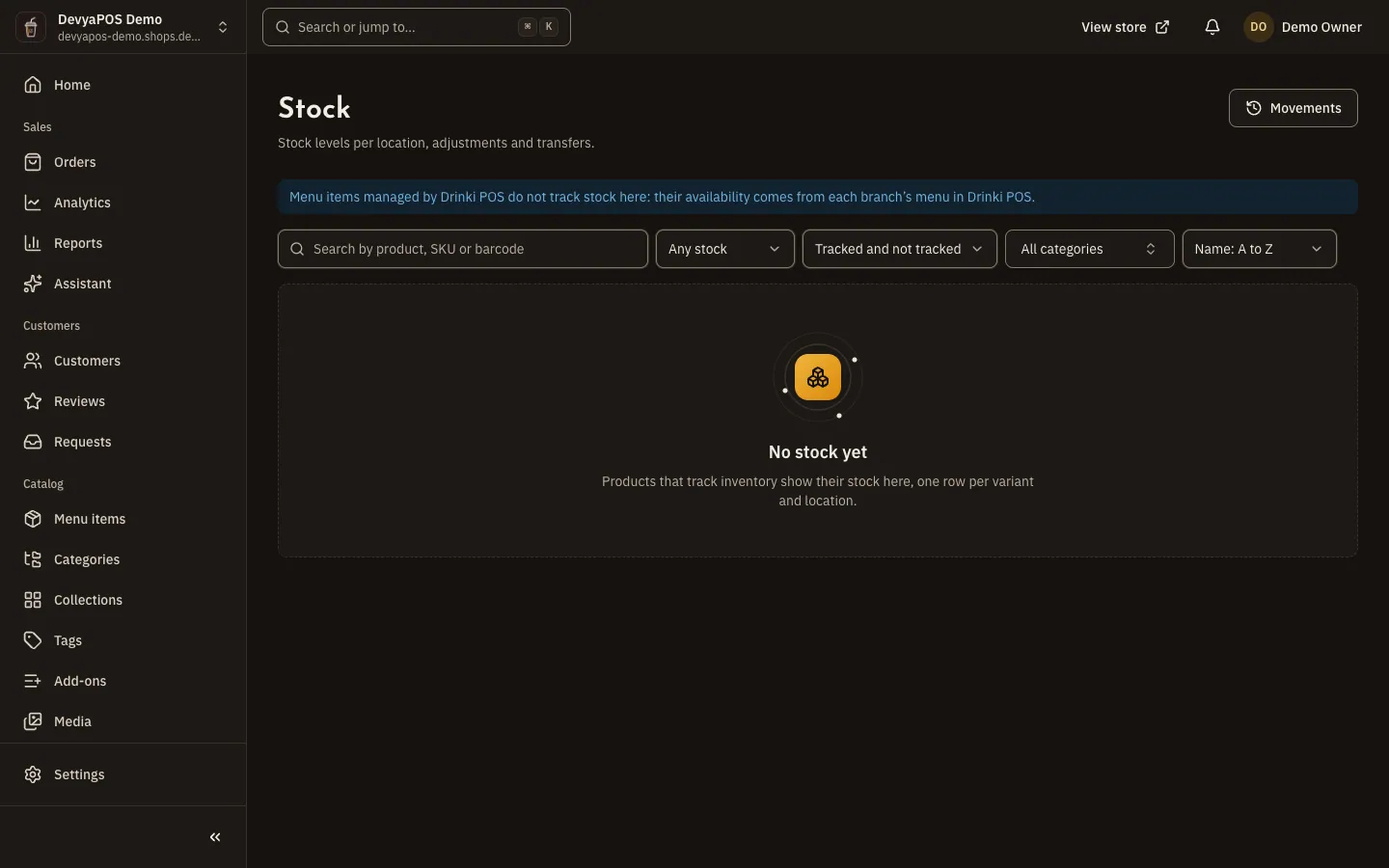
Fig. 1 —The default location is marked “default” next to its name. Step 2: Choose the location and search
Choose the Location, then search by product, SKU or barcode, or filter by stock, tracking or category.
| State | Meaning |
|---|---|
| In stock | Available is above the low-stock threshold. |
| Low | Available is at the threshold or below, and counts in the badge next to Stock in the sidebar. |
| Out of stock | Nothing is available to sell. |
| Not tracked | This product's stock isn't counted. |
| Backorder allowed | Selling continues even at zero. |
Adjust quantities
Step 1: Pick the rows
Click the On hand number in a row, or select rows and click Adjust selected.
Step 2: Choose how to change it
Under How to change it, choose Set the counted quantity after a stock count, Add or remove for a correction such as damage (
+5or-2), or Receive stock for a delivery from a supplier.Step 3: Save
Enter the quantity and a Note, which is required for counts and corrections, then click Save.
Transfer stock between locations
Click Transfer stock, choose From and To, then Add item and a Quantity no higher than what is available at the source. Write a Note and click Transfer; both sides are logged in the movements. The button only appears when you can see two or more active locations.
Review the movements
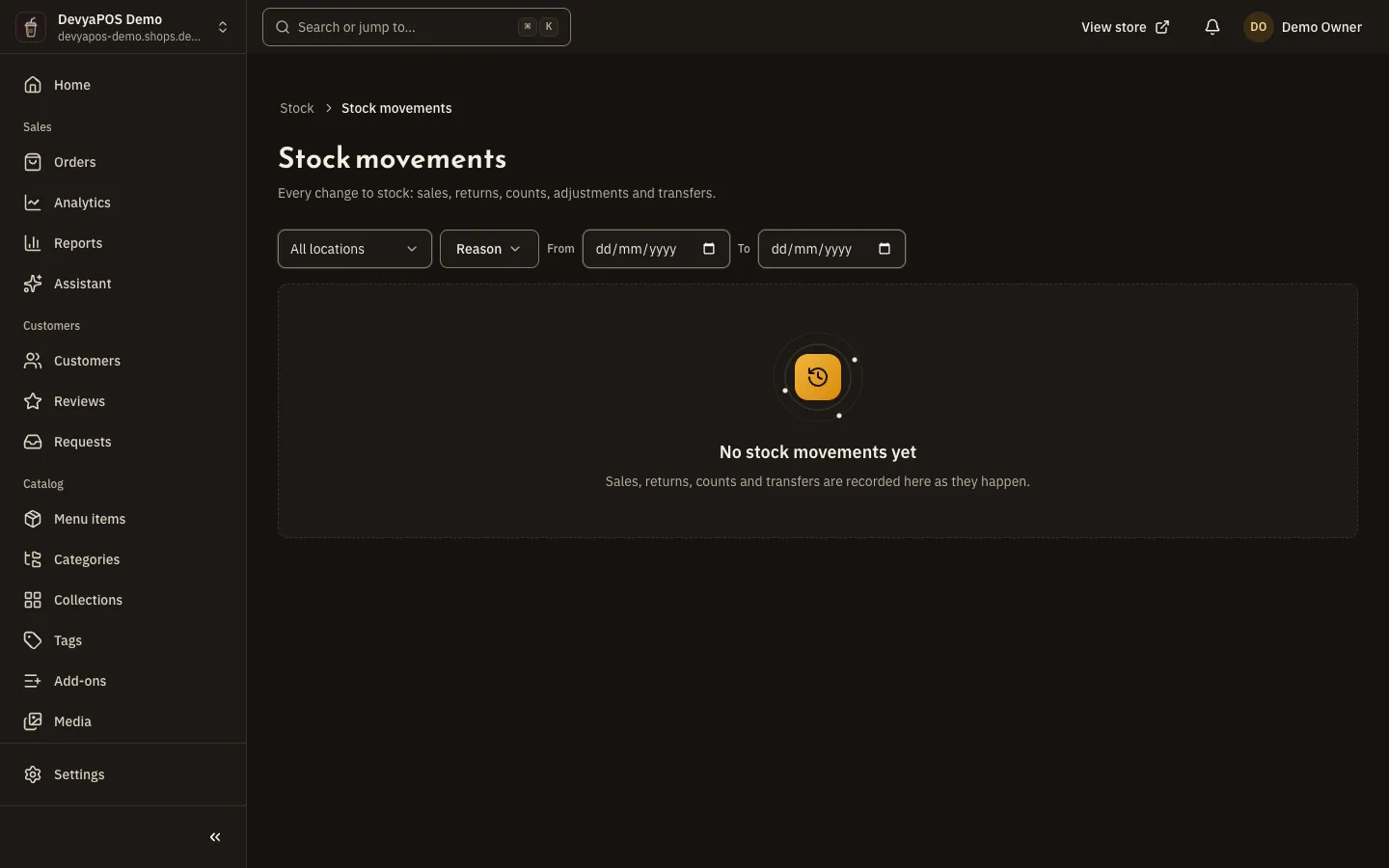
Click Movements to open Stock movements: every change with its date, product, location and reason, the change to on-hand and reserved stock, the reference (an order number or a return) and who made it. Reasons include Stock count, Adjustment, Received, Reserved for order, Fulfilled, Restocked from return, Transfer out, Transfer in and Import.
In restaurants
- New restaurant stores start without stock tracking; turn on Track stock for an item if you want to count it.
- To stop selling an item at one branch, open Branches › Branches, then the branch, then the Sold out tab, click Mark items sold out and choose The end of today or I turn it back on. To undo, click Back on sale.
- Items managed by Moving POS (shown in the dashboard as Drinki POS) don't track stock here; their availability comes from each branch's menu on the till.
Why can't I see the Transfer stock button?
Transfers need two or more active locations you can see, and the Adjust stock permission.
What's the difference between on hand and available?
On hand is what is physically at the location, Reserved is held by open orders not yet fulfilled, and Available is what is left to sell.
Why doesn't my restaurant item track stock?
New restaurant stores start with tracking off, and Drinki POS items never track stock here.