Moving StoresChecked against the product on
Arrange home sections and add banners
The Home layout list shows your storefront’s home sections in order and applies its changes at once. Banners are pictures with headlines and links that show in the home hero, the home strip or at the top of listings.
On this page
Before you start
- Adding and editing sections and banners needs the Manage home page, banners & menus permission.
Your home page can be edited two ways: the visual editor, with a draft and a publish step, and the Online store › Home layout list, whose changes go live on your store at once. Both edit the same sections.
Manage sections from the list
Step 1: From the sidebar, open Online store › Home layout.
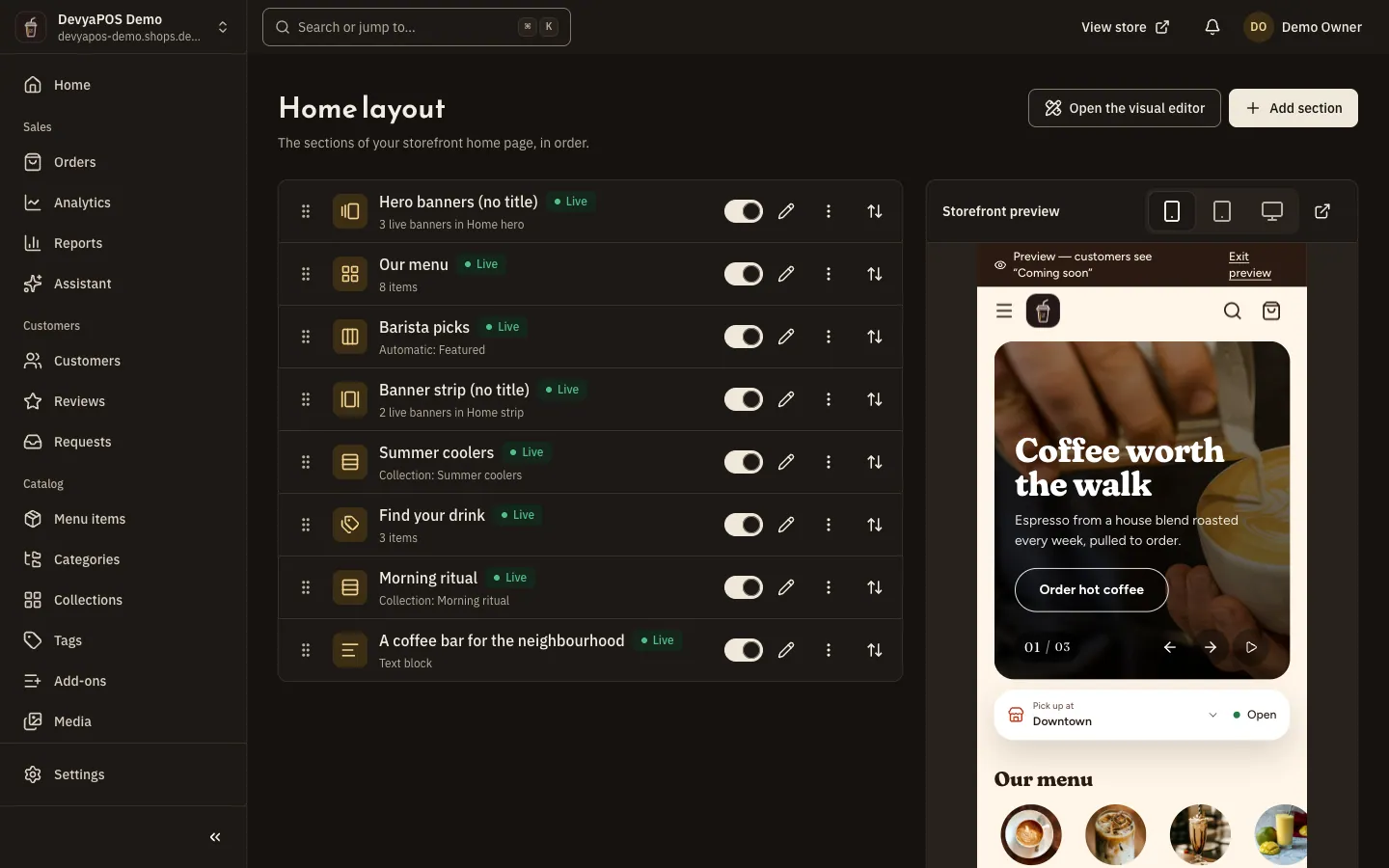
Fig. 1 —Drag the cards to reorder sections; every change here shows on your store at once. Step 2: Drag the cards to reorder them, and use the Visible switch to hide or show a section.
Step 3: Click Add section and pick its type, then fill in the panel and click Add section.
Write the title and subtitle, and set what the section shows. For a product rail choose Pick products or Fill automatically from a listing such as New arrivals. Sections that show items you pick say: Add the section first, then pick what it shows.
Step 4: To delete a section, choose Delete and confirm in Delete this section?
The section leaves the page; the products and categories themselves stay as they are.
| State | What it means |
|---|---|
| Live | Shoppers see it now. |
| Scheduled | Shows once its schedule starts. |
| Expired | Its schedule has ended. |
| Hidden | Turned off; shoppers don’t see it. |
| Empty | Nothing to show yet, so the store skips it. |
Add a banner
Step 1: Open Marketing › Banners and click Add banner.
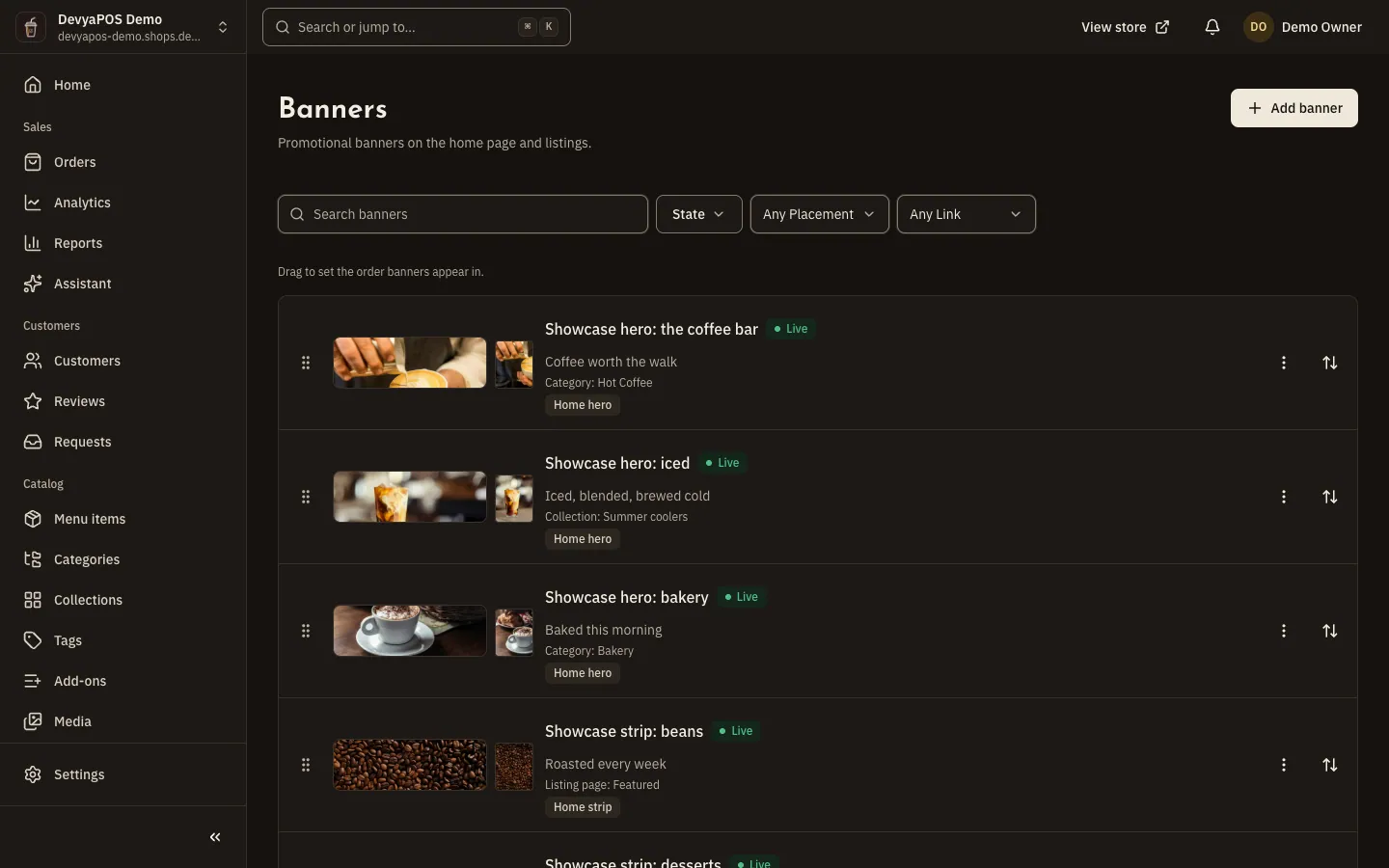
Fig. 2 —The state tells you whether a banner is live now, scheduled, or has a broken link. Step 2: Write the Internal name, then a Headline, Subheadline and Button label if you want them.
Only your team sees the internal name, and the button shows only when the banner has a link.
Step 3: Upload the Desktop image, and add a Phone image and an Image description.
The desktop image is wide, 3:1, for example
2400 × 800. The phone image is square or 4:5; leave it empty and phones show the desktop image. A picture of the wrong shape is cropped from the centre.Step 4: Choose the Link.
A product, category, brand, tag, collection, page, listing page, the FAQs, the contact form or a web address, or no link.
Step 5: Under Where and when, choose in Show on: Home hero, Home strip or Top of listings.
A banner can show in more than one place. Set Starts and Ends in your store’s time zone, or leave them empty to show it for as long as it is published.
Step 6: Click Save and publish, or Save draft to finish it later.
What is the difference between the Home layout list and the visual editor?
The list applies every change at once and adds ten kinds of section. The visual editor saves a draft until you publish, and adds all thirteen kinds.
Can I change a banner’s picture in the visual editor?
No. In the editor you change only a banner’s words and order. Pictures, links and new banners are handled on the Banners page.
Why doesn’t my banner show on the store?
Check that it is published and within its dates, and that its link works: a banner with a broken link hides until you fix it. Also check that your home page has a section for the place it shows in.