Moving StoresChecked against the product on
Manage images in the media library
The media library holds every image uploaded to your store: upload many at once, copy any file's address, write its alternative text and see where it is used.
On this page
Every image you upload from any editor — a product, a category, a banner or the store's branding — is kept in Media. From this screen you upload new images, review them and delete the ones nothing uses.
Upload images
Step 1: Open Media
From the sidebar, open Catalog › Media.
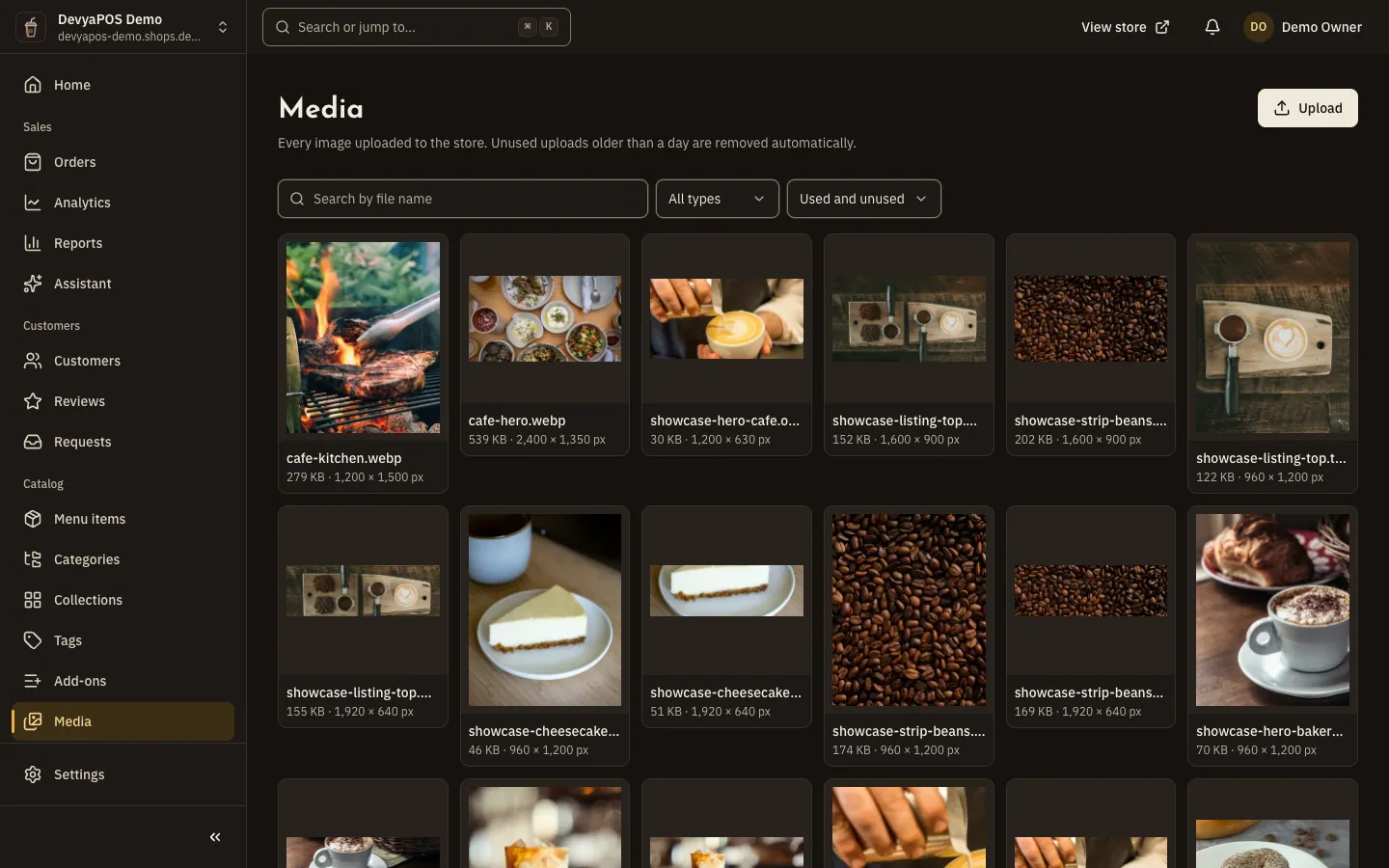
Fig. 1 —The Use filter separates images in use from unused ones. Step 2: Upload the images
Click Upload, choose one or more images, then click Done. They join the library at once; attach them to products, categories or banners from their editors.
| Format | Limit |
|---|---|
| PNG, JPEG, WebP and AVIF | Up to 5 MB and 40 megapixels per image |
| SVG | Logos and icons only, up to 512 KB |
File details
Click any image to open File details: the preview, the File address with Copy file address, and the type, size, dimensions and upload date.
- Alternative text describes the image for screen readers and search engines. Type it, then click Save.
- Where it is used lists the places that use the image: a product, category, collection, banner, the store's branding and more.
Find and delete
Search by file name, and filter by Type or Use (Used or Unused). Only an unused image can be deleted, and deleting needs the Manage media library permission. If an image is in use, remove it from those places first.
Why did an image I uploaded disappear?
Because nothing used it; unused images are deleted automatically a day after upload.
Can I use library images in a product import?
Yes — they are the only ones accepted: the import file takes addresses of images already in the library, so copy them from File address.
Why can't I delete an image?
Because it is used somewhere, or because your role lacks the Manage media library permission.