MovingChecked against the product on
Set up and launch your store
The setup wizard takes you through five steps: branding, a first product, payments, shipping or pickup and delivery, then launch. This is what must be in place before your store opens to customers.
On this page
Before you start
- A store you created on the sign-up page.
- The permission for each step: a member without it sees “Ask the store owner to do this step.”.
After you create the store you reach Set up your store: a full-screen page with no sidebar, showing which of the five steps you are on. Each step has Back, Skip for now and Save and continue, and Do this later at the top takes you to Home without losing your progress.
The wizard's steps
Step 1: Branding
In Make it yours, upload a Logo (PNG, JPG, WebP or SVG), add a Logo for dark backgrounds if you have one, type the store name, then choose a Main colour and an Accent colour or one of the Suggested colours. The logo is required to finish the step.
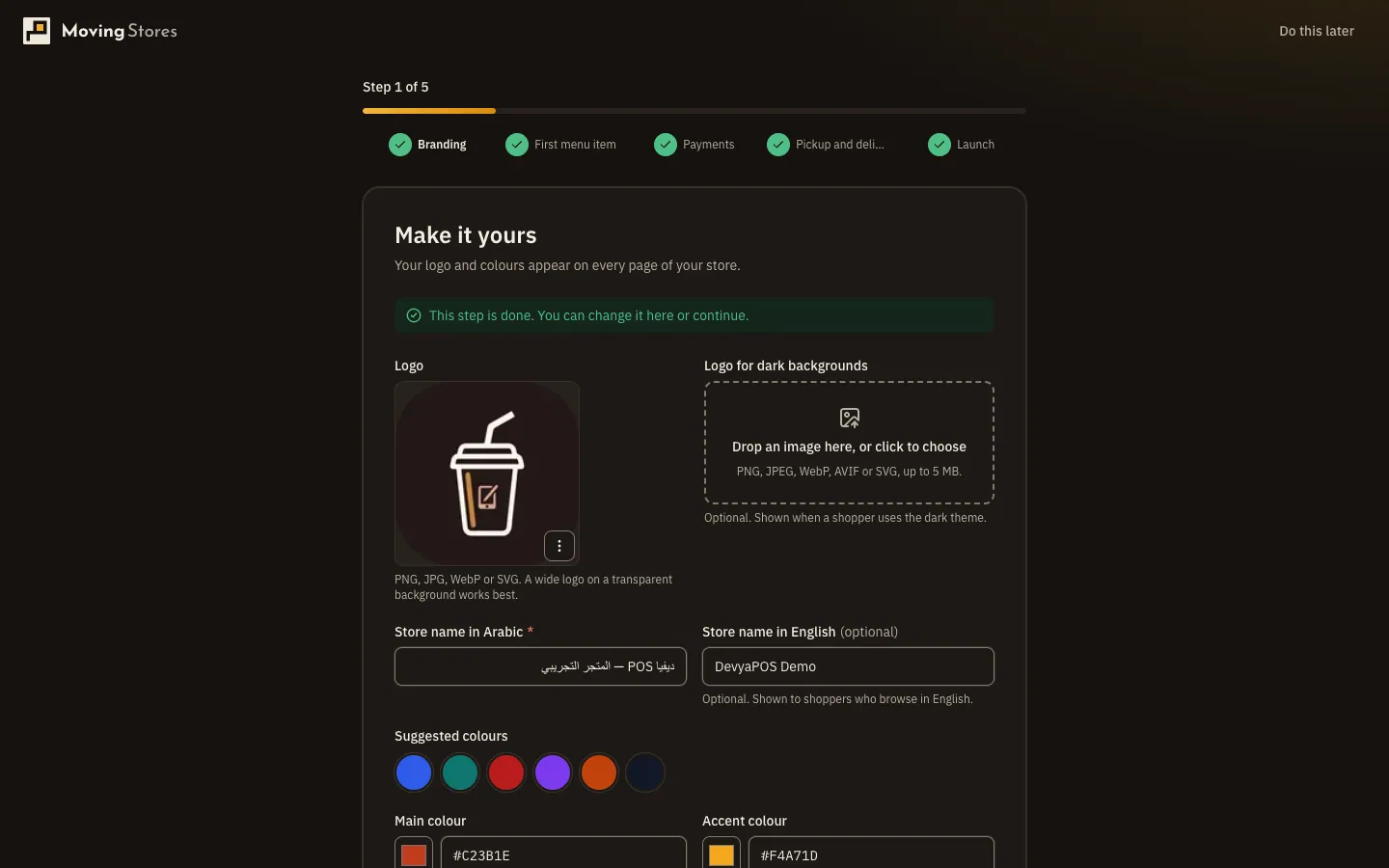
Fig. 1 —The logo is the only field this step requires. Step 2: First product or first menu item
Type the name and Price, then click Save and publish. For a shop a photo is required, and you can leave Quantity in stock at 0 to add stock later. For a restaurant the photo is optional. If your restaurant runs Moving POS (shown in the dashboard as Drinki POS) and your plan includes the connection, you also see Import my menu from Drinki POS.
Step 3: Payments
In How will customers pay?, turn on Cash on delivery, Bank transfer with the bank name, account name and IBAN, or a provider under Online payments with Set up. At least one method must be on.
Step 4: Shipping, or pickup and delivery
For a shop: turn on a flat shipping fee to anywhere in your country and enter the Shipping fee, add Free shipping on orders over an amount if you like, or turn on Offer store pickup. For a restaurant: enter Your branch and its Opening hours, then turn on Pickup, Delivery or both, with the Delivery fee and Delivery time.
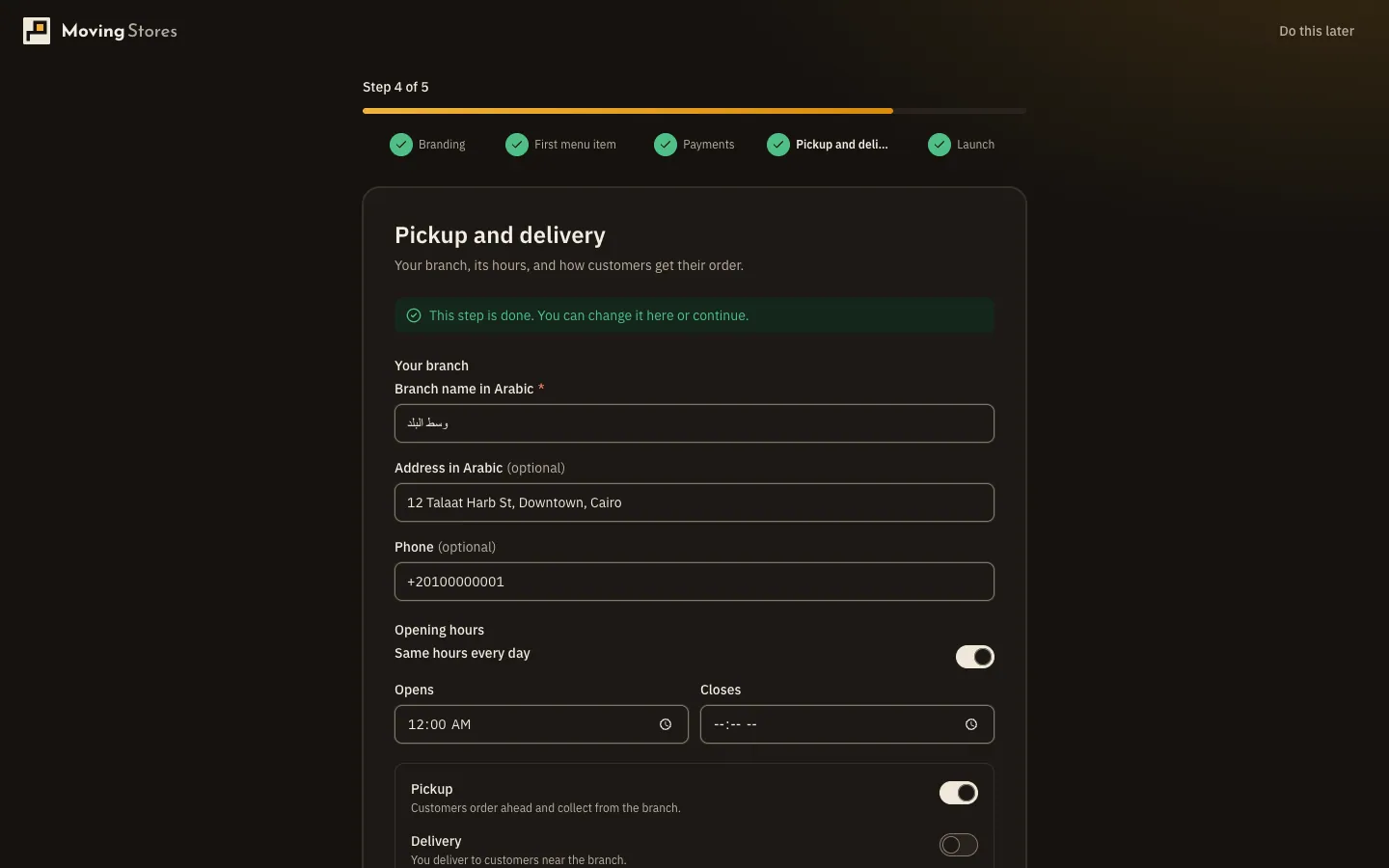
Fig. 2 —For a restaurant the branch hours are set here, and they are a condition for launching. Step 5: Launch
In Ready to open?, check the Before you open list, click Preview store to see your store in a new tab, then click Launch store. If you aren't ready, click Stay in maintenance.
When you can launch
Launch store stays disabled, with “Finish the steps above to launch.”, until all of these are in place:
- A logo, and the store name in its default language.
- At least one active product.
- At least one payment method turned on.
- For a shop: an active shipping rate or a pickup location. For a restaurant: a pickup branch, or a delivery branch with an active delivery zone.
- For a restaurant: opening hours on every branch that takes online orders, because a branch with no hours counts as open 24/7.
- A confirmed email address, for the first launch only.
The setup checklist on Home
If you leave the wizard, your progress waits in the Set up your store card at the top of Home. It lists the wizard's steps plus four optional ones: Arrange your home page, Invite your team, Connect your own domain and, for restaurants, Connect Drinki POS. Click Start to open any step, or Skip on an optional one. Once the launch conditions are met, Hide this list appears.
After launch: the store status
You control whether your store is open from the Store status card in Settings › Store › General:
| Status | What happens |
|---|---|
| Live | Shoppers can browse and place orders. |
| Closed | Shoppers see your message and cannot order. |
| Maintenance | Only your team can see the store while you work on it. |
For the last two, write a Message to visitors and save. Switching back to Live after the first launch doesn't need your email confirmed again.
Why do customers see a “Coming soon” page?
A new store starts in Maintenance and stays there until you click Launch store or choose Live under Store status.
Can I go back to the wizard after leaving it?
Yes. Click Start next to any step in the Set up your store card on Home.
I see “Ask the store owner to do this step.” Why?
Your role doesn't have the permission for that step. Click Continue to move on, or ask the owner for the permission.