Moving StoresChecked against the product on
Edit your store details and branding
In the general settings you change the store's name, country, currency, time zone and default language; in branding you choose the theme, logos, colours and fonts your storefront wears.
On this page
Before you start
- The Manage store profile & branding permission to edit. With View store settings alone you see the settings but can't change them.
General and Branding come first in the Store group of the settings. Each section has its own Save button, and saving shows Settings saved.
General settings
Step 1: Open the general settings
From the sidebar, open Settings › Store › General.
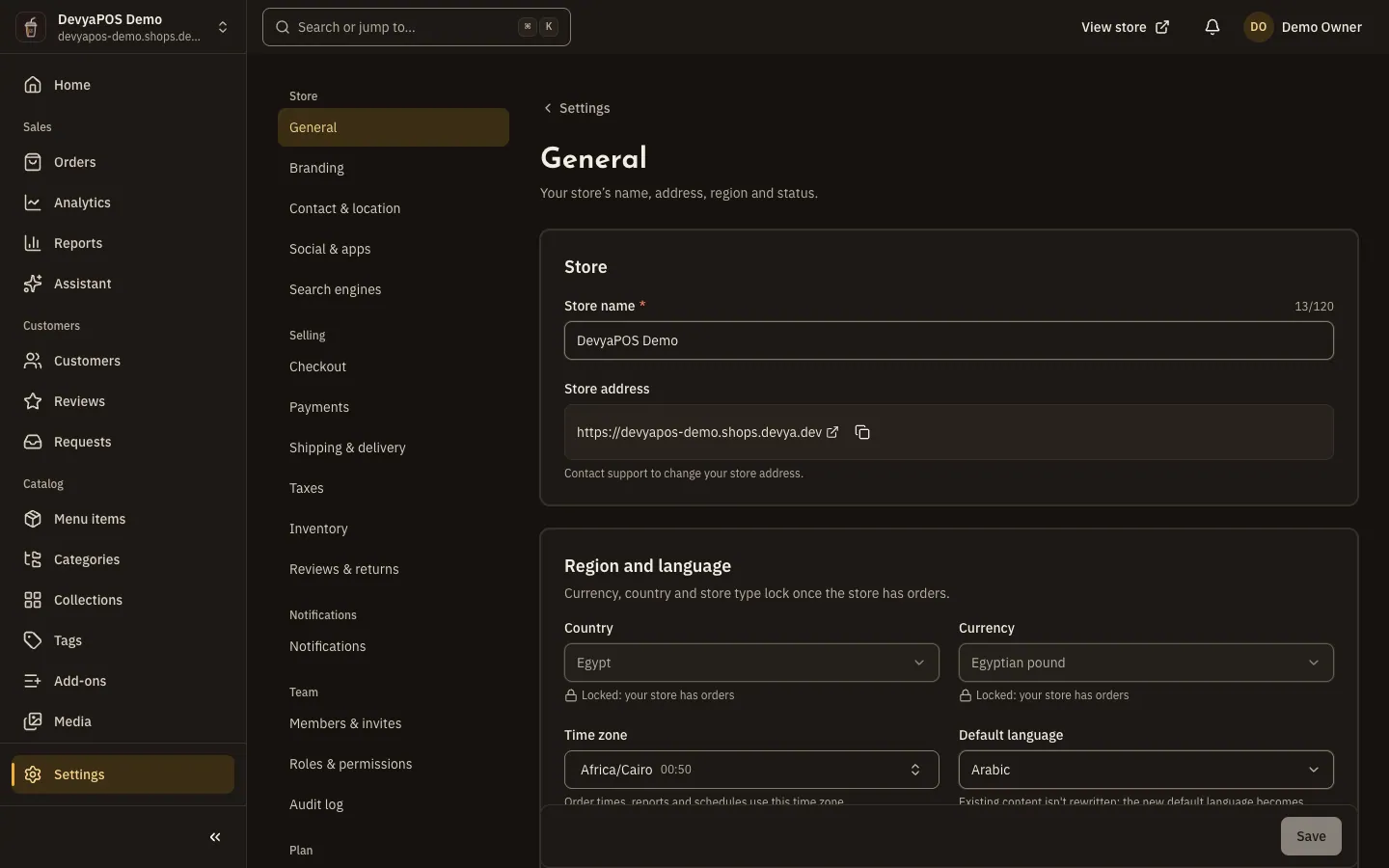
Fig. 1 —The store address is read-only, with a button to copy it. Step 2: Edit the store name
In the Store card, change the Store name. Below it, the Store address is read-only, with Copy the store address.
Step 3: Set region and language, then save
In the Region and language card, choose the Country, Currency, Time zone, Default language and Business type, then click Save.
- Currency: prices are entered and charged in it — Egyptian pound, Saudi riyal, UAE dirham or US dollar.
- Time zone: order times, reports and schedules follow it.
- Default language: existing content isn't rewritten, and the new language becomes required when you edit an item.
At the bottom of the page the owner has a Close store card. Closing is final: it ends every session, API key and domain, cancels the subscription, and asks you to type the store address and your password. To stop orders for a while, use the Store status card on the same page (set up and launch your store).
Your storefront's branding
Step 1: Open Branding
Open Settings › Store › Branding.
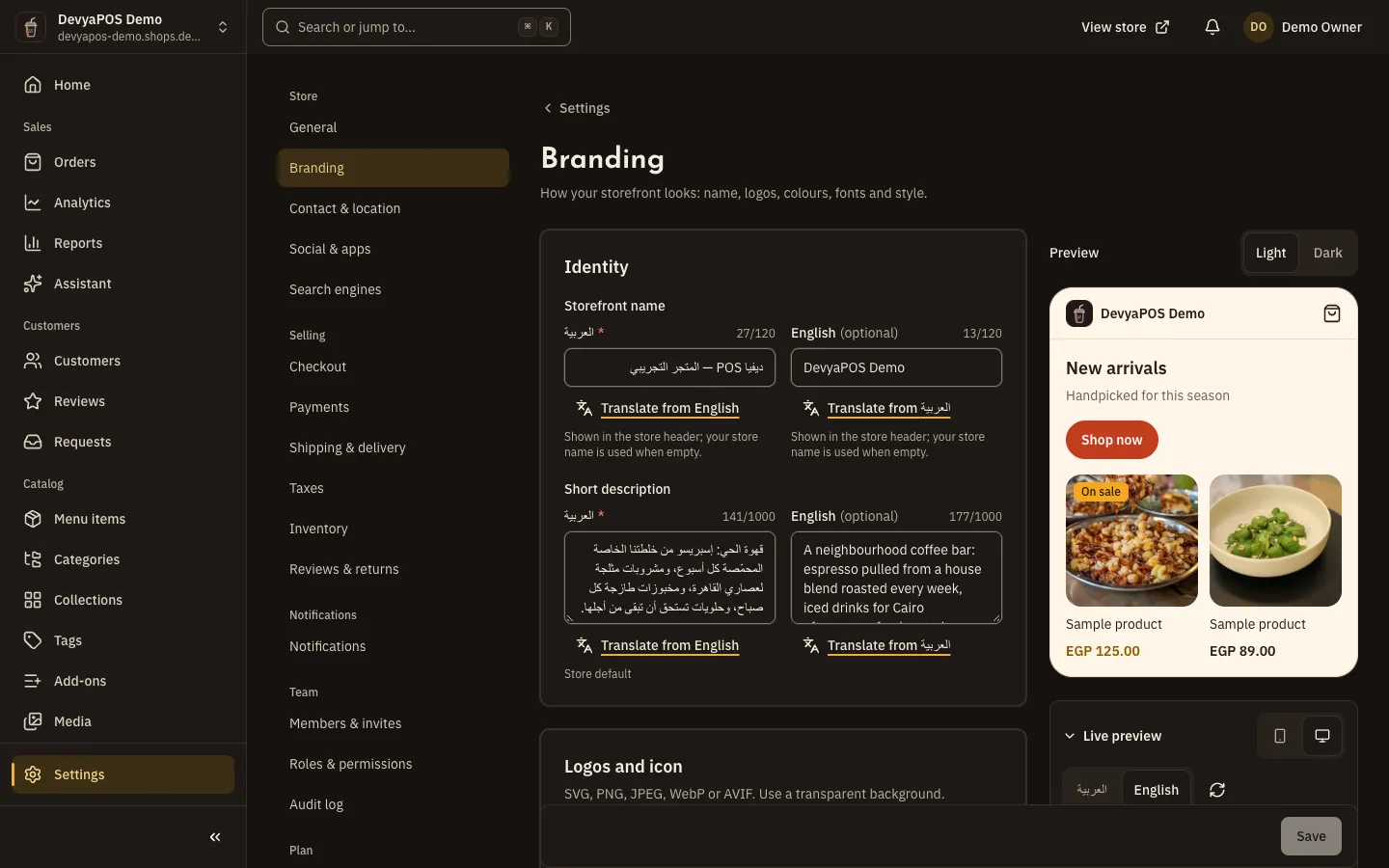
Fig. 2 —The preview panel shows each change before you save. Step 2: Pick a theme to start from
Under Theme, choose one of five: Atelier, Kitchen, Noir, Aurora or Botanica. The theme sets the colours, fonts and corners below, which you can then fine-tune. To see each design in a live store, click See every design in a live sample store.
Step 3: Write the store's identity
Under Identity, type the Storefront name (the store name is used when it's empty) and a Short description.
Step 4: Upload the logos
Under Logos and icon, upload the Logo on light backgrounds, the Logo on dark backgrounds and the Browser icon (square, at least 32 × 32 pixels, or an SVG). SVG, PNG, JPEG, WebP and AVIF are accepted, up to 5 MB per image and 512 KB per SVG file.
Step 5: Set colours, fonts and style
Under Colours, choose the Primary colour, Accent colour, Background colour and Text colour; the store adjusts text and button contrast automatically. Under Fonts, choose a text font and a headings font for each language. Under Style, choose the Layout (Shop or Menu), Default theme, Corners, Product image shape and Product image fit.
Step 6: Preview and save
Check the Preview panel beside the form, then click Save to publish the changes to your store.
How do I change my store's address on the platform?
It can't be changed from the dashboard; contact support. Instead, you can connect your own domain when your plan includes custom domains.
I picked a new theme and the storefront didn't change. Why?
Picking a theme only changes the form, and a message asks you to save to publish it. Click Save.
Can I undo closing my store?
No, closing can't be undone. Orders and data are kept for the legal retention period, but your team loses access straight away.