Moving StoresChecked against the product on
Find and manage your orders
The order list gathers orders from the online store, the phone and the counter: narrow it with tabs and filters, find any order, act on many orders at once, and export them.
On this page
Before you start
- The View orders permission.
From the sidebar, open Sales › Orders. The table shows each order's number, date, customer (or Guest), status, payment, fulfilment and total, plus a Location column if you have more than one location.
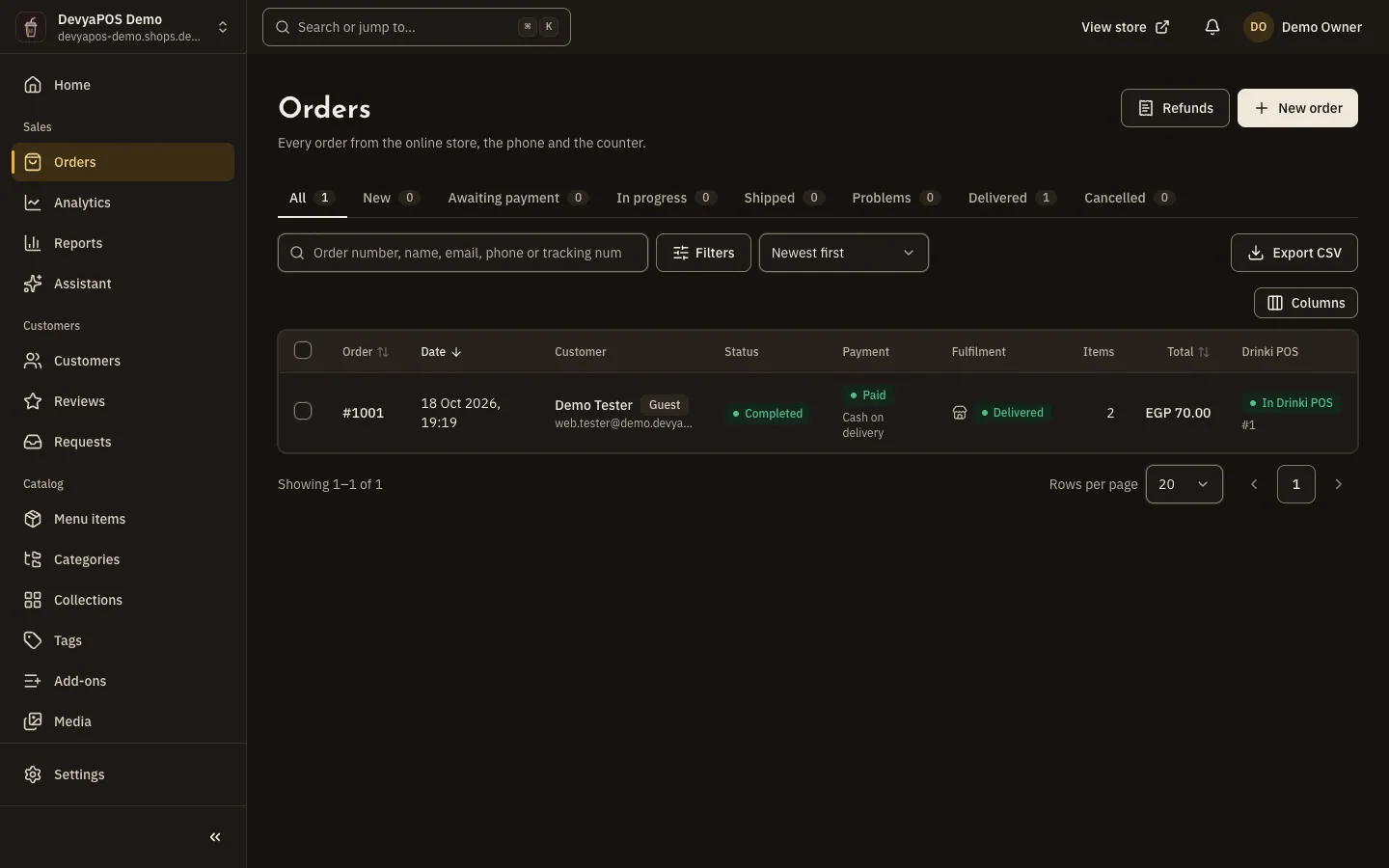
The tabs
| Tab | What it shows |
|---|---|
| New | Orders that arrived and haven't been accepted yet. |
| Awaiting payment | Online orders whose payment isn't complete, and bank transfers not yet confirmed. |
| In progress | Accepted orders that haven't gone out for shipping or delivery yet. |
| Shipped | Accepted orders that have gone out for shipping or delivery. |
| Problems | Orders whose delivery failed or that are on their way back. |
| Delivered | Completed orders. |
| Cancelled | Orders that were cancelled or rejected. |
Search and filter
- Search by order number, name, email, phone or tracking number.
- Click Filters to narrow orders by status, payment, fulfilment, type, payment method, channel, location, date and total, or pick Has an open return, then click Show orders.
- In a restaurant the filters add Scheduled for today, and the sort adds Scheduled time, soonest first for scheduled orders.
- Sort starts at Newest first, and you can sort by total or by order number.
Bulk actions and export
Select up to 50 orders to see Accept, Start preparing, Print invoices and Print packing slips; accepting and preparing need the Process orders permission. To download orders, click Export CSV and choose One row per order or One row per item. The file follows the current tab, filters and search, up to 50,000 rows, and needs the Export orders permission.
New-order alerts
While the dashboard is open in your browser, it checks for new orders every 15 seconds, even in a background tab. When an order arrives, a New order alert appears with a sound, and the tab title shows the number of new orders until someone opens Orders.
- The sound is on by default in restaurants and off in shops. Change it from your account menu: New-order sound.
- The browser keeps the sound silent until you click on the page once; click Turn on order sound if it appears.
- Turn on New-order notifications in the same menu to get system notifications on this device.
Why didn't I hear the new-order sound?
The dashboard must be open, you must click on the page once so the browser allows sound, and New-order sound must be on for this device.
How many orders can I export or print at once?
Up to 50,000 rows in an export file, and up to 50 orders in bulk actions and printing.
Where do the orders in the list come from?
From the online store, from orders your team creates with New order, and from the API if you use it.