Moving StoresChecked against the product on
Add a product or menu item
Create a product in your shop or a menu item in your restaurant from the product editor: name, photos, price, stock and category, then save it as a draft or publish it.
On this page
Before you start
- The Manage products permission in your role.
The product editor holds everything a product needs on one page, split into sections. In a shop the screen is called Products; in a restaurant or café it is Menu items. The steps are the same in both.
Create the product
Step 1: Open the product list
From the sidebar, open Catalog › Products, or Catalog › Menu items in a restaurant.
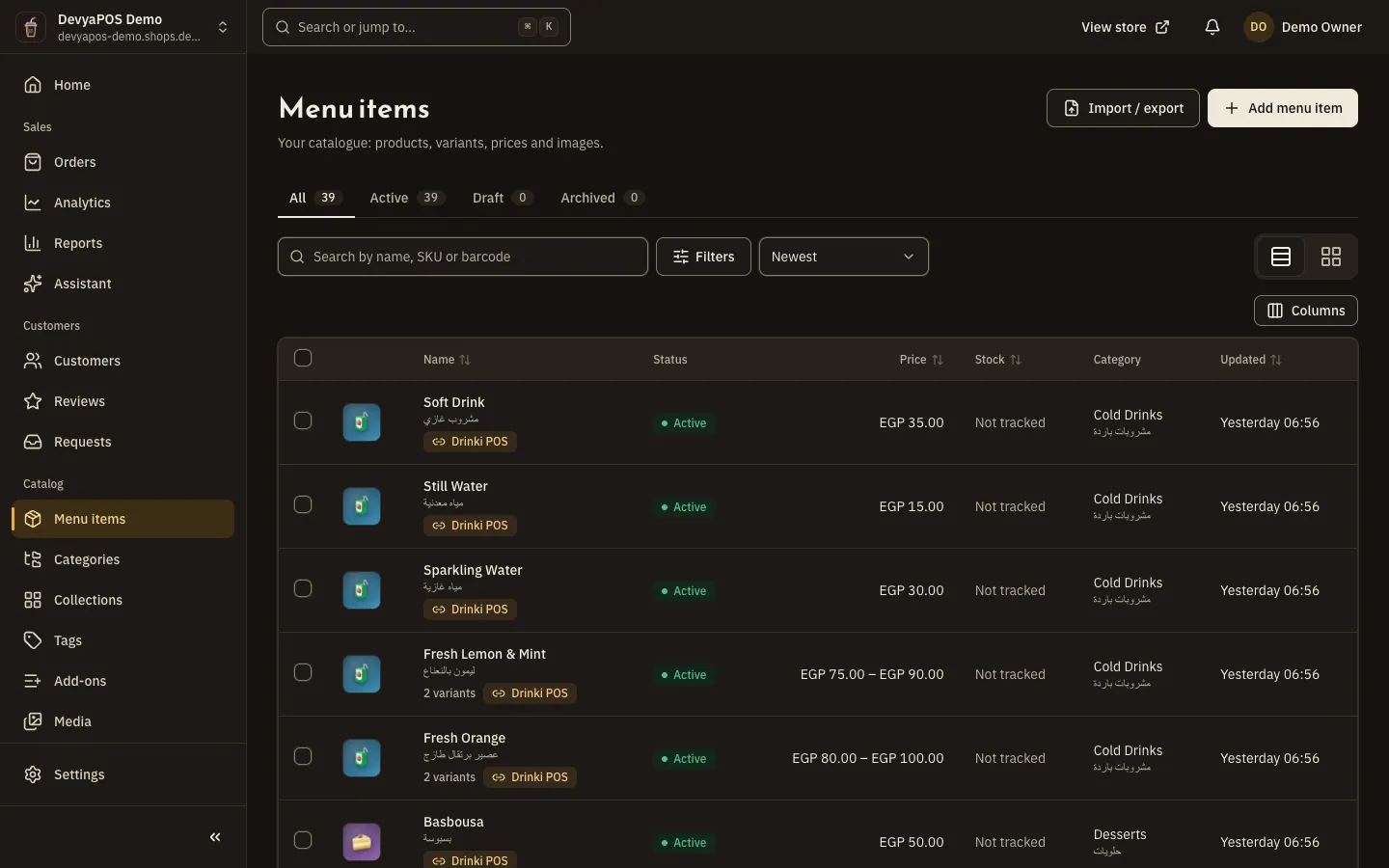
Fig. 1 —In a restaurant the screen is called Menu items; in a shop, Products. Step 2: Click Add product
In a restaurant the button reads Add menu item and opens New menu item.
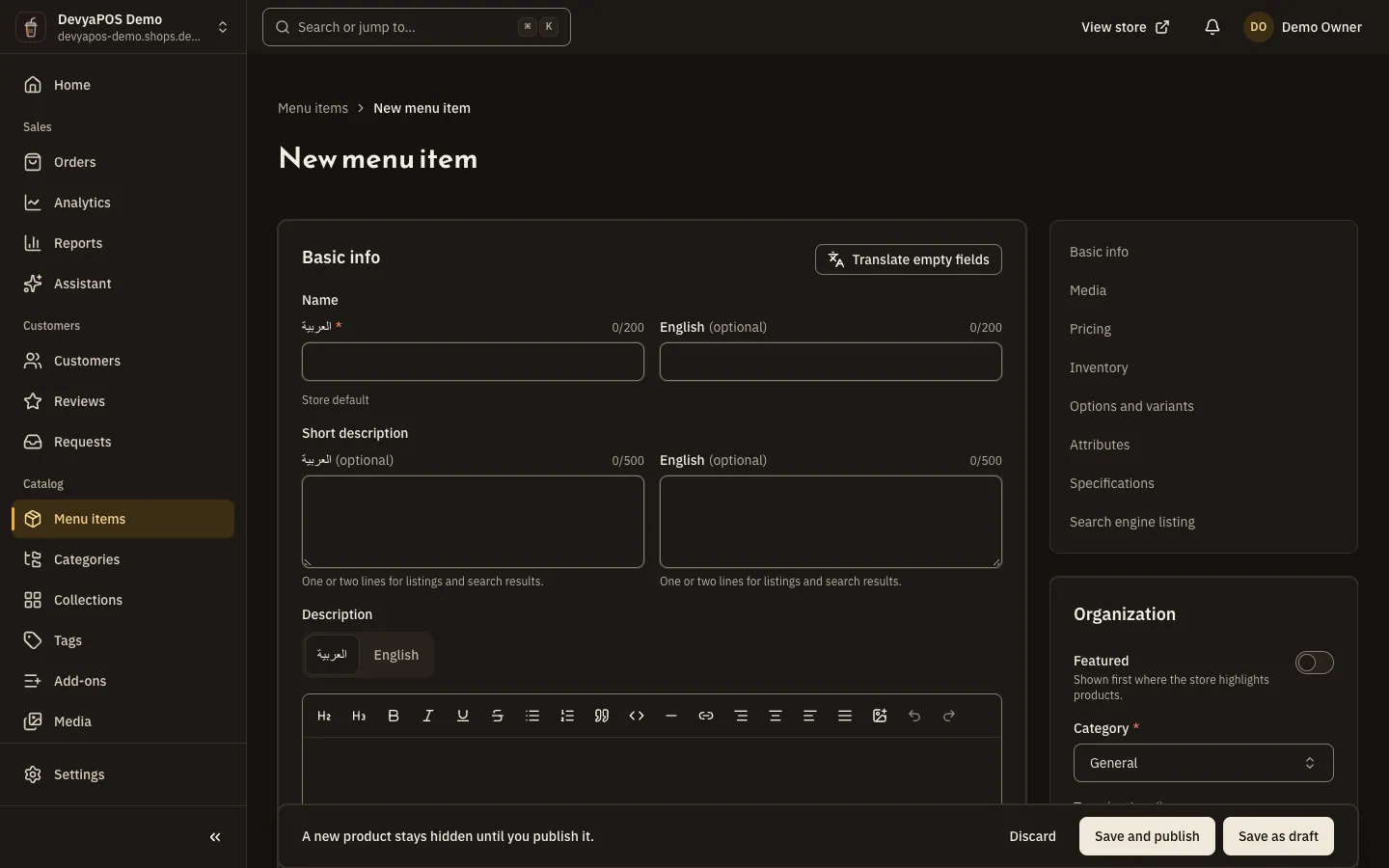
Fig. 2 —The editor's section index takes you straight to any section. Step 3: Write the name and description
In Basic info, enter the Name in at least the store's default language. The Short description shows in listings and search results; the Description is the full text on the product page.
Step 4: Add photos
In Media, upload up to 20 images; the first one is the main image. A shop product needs at least one image to be published, while a restaurant item can be published without one.
Step 5: Set the price
In Pricing, enter the Price. The Compare-at price is optional and shows struck through; it must be higher than the price. Only your team sees the Cost per item, which gives the Margin.
Step 6: Set up stock
In Inventory, enter the SKU and Barcode if you have them. Turn on Track stock so selling stops at zero, then enter the Opening stock for each location.
Step 7: Organise the product
In the Organization card, choose the Category (required) and add Tags and Collections if you like. Turn on Featured to show the product first wherever the store highlights products.
Step 8: Save
Click Save and publish to put it on the store, or Save as draft to keep it hidden until you publish it.
What differs between a shop and a restaurant
| Field | Shop | Restaurant or café |
|---|---|---|
| The Shipping section: Weight and Package size | Shown unless the product has options | Not shown |
| Brand and Return policy | In the Organization card | Not shown |
| Preparation time and Add-on groups | Not shown | In the Organization card |
| At least one image to publish | Required | Not required |
Product status and visibility
Every product has one of three statuses: Draft, Active or Archived. Change it from the Status card with Publish, Unpublish, Archive and Restore; restoring brings the product back as a draft. Save your edits before changing the status.
- If publishing is blocked, the card shows It can’t be published yet: with what is missing: the name in the store's language, an image (for shops), an active variant or an active category.
- An active product can still be missing from the store because its category is turned off, no variant is active, or it is out of stock and the store hides sold-out products.
- After the first save you can set a different price at a branch or location under Prices by location with Add a location price.
- The line under the list title shows how many products your plan allows; drafts and archived products count towards it.
Why can't I publish my product?
Every product needs a name in the store's language, an active variant and an active category, and a shop product also needs at least one image. The Status card lists what is missing.
Can I delete a product that has orders?
No. A product that was never ordered is deleted for good; for a product with orders, choose Archive instead to take it off the store.
Can I copy an existing product?
Yes. Click Duplicate at the top of the editor to get a draft with the same details, options and prices, without the stock or reviews.
Which image formats are accepted?
PNG, JPEG, WebP and AVIF, up to 5 MB per image and up to 20 images per product.