Moving StoresChecked against the product on
Manage menus, pages and FAQs
Arrange your header and footer menus, edit your store’s built-in pages or create new ones, and add frequently asked questions in categories that show on your store.
On this page
Before you start
- Menus need the Manage home page, banners & menus permission, and pages and FAQs need Manage pages & FAQs.
These screens in the Online store group decide how customers find their way around your store and what they read about it. Menus and pages have a live preview beside them that is for viewing only; the visual editor doesn’t edit them.
The header and footer menus
Step 1: Open Online store › Navigation and choose the Header or Footer tab.
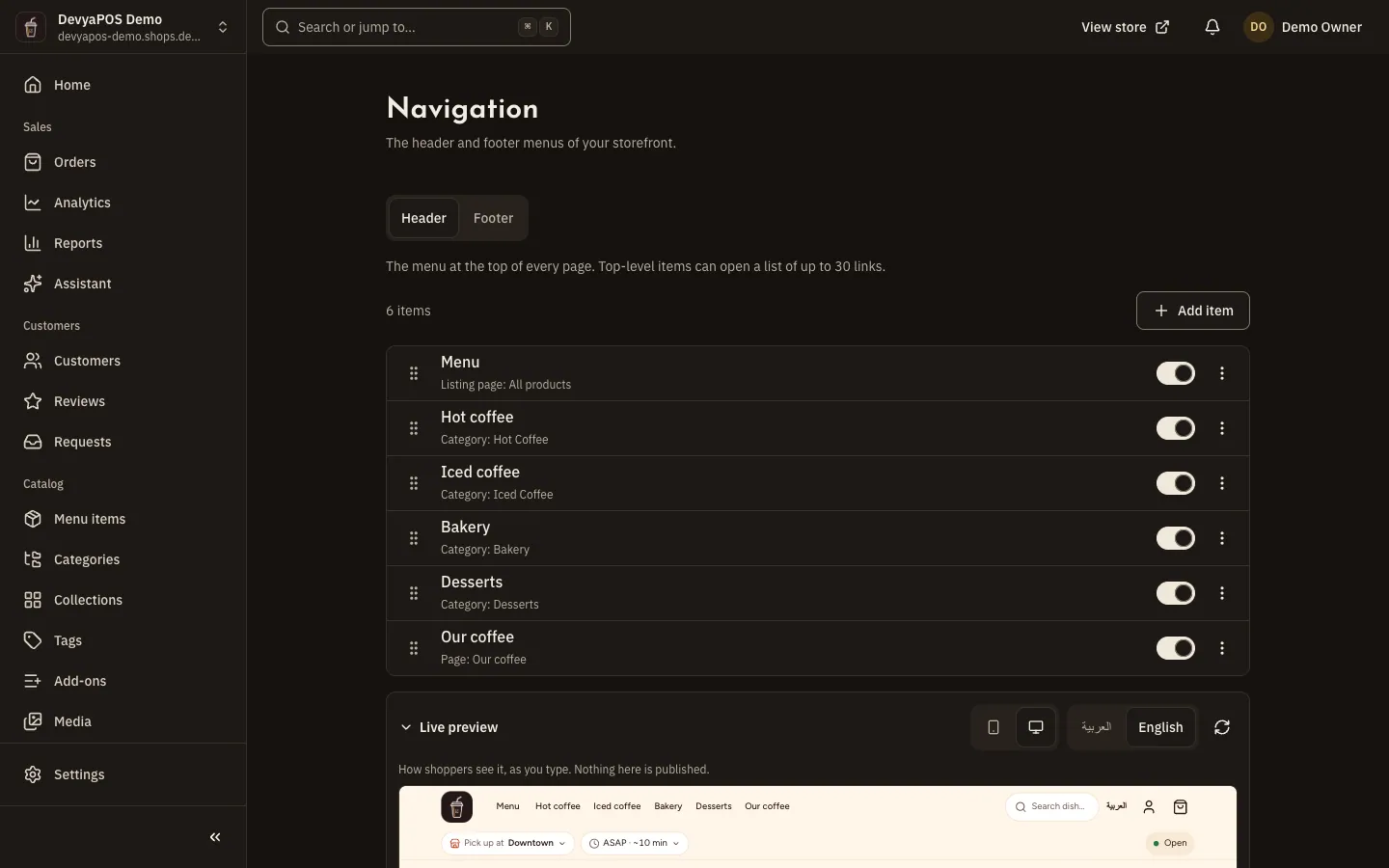
Fig. 1 —Indented items are links under the item above them. Step 2: Click Add item.
In Links to, pick a product, category, brand, tag, collection, page, listing or web address, or turn on Heading only (no link). Leave the Label empty to show the name of what it links to, then click Done.
Step 3: Arrange items from each item’s menu.
Choose Move under the item above or Add a link under this item to build the second level, and Move up or Move down to reorder.
Step 4: Save the menu from the bar at the bottom of the page.
Changes apply to the whole menu when you save, and the message Menu saved. appears.
- A menu has two levels only: up to 20 top-level items, up to 30 links under each, and 150 items in the whole menu.
- A category item in the header can Show subcategories as a mega menu.
- In the footer, top-level items without a link become column headings.
- A web address starts with
https://, or is a path on your store starting with/.
Pages
Every store starts with six Built in pages: About us, Privacy policy, Terms of service, Return policy, Refund policy and Cancellation policy. You can edit them or unpublish them, but you can’t delete or archive them.
Step 1: Open Online store › Pages and click New page, or open an existing page.
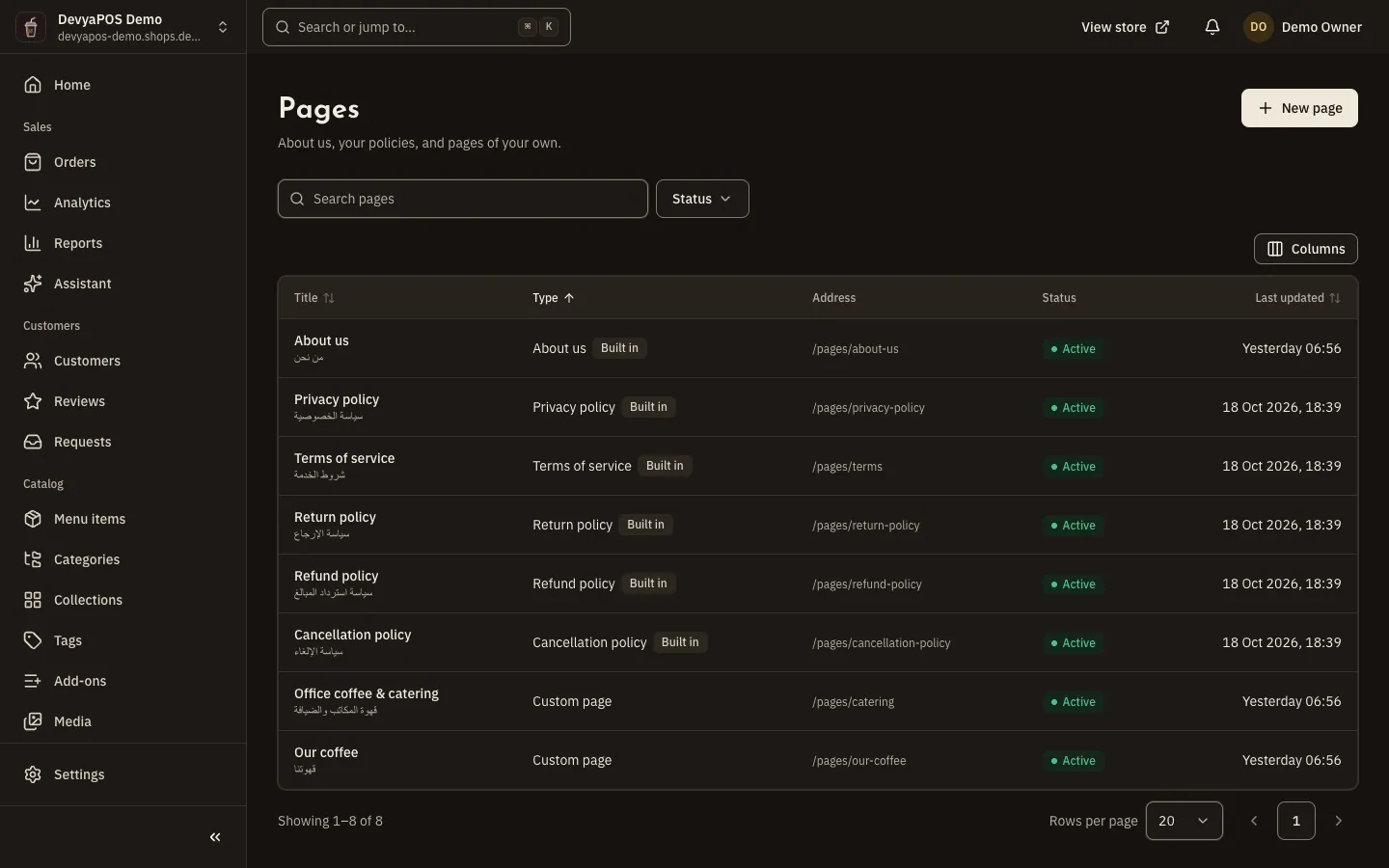
Fig. 2 —Built-in pages can be edited but not deleted. Step 2: Write the title and body in Arabic and English.
The body is needed in your store’s default language to publish. From Insert, copy a placeholder such as
{{store.name}}and paste it into the body, and the store fills in your name, email, phone or address.Step 3: Set the Page address and the Search engine listing.
Step 4: Click Save and publish or Save draft, then View on store.
Add the page to your footer menu so customers can reach it.
FAQs
Step 1: Open Online store › FAQs.
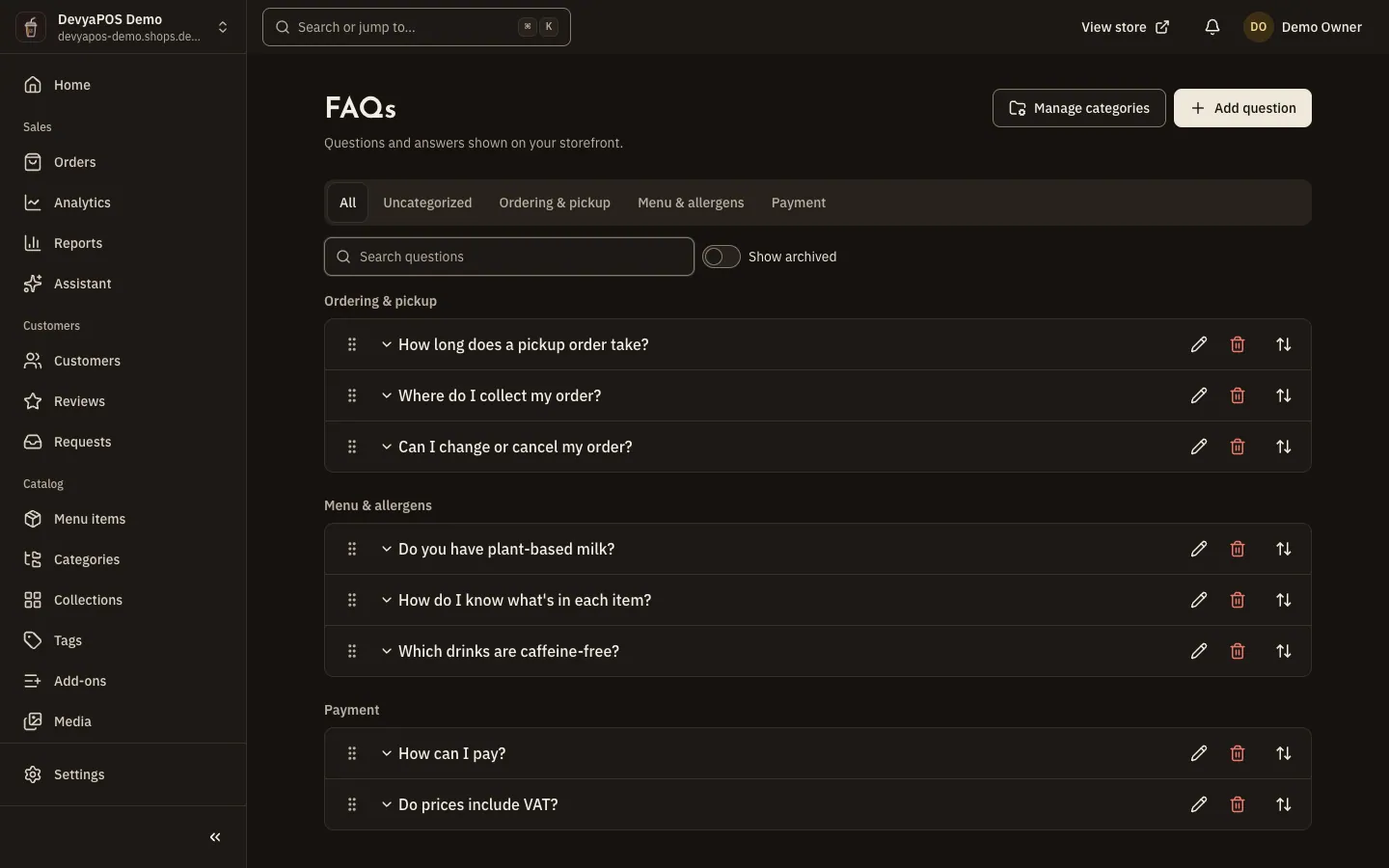
Fig. 3 —Drag questions into the order they appear on your store. Step 2: Optionally, click Manage categories and add categories.
A hidden category keeps its questions off the store, and when you delete a category its questions move to Uncategorized.
Step 3: Click Add question, choose the Category, write the Question and Answer, and turn on Publish now.
The answer is plain text, and its line breaks are kept. Without Publish now, the question is saved as a draft hidden from the store.
Step 4: Drag questions to reorder them.
Clear the search first: reordering doesn’t work while searching. The page holds up to 500 questions and 50 categories.
Can I delete the privacy policy?
No. The six built-in pages can’t be deleted or archived, but you can edit or unpublish them.
Can I format an FAQ answer?
No, the answer is plain text. Page bodies, on the other hand, are formatted: headings, lists, links and images.
Can I add a new listing page, such as “On sale”?
No. The five listing pages are fixed: All products, New arrivals, Best sellers, On sale and Featured. In Online store › Listing pages you can change each one’s name, description and picture, or hide it by turning off Shown on the store.
Where do I set return windows?
The return policy page explains returns in your own words; the windows and rules are set in Return policies. Details in returns.