Moving POSChecked against the product on
The accountant: VAT, invoices and the books
What the accountant needs from Moving POS: setting VAT, e-invoicing with ZATCA for Saudi accounts, reviewing shifts and business days, profit and loss, exporting data, and linking the books through the Accounting app or the API.
On this page
Before you start
- A back-office account with the View reports permission; Manage settings to set VAT, and Manage ZATCA e-invoicing for e-invoicing — all the admin's by default.
- Food cost and margins need recipes written for the items — Add ingredients and link them to recipes.
The till settles with the guests; the back office settles with you. This journey covers what the accountant sets once, what they review every day, and how the numbers get out to the books.
Set once
Step 1: Set VAT
Under System › Settings enter the VAT rate (%) and save. Prices in Moving POS are always VAT included, and the receipt prints VAT (included) with its value. The walkthrough is Set business settings and VAT.
Screenshot being updatedA capture from Moving POS in the new Moving look appears here as soon as it ships.Fig. 1 —One rate for the whole account; changing it applies to the orders that follow. Step 2: Issue e-invoices with ZATCA
For Saudi accounts once the Moving team switched it on: under System › ZATCA e-invoicing fill in the Seller profile (the Seller legal name, VAT registration number and National address) and click Save profile, then onboard each branch from the Branches tab with a code from the Fatoora portal. Every receipt after that is a Simplified Tax Invoice with a signature and a QR code, and you follow rejected Documents. The walkthrough is Issue e-invoices with ZATCA.
Screenshot being updatedA capture from Moving POS in the new Moving look appears here as soon as it ships.Fig. 2 —Active on a branch means every receipt there is reported to the authority.
Review every day
Step 1: Reconcile the shifts and business days
Under Today › Shifts each shift has its Expected, Counted, Variance and VAT collected; under Today › Business days the Day report gathers the branch's shifts. The walkthrough is Review shifts and Z-reports.
Screenshot being updatedA capture from Moving POS in the new Moving look appears here as soon as it ships.Fig. 3 —The Z-report the cashier printed is the same line here. Step 2: Read the profit and loss
Under Business › Reports the Profit & loss tab: Revenue, Food cost, Margin and Margin % per item and for the period, and Ingredient usage (Used, Purchased, Waste and Adjusted). An item with No recipe has an empty cost. The walkthrough is Use and export your reports.
Screenshot being updatedA capture from Moving POS in the new Moving look appears here as soon as it ships.Fig. 4 —The margin is computed from the recipe and the ingredient's latest cost. Step 3: Export what the books need
Under Today › Orders filter by period and branch and click Export CSV: every order with its Subtotal, Discount, Delivery fee, Total, VAT (included) and payment status. Every tab under Reports downloads as CSV too. The walkthrough is Track orders and the activity log.
Screenshot being updatedA capture from Moving POS in the new Moving look appears here as soon as it ships.Fig. 5 —Saved views keep your monthly filters one click away.
Get the numbers into the books
Step 1: Connect the Accounting app
Moving's Accounting app receives the Day-close hand-off automatically: a journal and an entry for every business day, and you check What the books received and send a missing day again. Start from the free trial page with Start my free trial for 14 days. The walkthrough is Use the Accounting app with Moving POS.
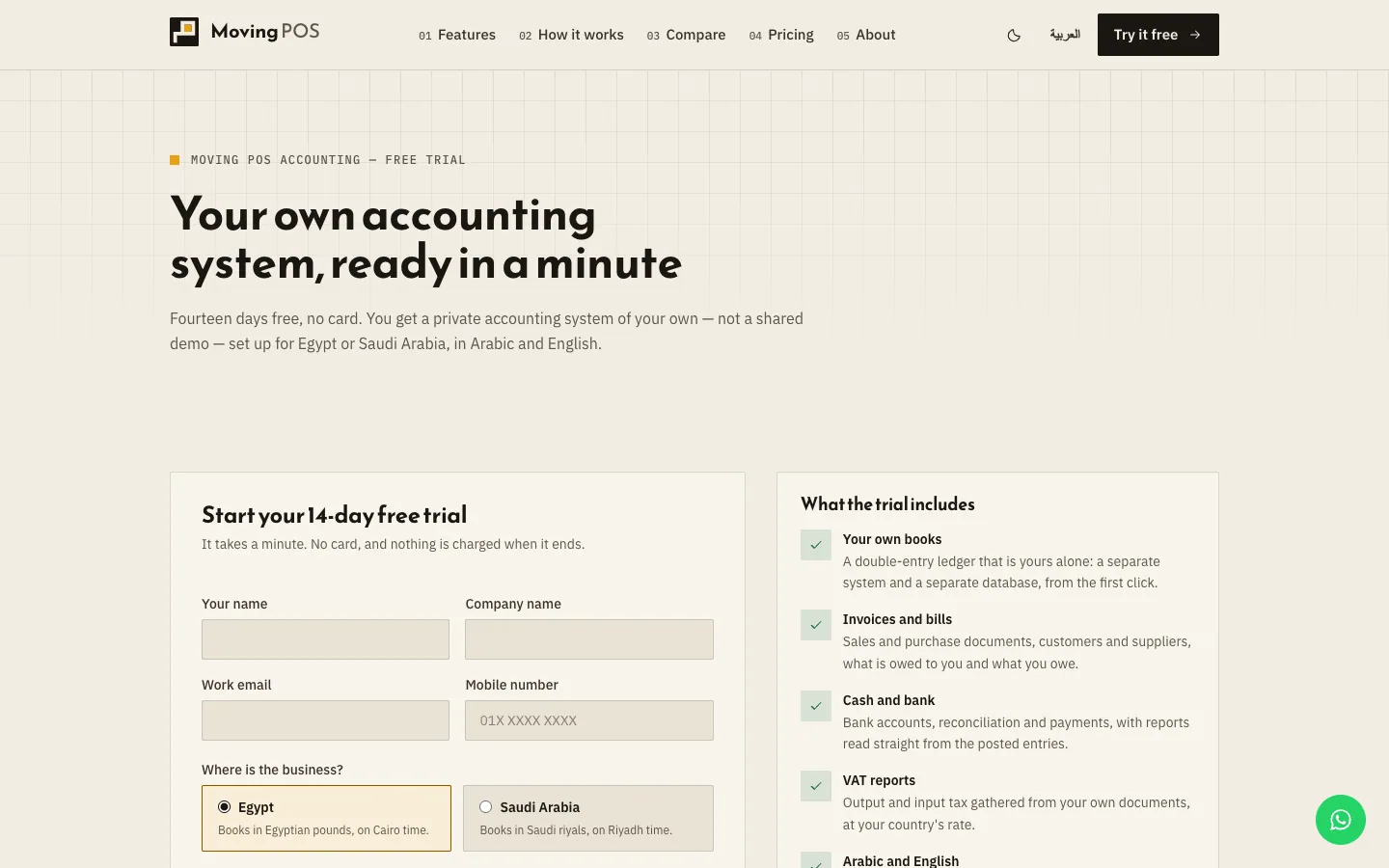
Fig. 6 —The form creates the accounting account and gives you the setup token. Step 2: Or connect your own system through the API
If your books live in another system and the Moving team switched the API on: under System › Integrations create a New key with the View reports scope, and a New endpoint that receives the Cash day closed event. The walkthrough is Connect your systems to Moving POS.
Screenshot being updatedA capture from Moving POS in the new Moving look appears here as soon as it ships.Fig. 7 —A read-only key is all accounting needs.
Are prices VAT-inclusive or is VAT added at payment?
Always inclusive; the receipt breaks out the included VAT at the rate under Settings.
Why is the food cost empty for some items?
Because they have No recipe. Write a recipe for each size from Add ingredients and link them to recipes and their cost and margin are computed.
What about e-invoicing in Egypt?
ZATCA is for Saudi accounts. The situation for Egyptian accounts is explained in the In Egypt section of Issue e-invoices with ZATCA.