Moving POSChecked against the product on
The restaurant owner: set your account up from scratch
From the first contact with the Moving team to a till that prints: the account and the devices, the back office and its settings, the menu with its sizes and add-ons, then the branches, the staff, the permissions and the printer.
On this page
Before you start
- Your restaurant's name, its branches and your menu with prices, even on paper: you will enter them in the steps that follow.
- Once the account is handed over: signing in as Admin, the role that holds Manage settings, Manage menu & catalog, Manage branches and Manage staff & permissions by default.
A Moving POS account is not created from a sign-up form; the Moving team sets it up in your restaurant's name and hands you the sign-in details. After that the whole setup is yours, from the back office, in the order this journey follows.
Get an account
Step 1: See how it works
The How it works page on the Moving POS site explains the path in four steps: an order comes in from the till, the site or a delivery app, shows on the kitchen screen, deducts its ingredients from the branch's stock and lands in the day's report. What the help centre explains here is those same screens.
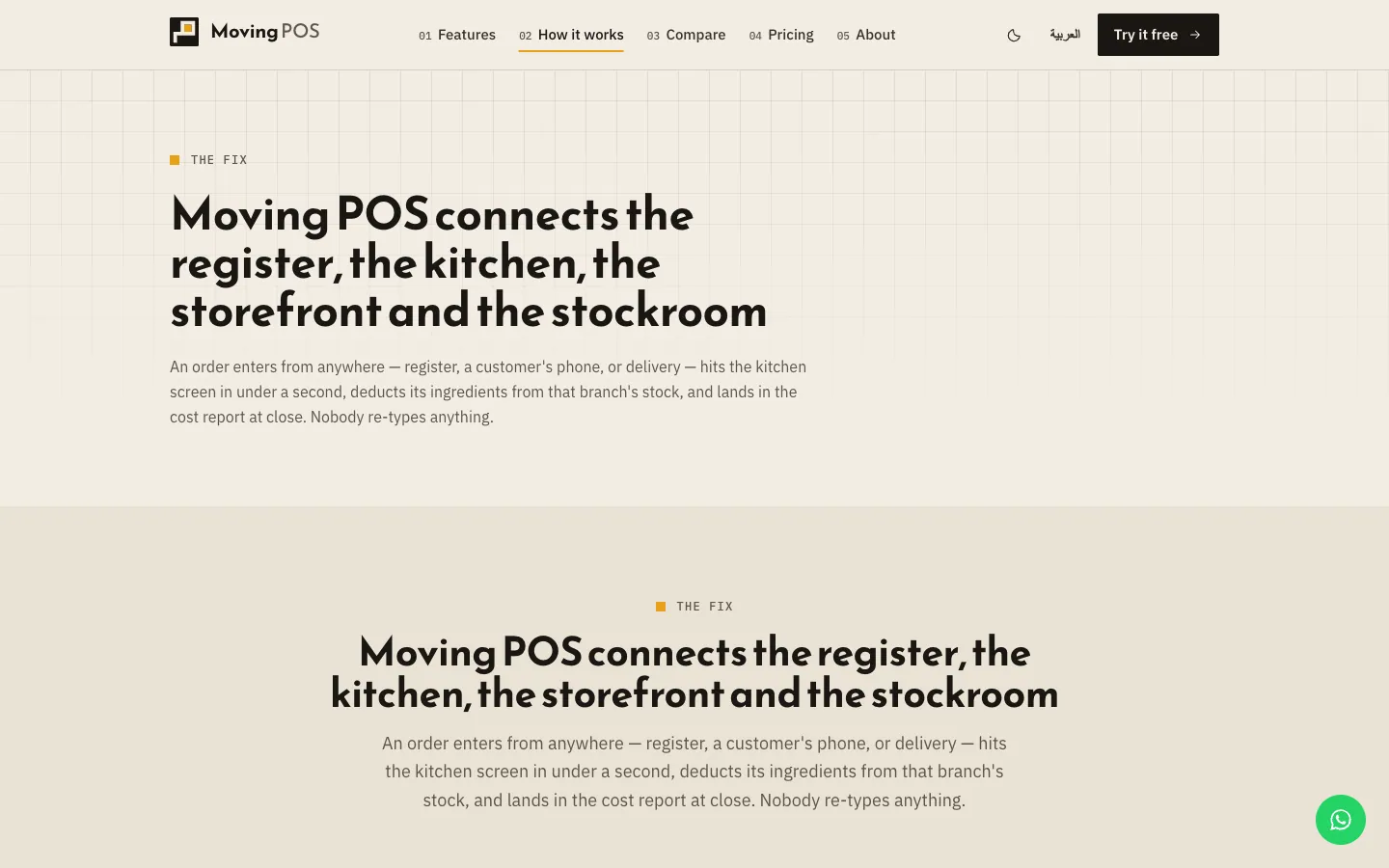
Fig. 1 —The four steps are this centre's sections: selling, the kitchen, stock and reports. Step 2: Contact the team
From the Contact page send your restaurant's details with Send my details, or message us on WhatsApp. The team creates the account, the first branch and the first accounts and hands you the access sheet; the first thing you do is change the provisional passwords. The details are in Get started with Moving POS.
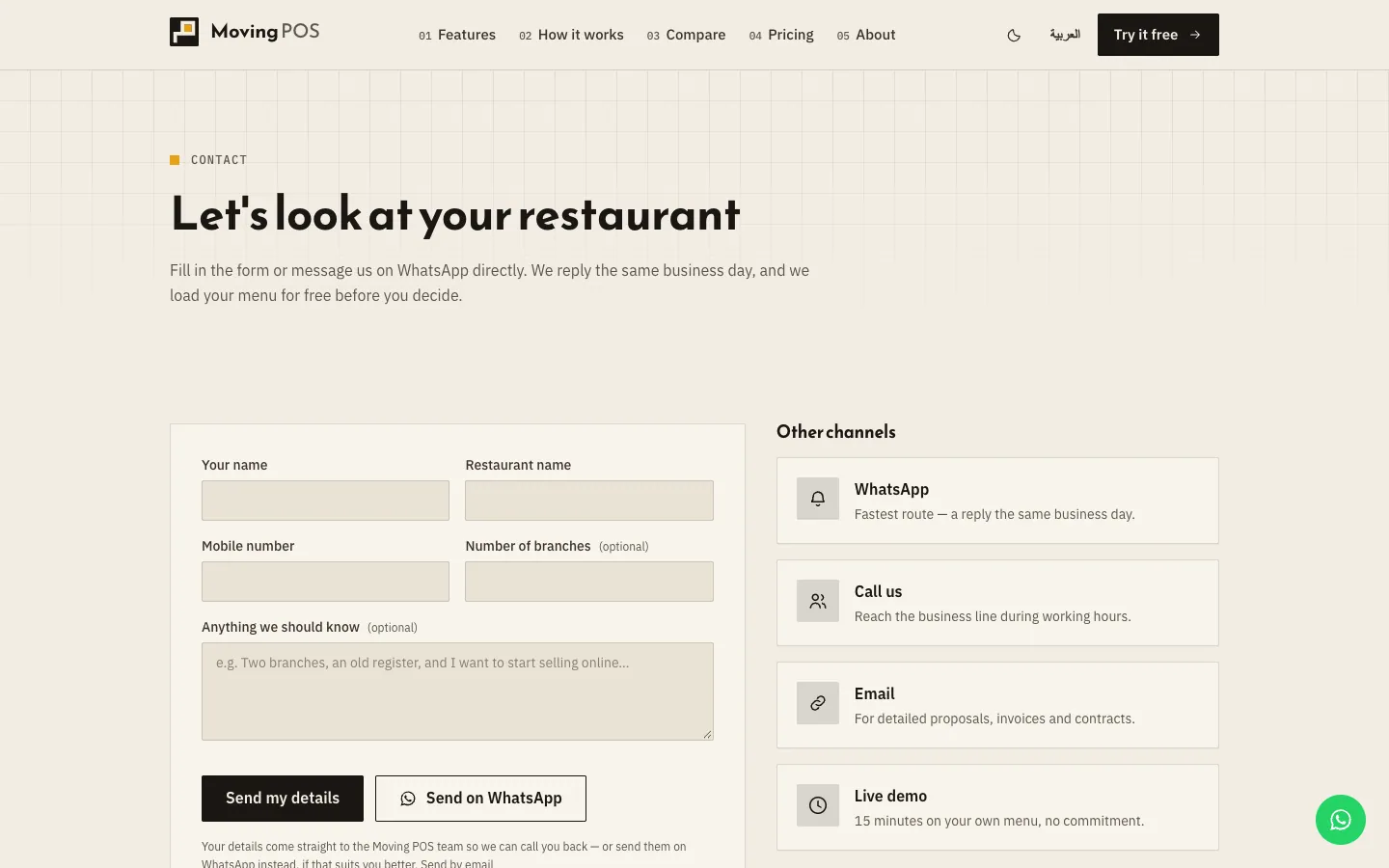
Fig. 2 —The form is the account request; there is no self-service sign-up. Step 3: Choose your devices
The till runs in a browser on any computer or tablet and in the POS apps on iPad and Android, the kitchen display on a device in the kitchen, and an 80 mm thermal printer on the branch network. What works and what does not is in Choose devices and apps.
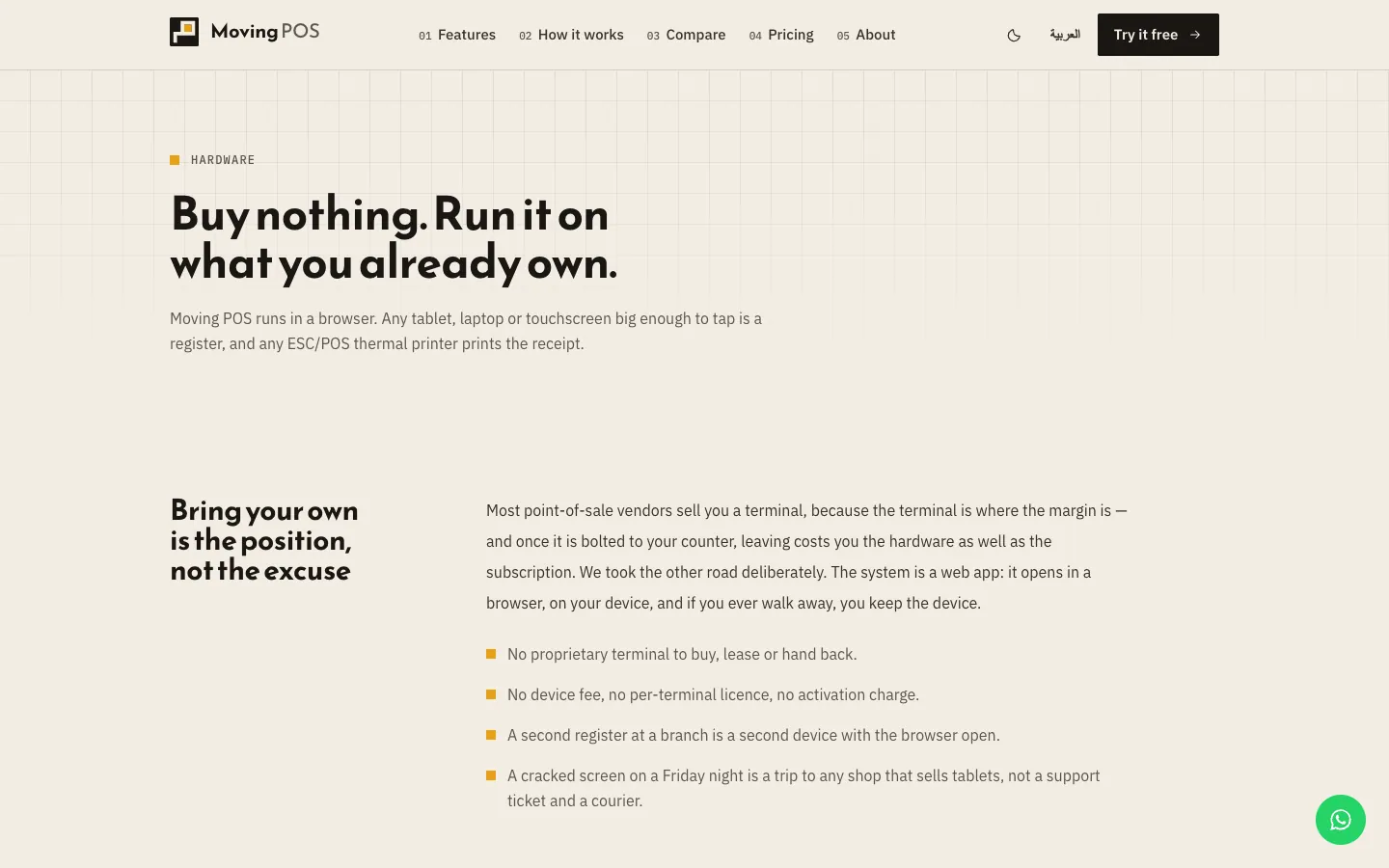
Fig. 3 —No dedicated hardware: the tablets and computers you have are enough.
Set the back office up
Step 1: Tour the back office
Open the back office with the Admin account. The sidebar is in groups: Today (the dashboard, orders, shifts and business days), Catalogue (the menu, inventory and coupons), Business (branches, zones and delivery apps), Staff, Reports and System (activity, permissions, settings and integrations). The full tour is Tour the back office.
Screenshot being updatedA capture from Moving POS in the new Moving look appears here as soon as it ships.Fig. 4 —What you see in the sidebar follows your permissions; an item marked Not included is a feature the Moving team has not switched on for your account. Step 2: Set the settings and VAT
Under System › Settings enter the VAT rate (%) — every price is VAT included — and the Receipt footer (AR) and Receipt footer (EN), then Save. Order numbering is on the same page. The currency, language and country are set by the Moving team. The walkthrough is Set business settings and VAT.
Screenshot being updatedA capture from Moving POS in the new Moving look appears here as soon as it ships.Fig. 5 —The rate you enter here is printed on every receipt and enters every report.
Build the menu
Step 1: Add the categories
From Catalogue › Menu open the Categories tab and click New category: Name (AR), Name (EN), Sort and Photo. Categories are the section buttons the cashier taps.
Screenshot being updatedA capture from Moving POS in the new Moving look appears here as soon as it ships.Fig. 6 —The order here is the order of the buttons on the POS screen. Step 2: Add the products with their sizes
On the Products tab click New product: the name in Arabic and English, the Category, the photo, then under Variants enter each size's Label and Price (EGP) and click Add variant for the next. A single-size product has one variant. The walkthrough is Build your menu, and per-branch prices are in Set branch prices.
Screenshot being updatedA capture from Moving POS in the new Moving look appears here as soon as it ships.Fig. 7 —Each size line is what the cashier picks after tapping the product. Step 3: Add option groups
From the Modifiers & Sizes tab open Option Groups and click New group: the name, Must choose at least and May choose at most, then Add option for each add-on with its price, and attach it to Products. The walkthrough is Sizes and option groups.
Screenshot being updatedA capture from Moving POS in the new Moving look appears here as soon as it ships.Fig. 8 —A “Must choose at least” of one makes the add-on mandatory at the till.
Branches, team and printer
Step 1: Add your branches
From Business › Branches click New branch: Name (EN), Name (AR), Address and Phone, and the Kind of site: Branch — sells or Warehouse — holds stock, never sells, and leave Active on. The walkthrough is Add and edit a branch, and delivery zones with their fees in Add delivery zones.
Screenshot being updatedA capture from Moving POS in the new Moving look appears here as soon as it ships.Fig. 9 —Each branch has its own business day, stock and printer. Step 2: Add the staff
From Staff click New user: Name, Email, the Role — Branch manager, Cashier, Barista or Warehouse keeper — the Branch and a Password, save and hand over their details. The walkthrough is Add staff and set permissions.
Screenshot being updatedA capture from Moving POS in the new Moving look appears here as soon as it ships.Fig. 10 —A cashier and a barista sign in to the till only; a branch manager also enters the back office. Step 3: Review the permissions
Under System › Permissions you see each role's permissions and change them, then Save permissions. On any staff member's page you can change theirs alone; it then shows Changed from role default.
Screenshot being updatedA capture from Moving POS in the new Moving look appears here as soon as it ships.Fig. 11 —Change the role once instead of every staff member. Step 4: Connect the printer and test it
Find the printer's IP address and fix it on the router, then enter it under Receipt printer IP on the branch's page. At the till, from Shift › Receipt printer you can Change the address, and from Terminal settings › Printer diagnostics you test printing. The walkthrough is Connect a receipt printer.
Screenshot being updatedA capture from Moving POS in the new Moving look appears here as soon as it ships.Fig. 12 —An address changed at the till shows in the back office marked Changed at the till.
Can I create the account myself?
No. The Moving team creates it after you get in touch, and hands you an access sheet with your first accounts — see Get started with Moving POS.
Who sets the currency, language and country?
The Moving team, when the account is created; they are not in Settings. What the team sets is listed in Set business settings and VAT.
Do I need to enter stock from day one?
No. Selling works with the menu alone. When you want ingredients deducted automatically and a food cost, add ingredients and recipes.