Moving StoresChecked against the product on
The owner: from sign-up to the first order
The whole path for whoever creates the store: sign-up, branding, the first product, payments and shipping, the design, inviting the team, then launch and the first order — every step with the article that goes deeper.
On this page
Before you start
- An email address you can open: you confirm your account with it before launch.
- An idea of your business type: a Shop sells products that ship, a Restaurant or café sells menu items for pickup or delivery. The type decides which screens you see for the rest of the journey.
This journey covers everything it takes to sell the first item: fourteen steps in five parts. You do not have to finish it in one sitting; the dashboard remembers where you stopped and shows what is left in the setup checklist on Home.
Create the store
Step 1: Sign your store up
On the sign-up page fill in Your account and Your store: the Store name and Store address, then the Business type, the country and the Plan, and click Create my store. The details and the address rules are in Create your store.
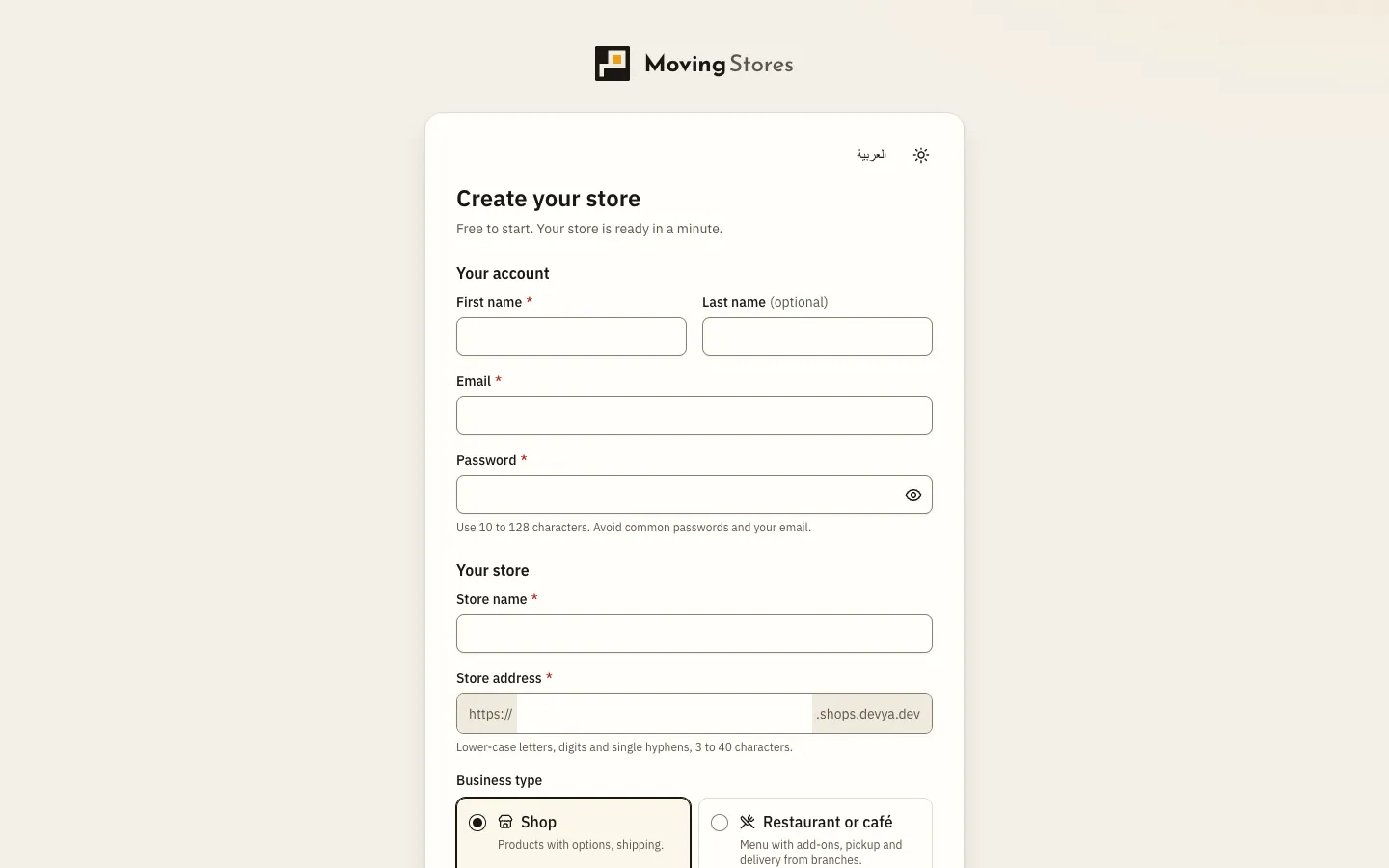
Fig. 1 —One form creates the account and the store together; the store address is what your customers type into the browser. Step 2: Confirm your email address
Open the Verify email message and click its link. Until then the store runs in Maintenance and cannot launch. If the message does not arrive, click Resend email.
Set it up with the wizard
After the first sign-in the Set up your store wizard opens with five steps. Each has Skip for now, so finish what you know now and come back for the rest; the full walkthrough is Set up and launch your store.
Step 1: Make it yours
Under Branding upload the Logo, pick the Main colour and Accent colour or one of the Suggested colours, then Save and continue. All of this changes later under Settings › Store › Branding.
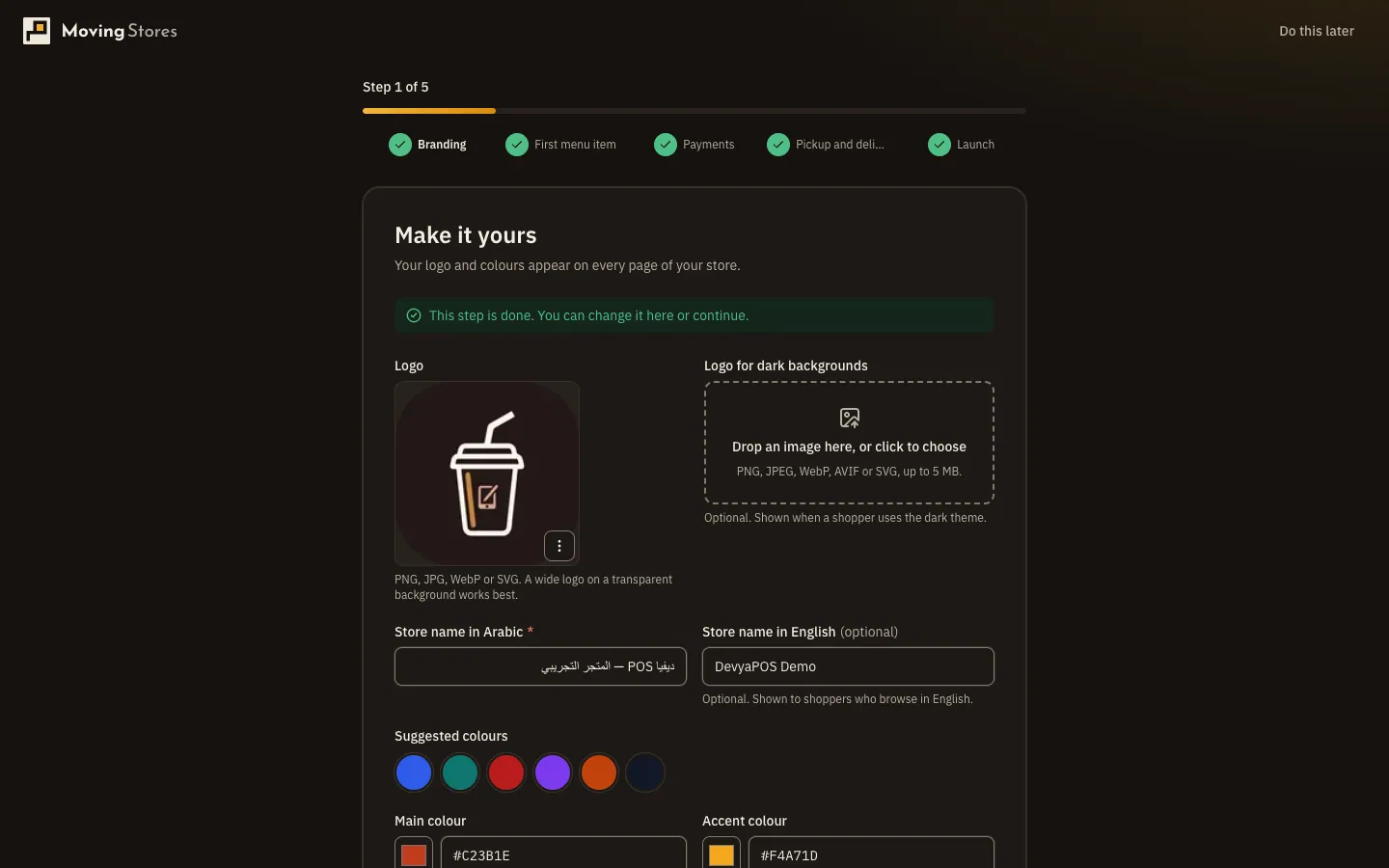
Fig. 2 —The two colours recolour the whole store at once; change them whenever you like. Step 2: Add the first product or menu item
Write the name, the Price and the Quantity in stock and click Save and publish. A restaurant linked to Moving POS chooses Import my menu from Drinki POS instead.
Step 3: Choose how customers pay and how they get it
Under How will customers pay? turn on Cash on delivery, Bank transfer or Online payments. Then in the shipping step enter the Shipping fee and Free shipping on orders over for a shop, or turn on Pickup and Delivery with the Delivery fee and Delivery time for a restaurant.
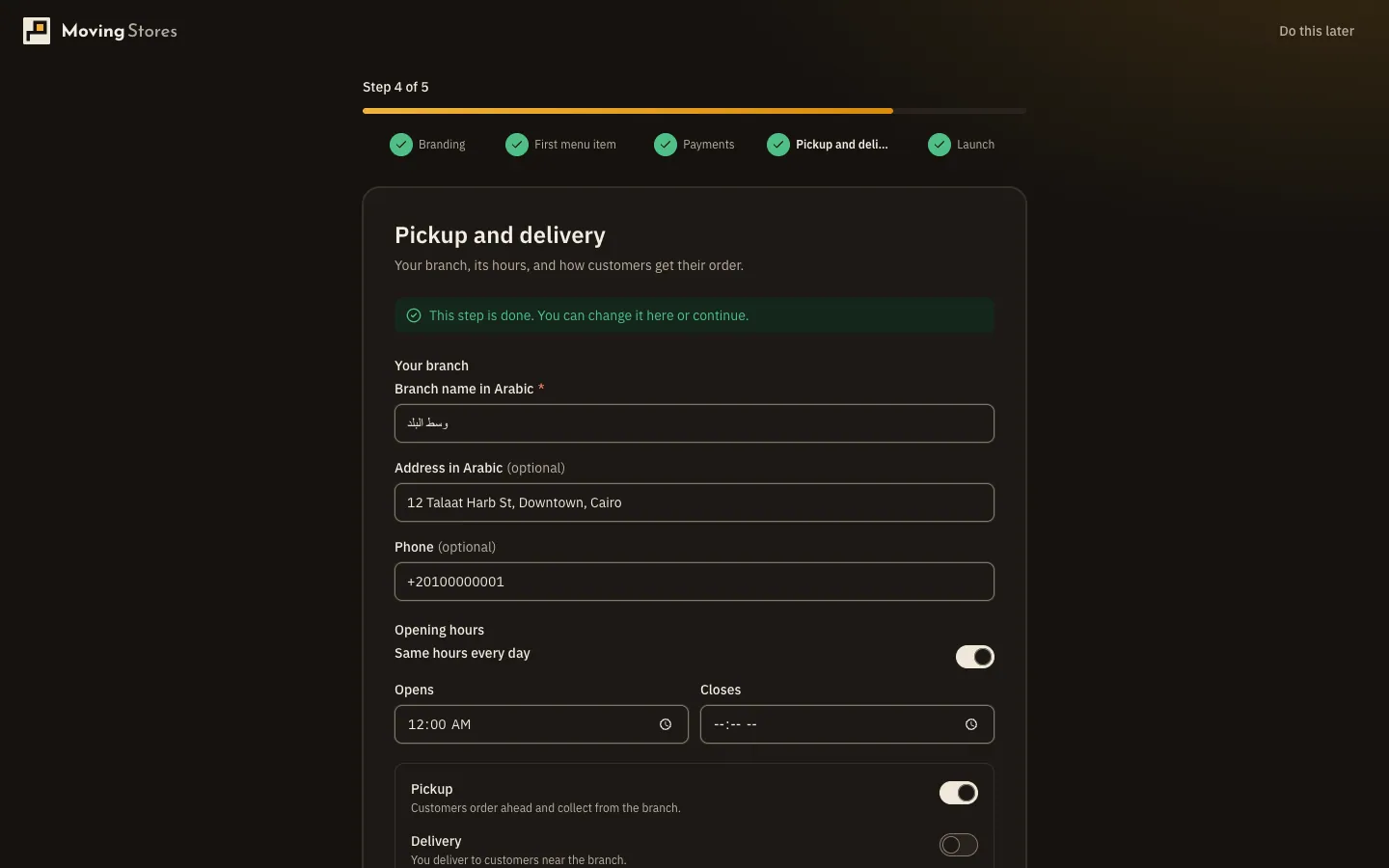
Fig. 3 —A restaurant sees its branch and hours here; a shop sees shipping fees.
Fill the catalogue
Step 1: Add the rest of your products
From Catalog › Products (or Catalog › Menu items in a restaurant) click Add product: Basic info, Media, Pricing, Inventory and Organization, then Save and publish or Save as draft. Every field is in Add a product or menu item, sizes and variants in Add options and variants, and a restaurant's add-ons in Add add-ons. If your products are in a file, import them with a CSV.
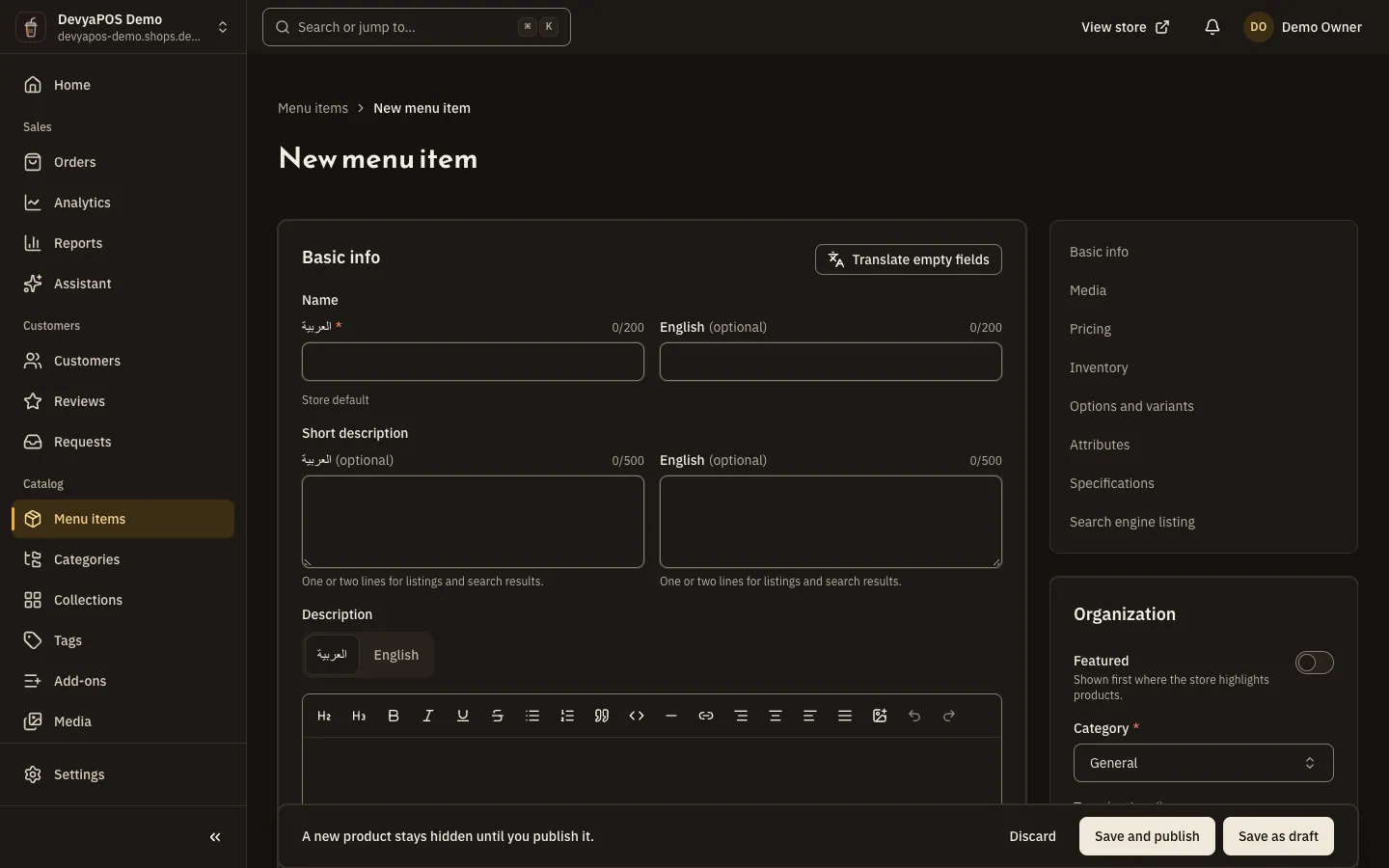
Fig. 4 —A draft does not show in the store; publishing shows it at once. Step 2: Organise them into categories
From Catalog › Categories click Add category, write the Name and turn on Show in the store menu so the category appears in the store's header. Collections and tags are in Organise products.
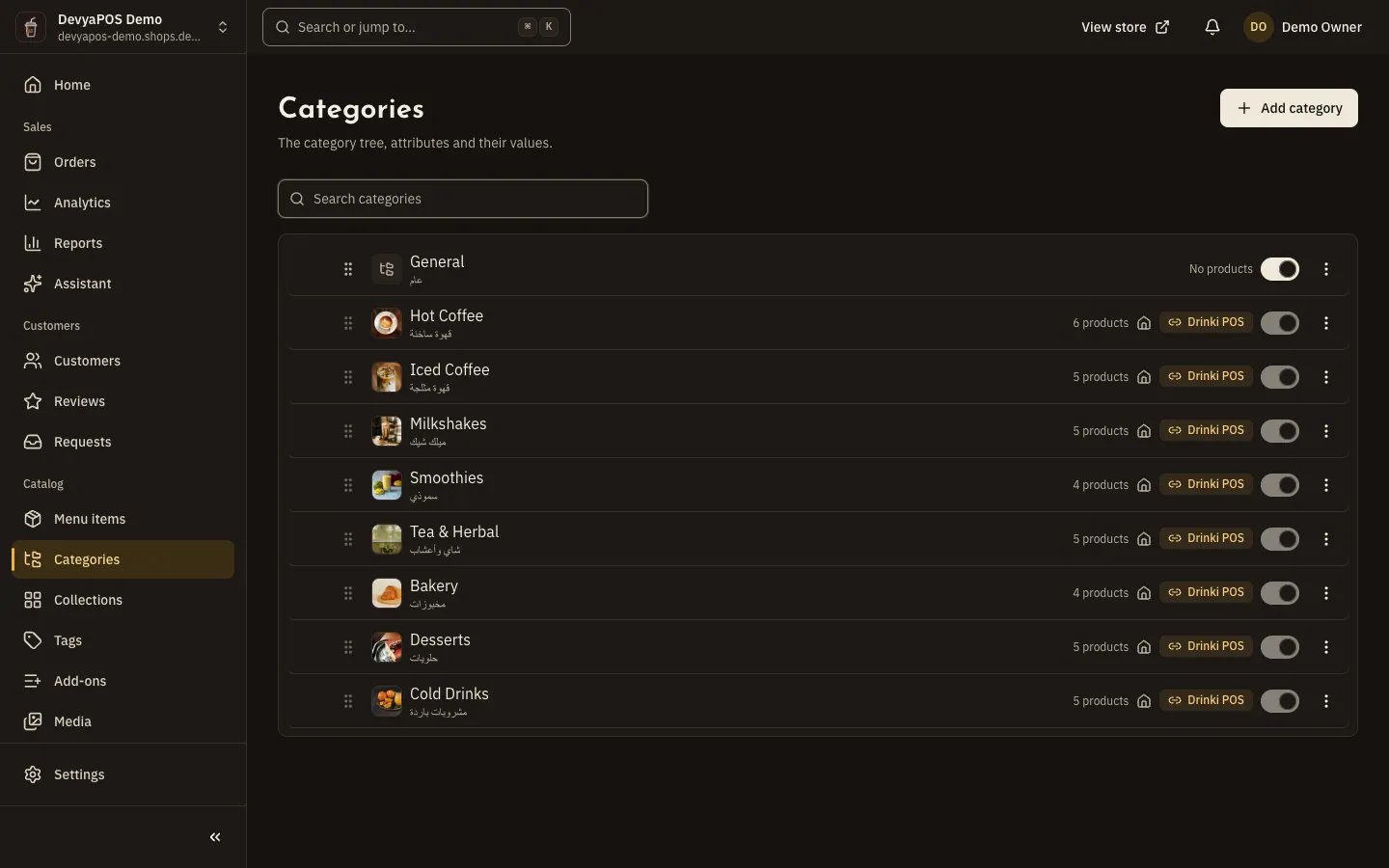
Fig. 5 —A category shown in the store menu becomes a link in its header.
Payments and shipping in detail
Step 1: Review the payment methods
From Settings › Payments open each method with Set up: for a bank transfer the Bank name, Account name and IBAN; for your customers' cards connect Paymob in Test mode first, then Live. At least one method must stay on. See Turn on payment methods and Connect Paymob.
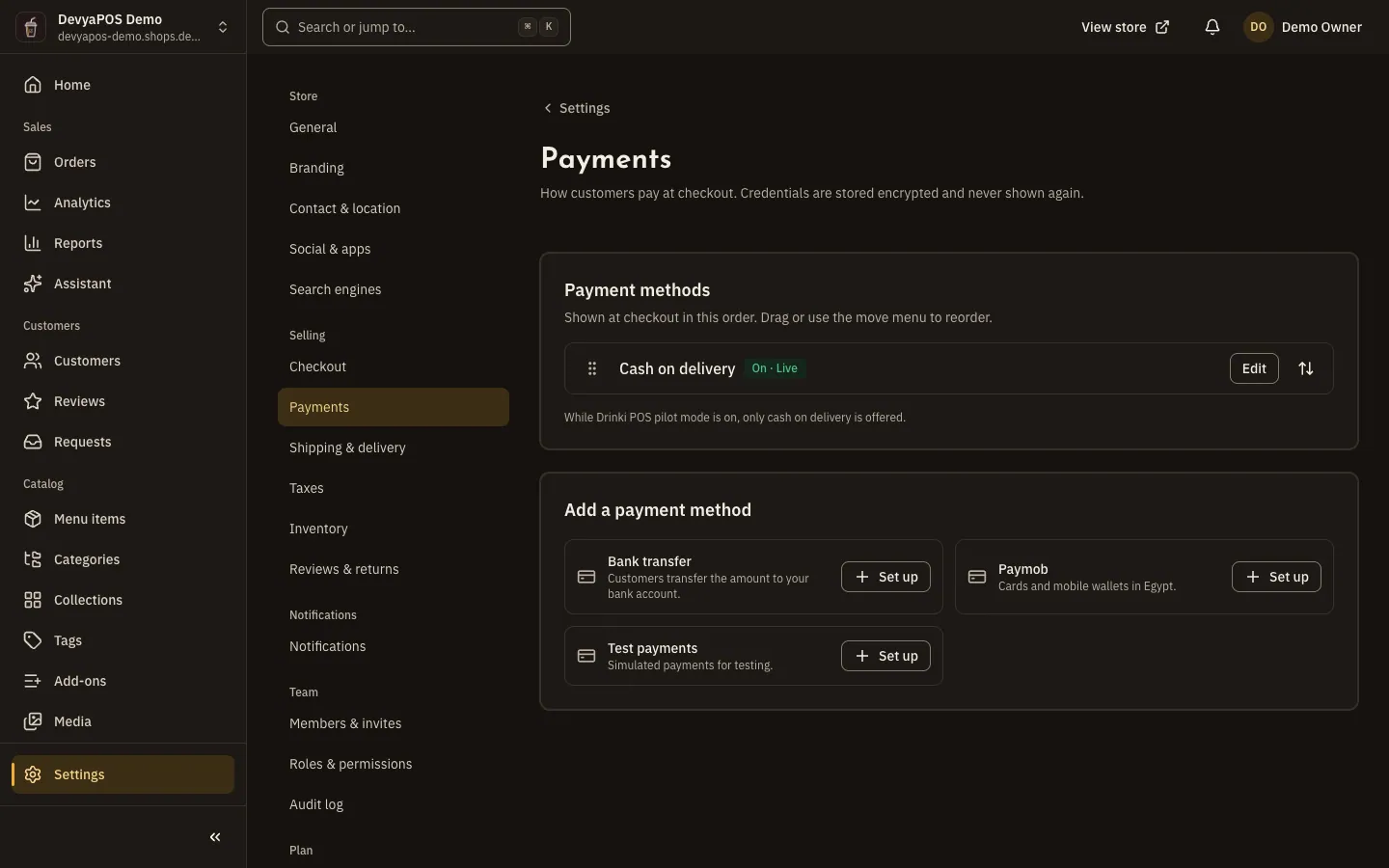
Fig. 6 —Each method has a status: Off, On · Test mode, or On · Live. Step 2: Set shipping or delivery
Shop: from Settings › Shipping & delivery click Add zone, then Add rate for each zone — Set up shipping zones and rates. Restaurant: open your branch from Branches › Branches, turn on Pickup and Delivery in the Ordering tab, and add Delivery zones with their fees — Turn on pickup and branch delivery zones.
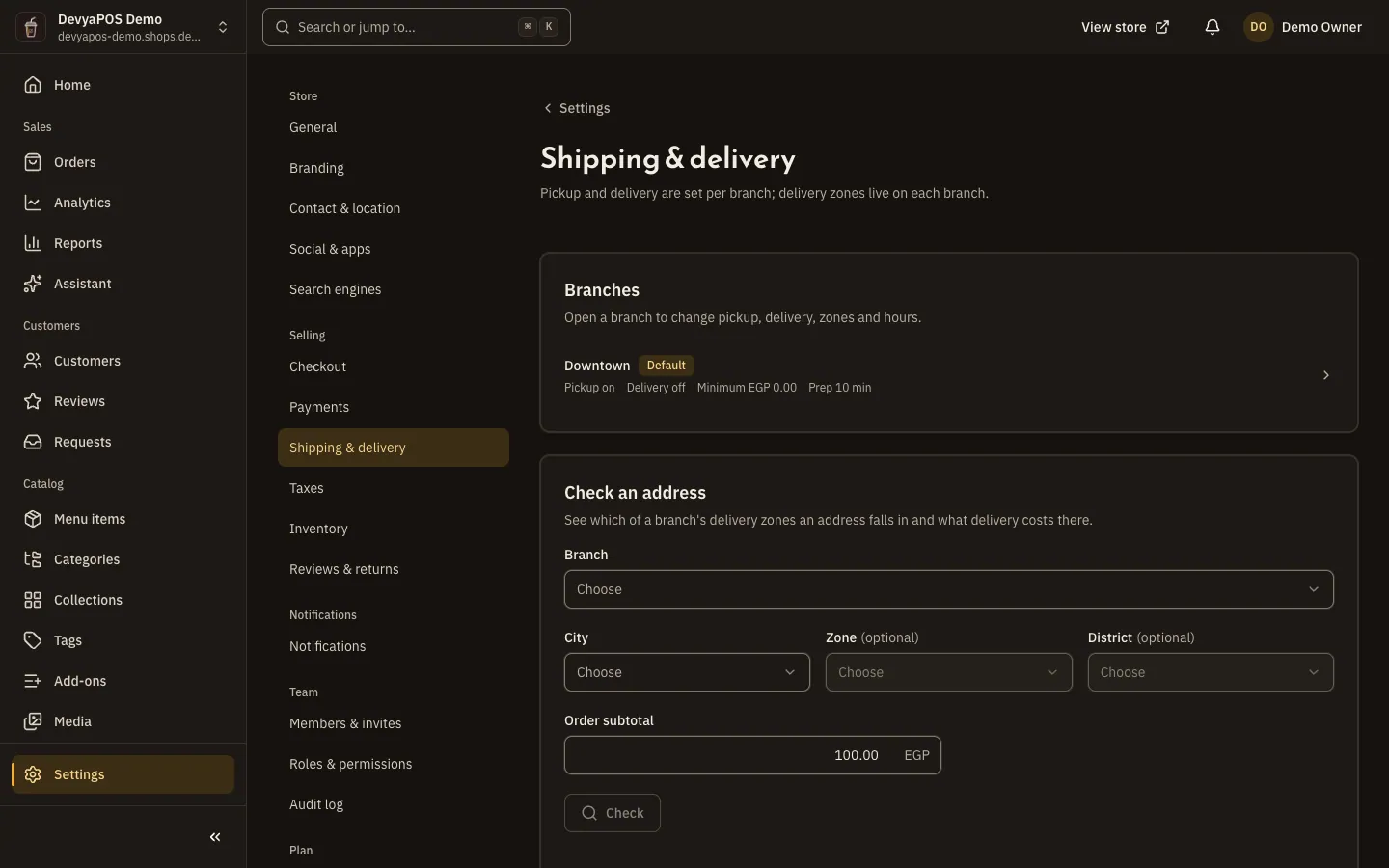
Fig. 7 —The preparation time here is what the customer sees as “Ready in ~10 min” on your store.
The look, the team and the launch
Step 1: Choose a design
From Online store › Designs click Preview on any card to see it on a live sample store, then Apply design. Or start from the Templates with Start from this template, which fills your home page with your own products. The details are in Choose a design or start from a template.
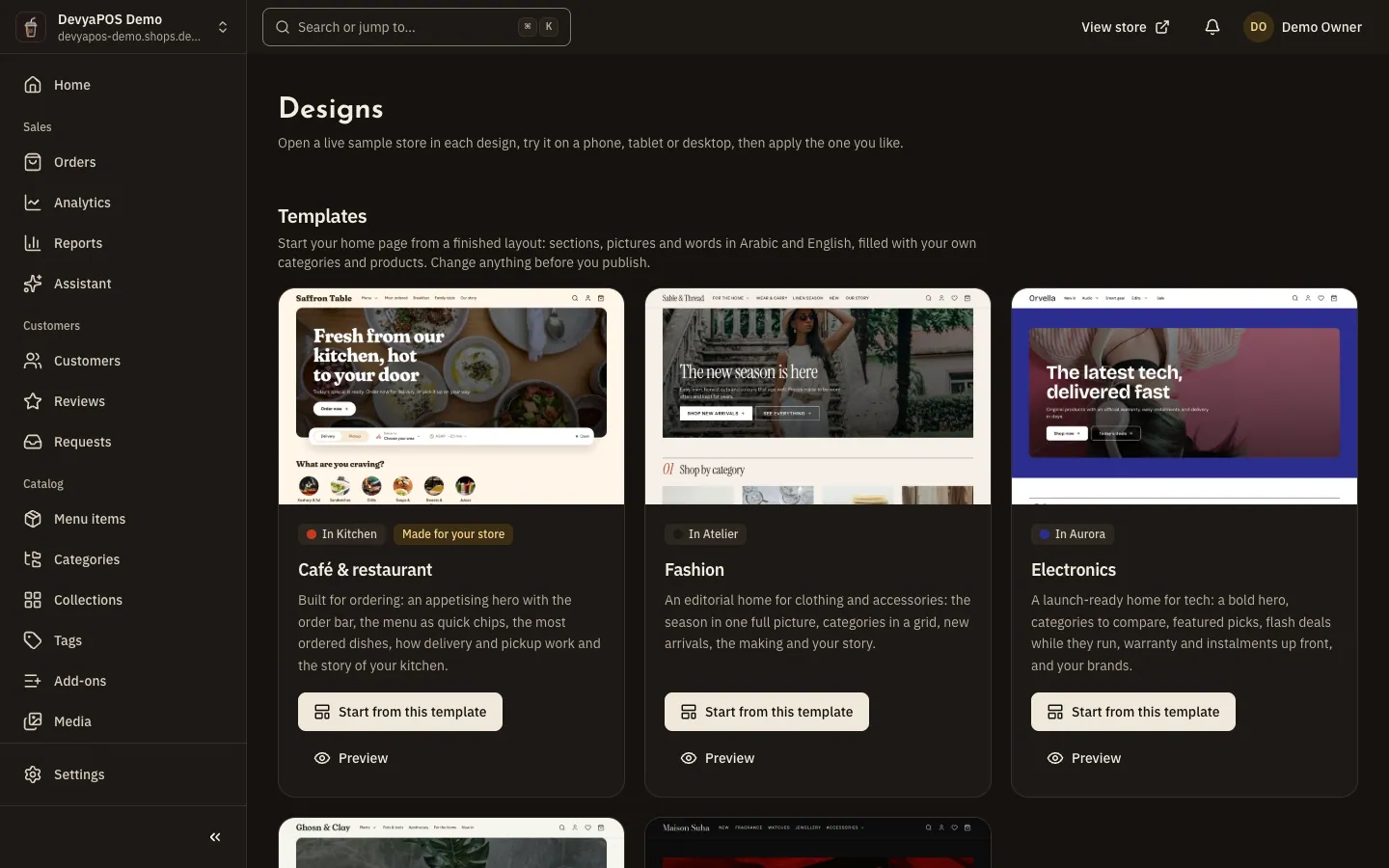
Fig. 8 —A design changes only the look; products, orders and settings stay as they are. Step 2: Arrange your home page
From Online store › Home layout click Open the visual editor: pick a section, edit it under Content and Style, Add section for what is missing, then Publish. The walkthrough is Edit your home page in the visual editor.
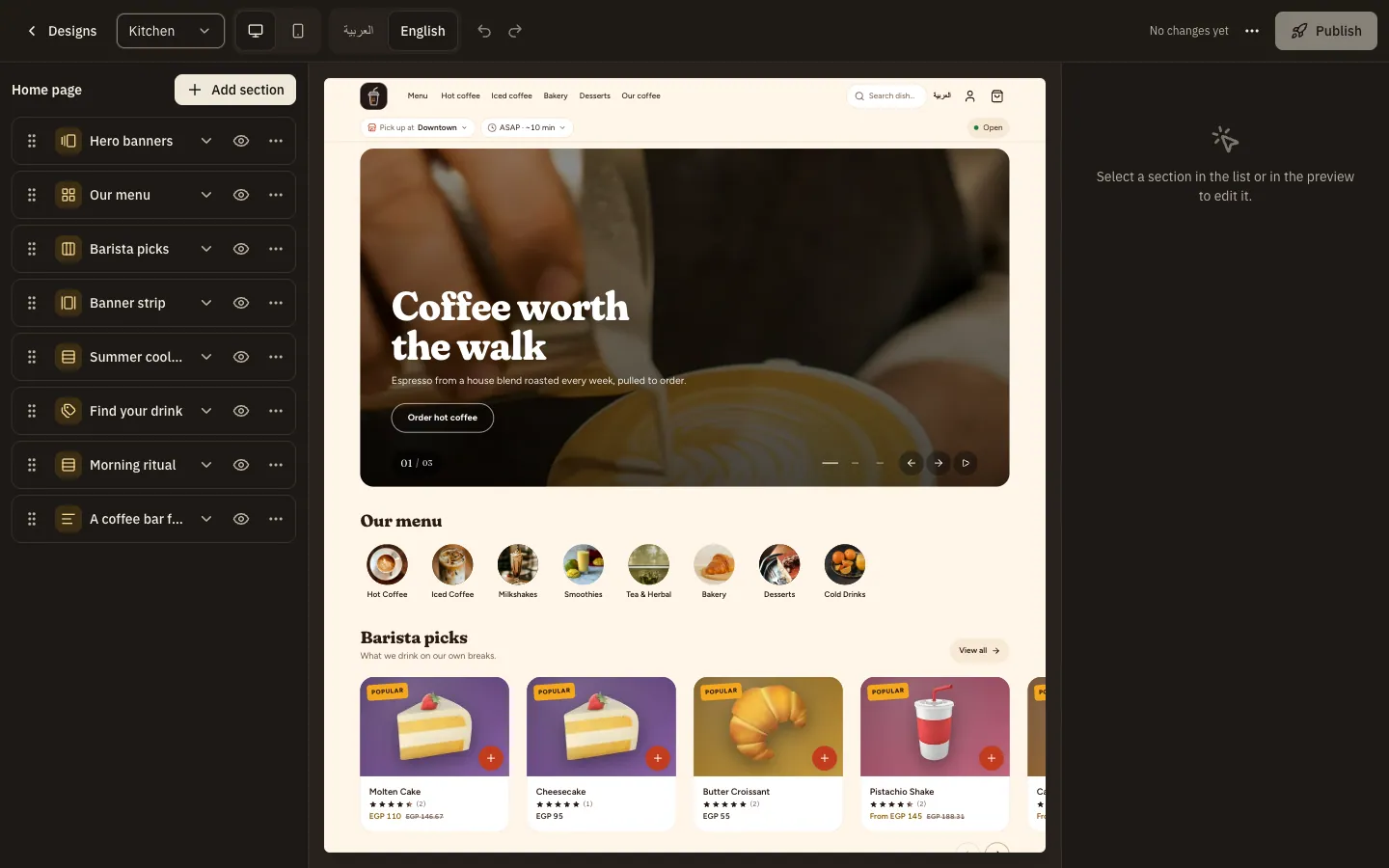
Fig. 9 —What you change stays a draft until you click Publish. Step 3: Invite your team
From Settings › Team › Members & invites click Invite member, enter the email and choose the Role: Admin, Manager or Staff. What each role can do, and how to change it, is in Invite your team and set permissions.
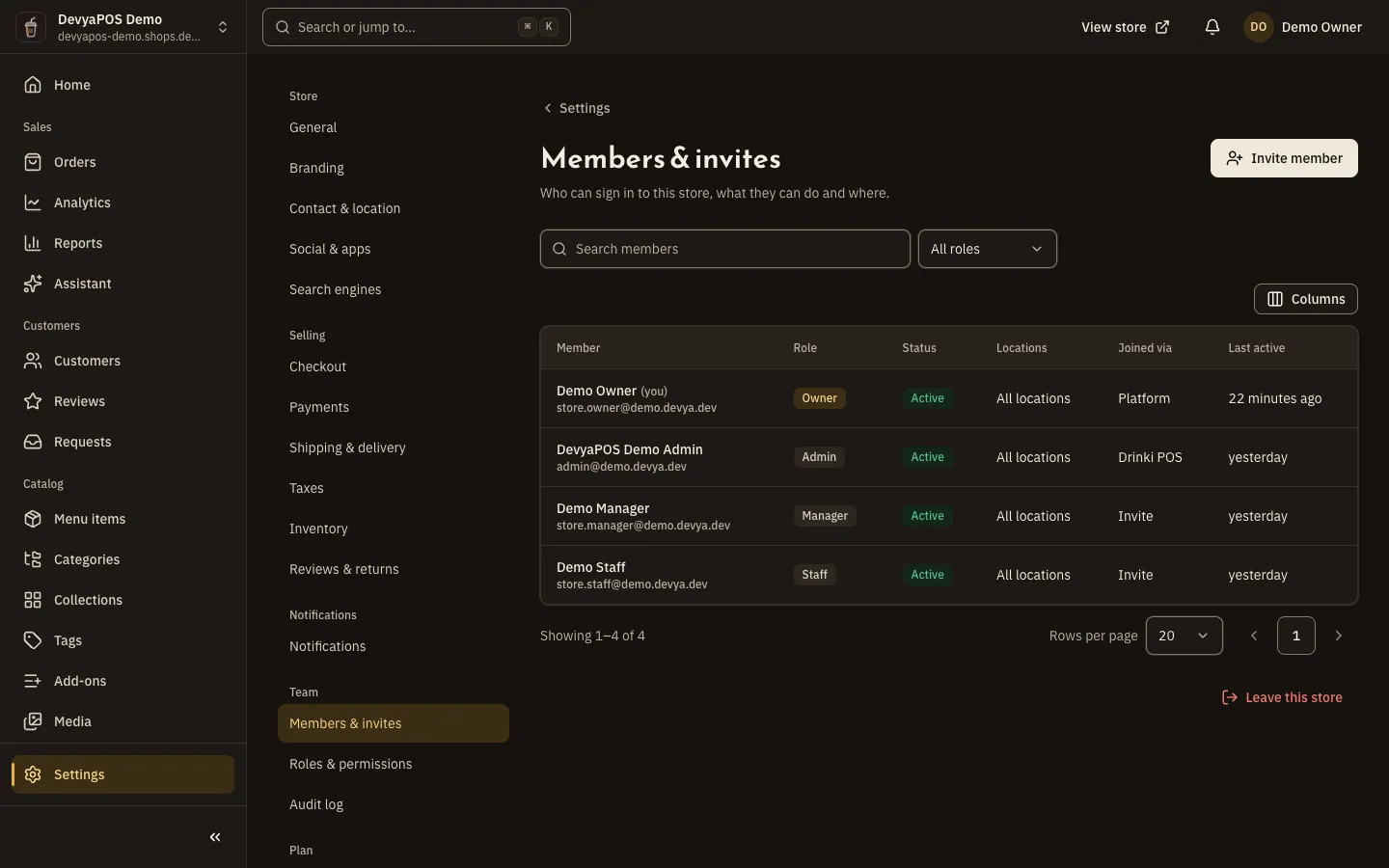
Fig. 10 —There is one owner; everyone else joins by invitation with a role. Step 4: Launch the store
Go back to the wizard's Launch step (or the setup checklist on Home). Under Before you open you see what is still missing; click Preview store to see it as a customer would, then Launch store. The store status goes from Maintenance to Live.
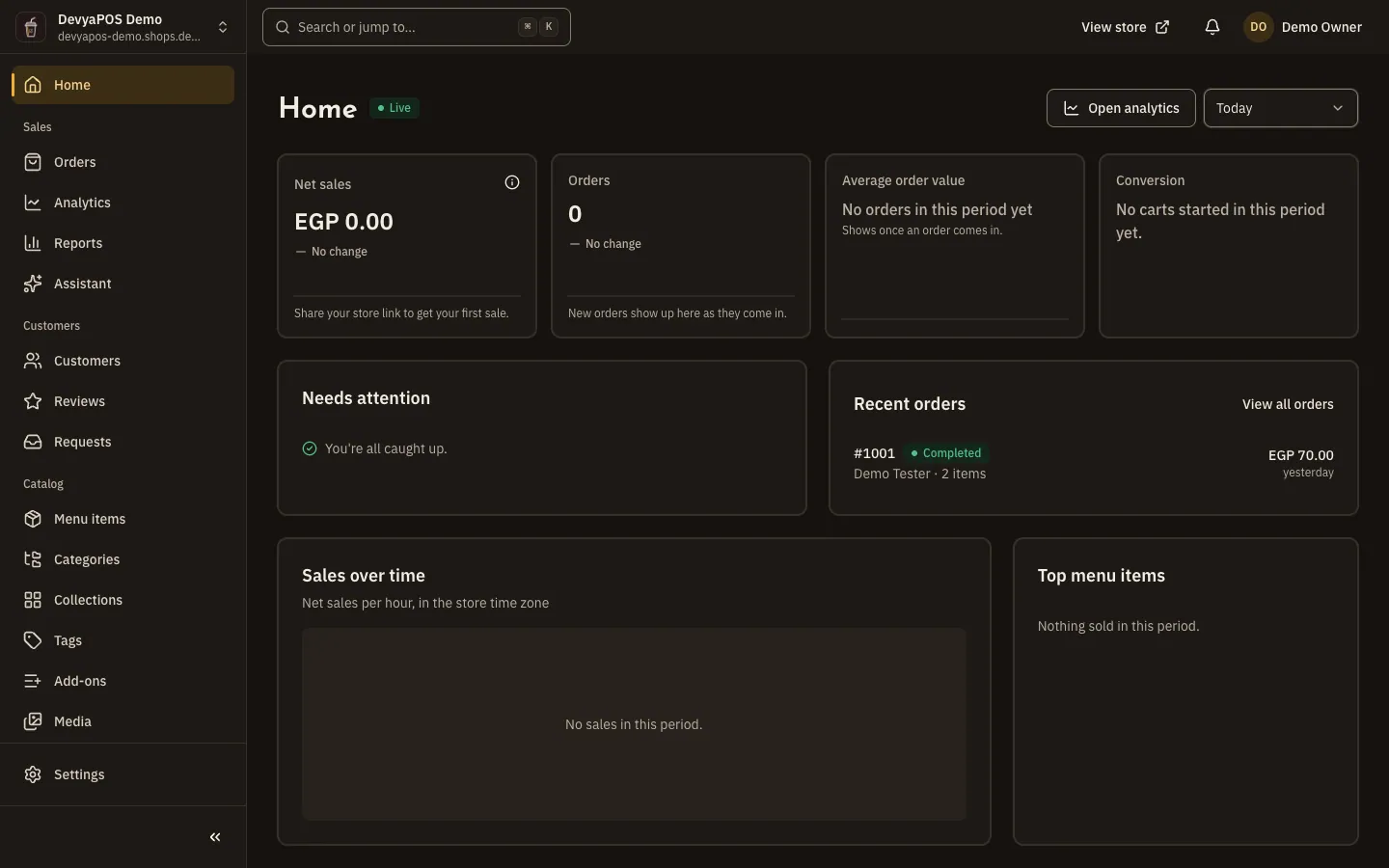
Fig. 11 —The setup checklist stays on Home until its items are complete. Step 5: Receive the first order
A new order lands in Sales › Orders on the New tab, with the New-order sound if you turned it on and an email to whoever you added under Settings › Notifications. Click Accept order, then follow it to delivery as in Take an order from accepted to delivered.
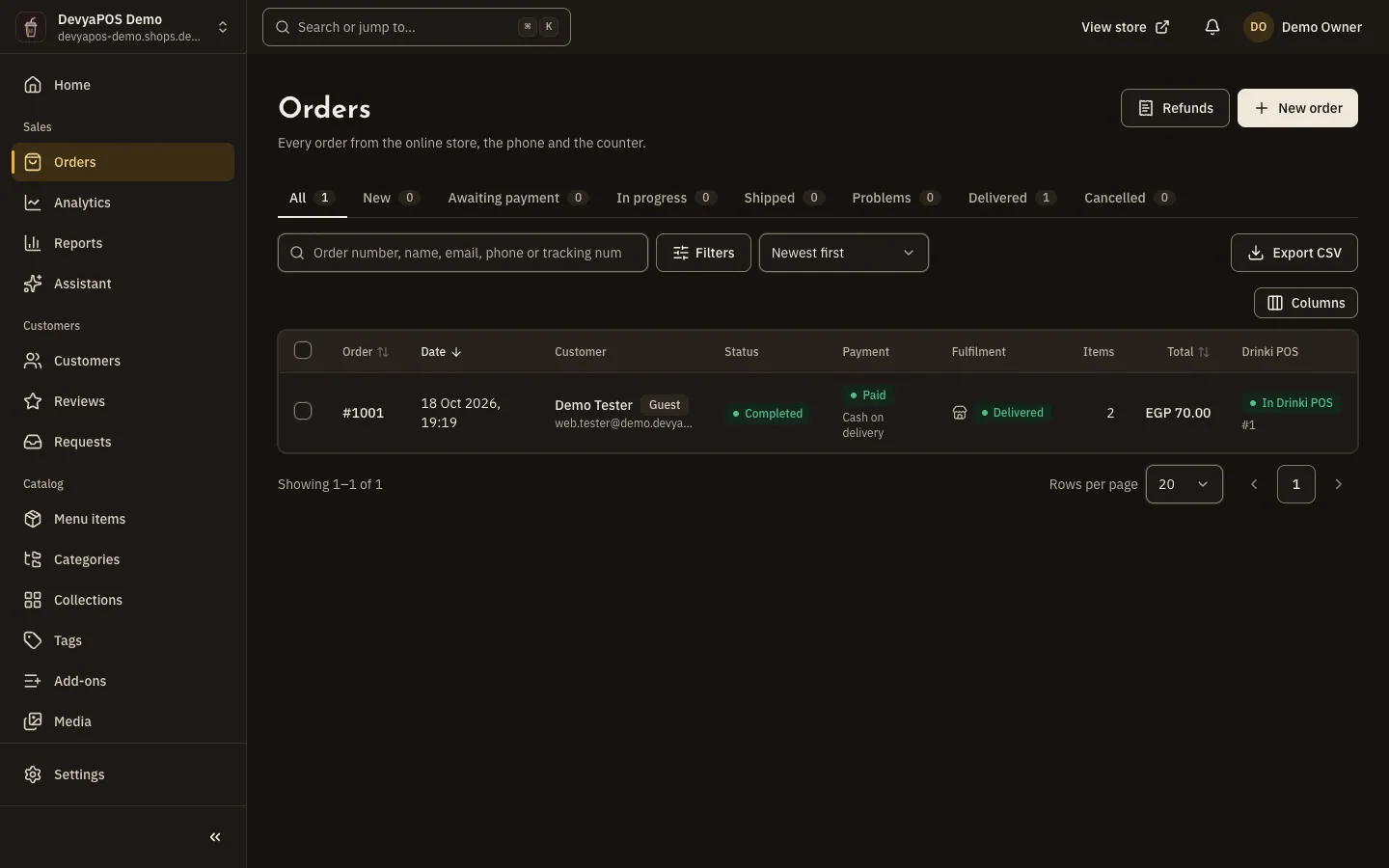
Fig. 12 —The tabs are the order's stages; each order moves between them with every action.
Do I have to finish every wizard step before launching?
No. The Launch step lists what is actually missing under Before you open; everything else can wait with Skip for now. The details are in Set up and launch your store.
I created the store with the wrong type. Can I change it?
The Business type is shown under Settings › Store › General; what differs between a shop and a restaurant is explained in Add a product or menu item.
When do I connect my own domain?
Whenever you like after launch, from Settings › Plan › Domains if your plan includes it — see Connect your own domain. The original store address keeps working.