Moving StoresChecked against the product on
The store manager: a working day from orders to stock
The daily routine for whoever runs the store: what needs your attention on Home, accepting, preparing and handing over orders, orders that arrive by phone, cancellations and refunds, stock, answering customers, then the day's numbers.
On this page
Before you start
- The Manager or Admin role, or a staff account with View orders, Process orders and Adjust stock — see Invite your team and set permissions.
- New order and Low stock alerts sent to your email from Settings › Notifications, so you do not depend on having the dashboard open — see Set up team alerts.
A manager's day revolves around one list: what needs your attention. You start from it in the morning, come back to it with every alert, and close the day with the numbers.
Start from Home
Step 1: Read what needs your attention
On Home set the Period to Today. The Needs attention card counts New orders, Awaiting payment, To fulfil, Delivery problems, Scheduled for today, Unread reviews, Open requests and Low stock, and each number links to its list. The cards are explained in Read your home dashboard.
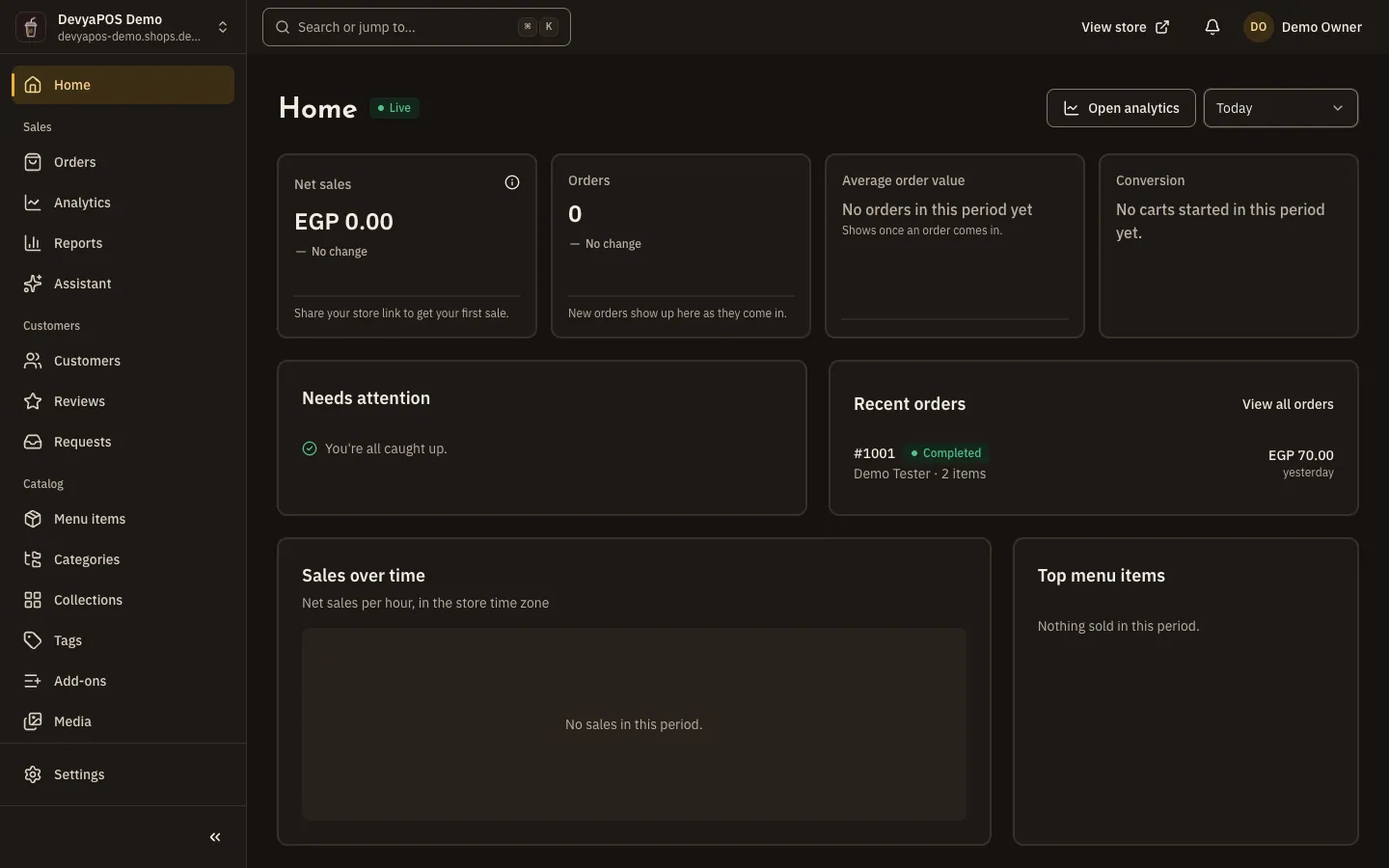
Fig. 1 —Eight counters sum up your day; click any number to go straight to its list.
Orders
Step 1: Accept the new orders
From Sales › Orders open the New tab. Click Accept on the order (or Start preparing in a restaurant); you can select several orders and accept them together. An order Awaiting payment by bank transfer is marked Paid once the receipt checks out — the Confirm manual payments permission. Search and filters are in Find and manage your orders.
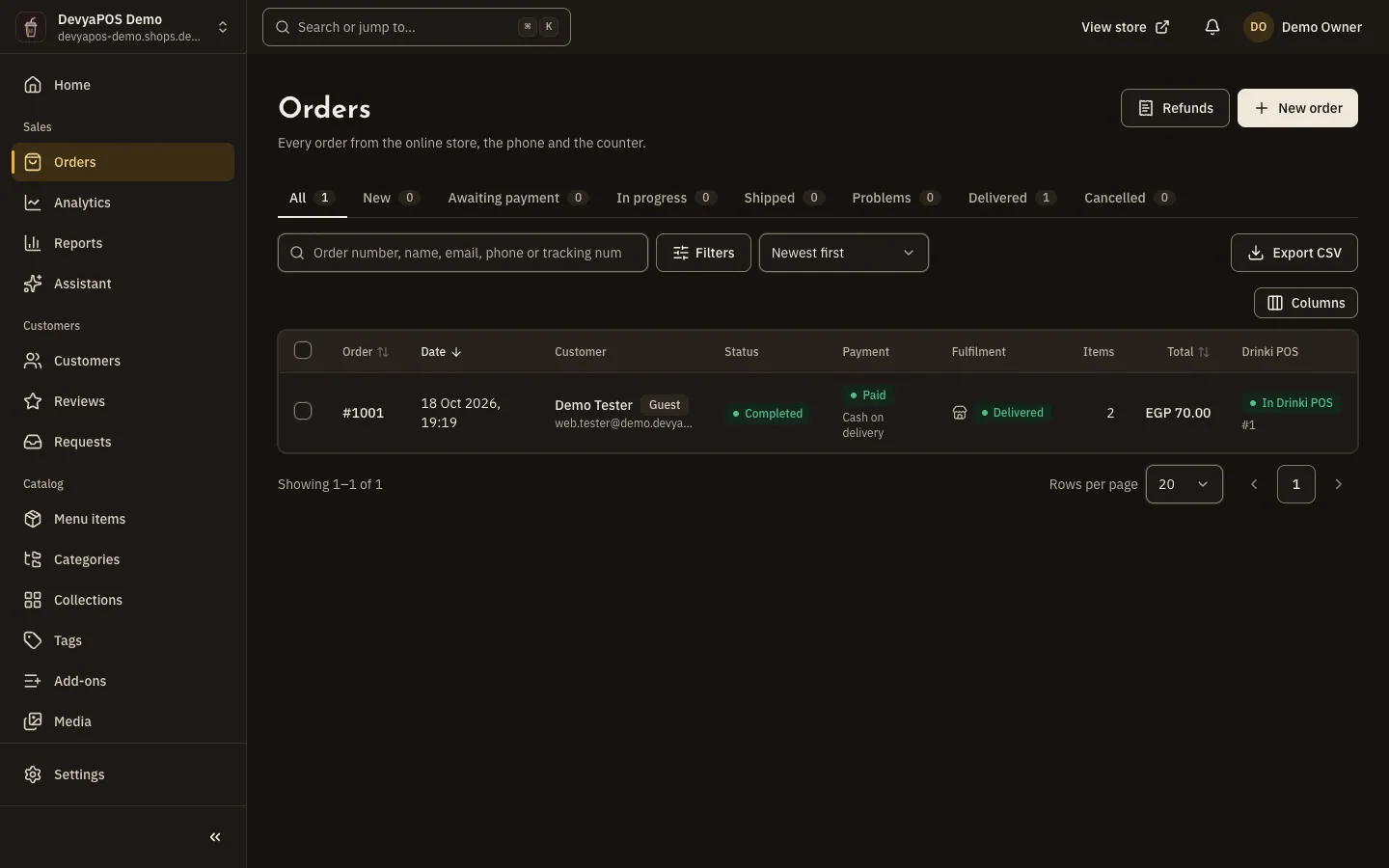
Fig. 2 —Select several orders to accept them or print their invoices in one go. Step 2: Prepare the order and hand it over
On the In progress tab follow the buttons in order. Shop: Ready to ship, then Book a shipment with Bosta or Handed to courier with the Tracking number, or Ready for pickup then Picked up by customer. Restaurant: Preparation time (minutes), then Ready for delivery, the Driver name and Out for delivery, and finally Mark delivered. Every status is in Take an order from accepted to delivered.
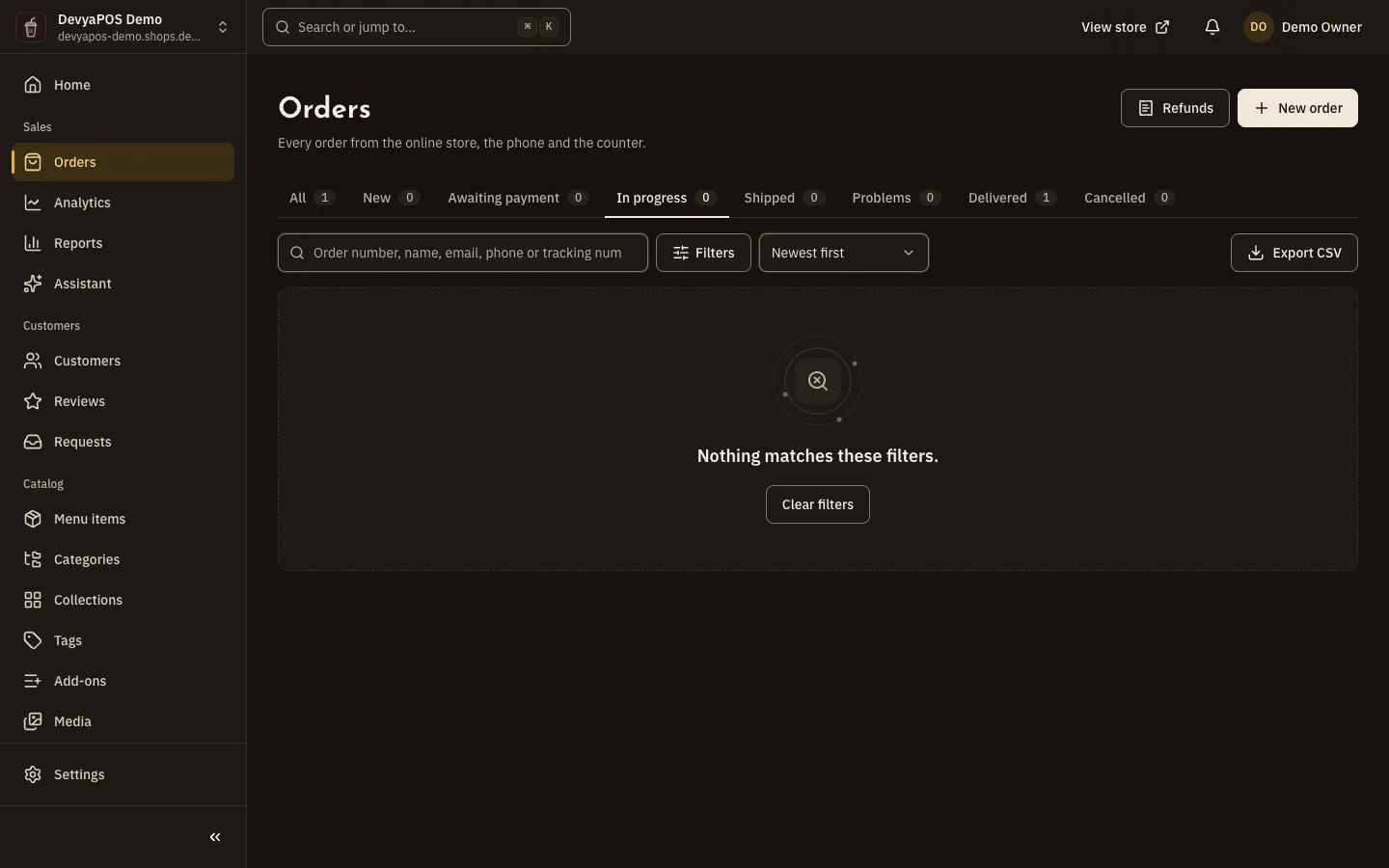
Fig. 3 —Each order shows only its next action, so there is no sequence to memorise. Step 3: Print what the preparation needs
From More actions on the order choose Print invoice or Print packing slip, and pick the Paper: A4 or 80 mm receipt. For several orders at once: select them and choose Print invoices. The details are in Print invoices and packing slips.
Step 4: Record the orders that arrive by phone
From Sales › Orders click New order: choose the Customer or New customer, How the customer gets it, add the Items, apply a Coupon code if there is one, then How the customer pays and Place order. The walkthrough is Create an order by phone or at the counter.
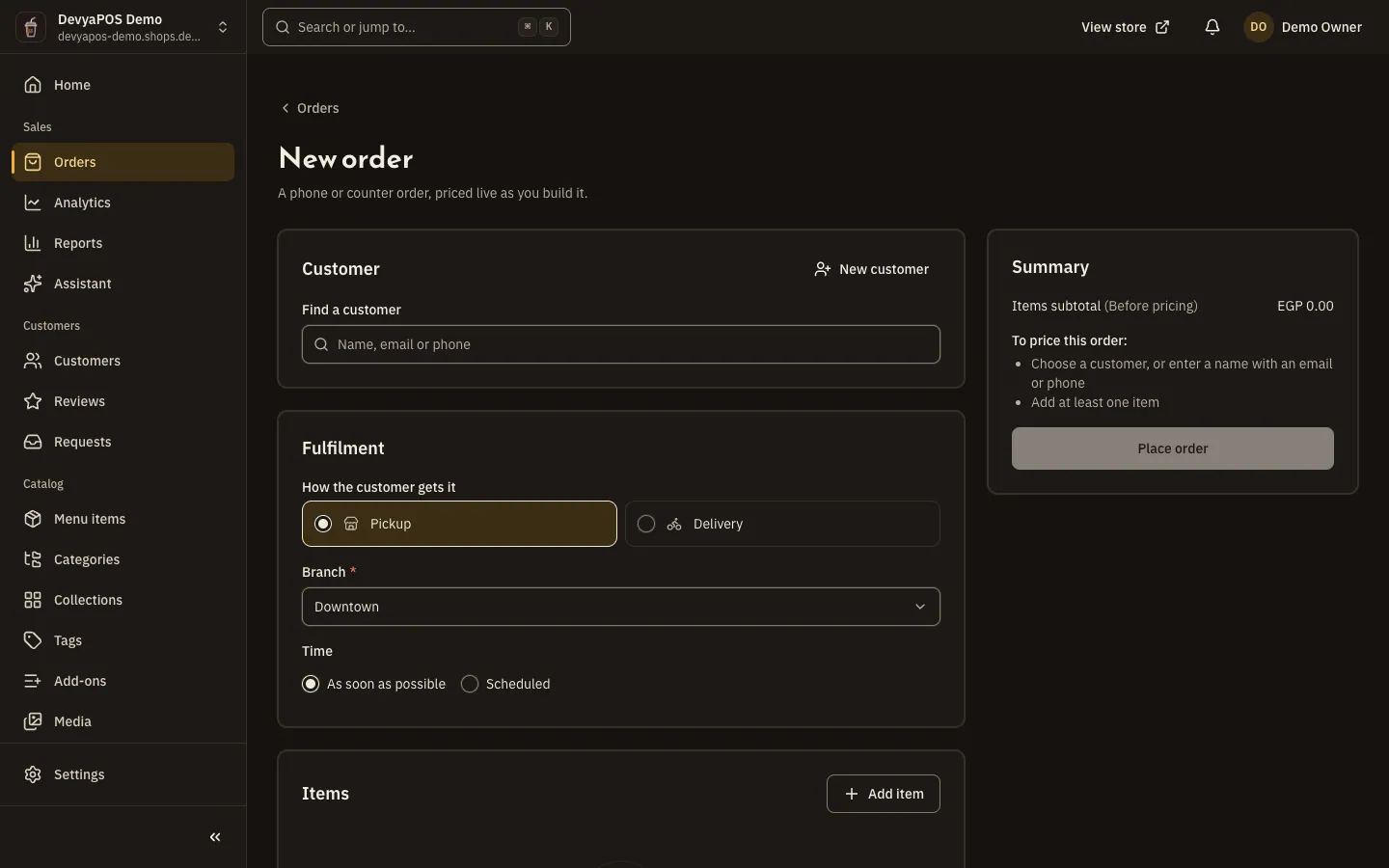
Fig. 4 —An order recorded by hand joins the same list and is priced by the same store rules. Step 5: Handle cancellations and refunds
An order not yet accepted is refused with Reject order; an accepted one is cancelled from More actions › Cancel order with a Reason. Money already paid is returned with Refund, with the Amount and Refund method, and what is not paid out yet is followed in Sales › Refunds. The details are in Cancel an order or refund a payment, and returns in Handle returns.
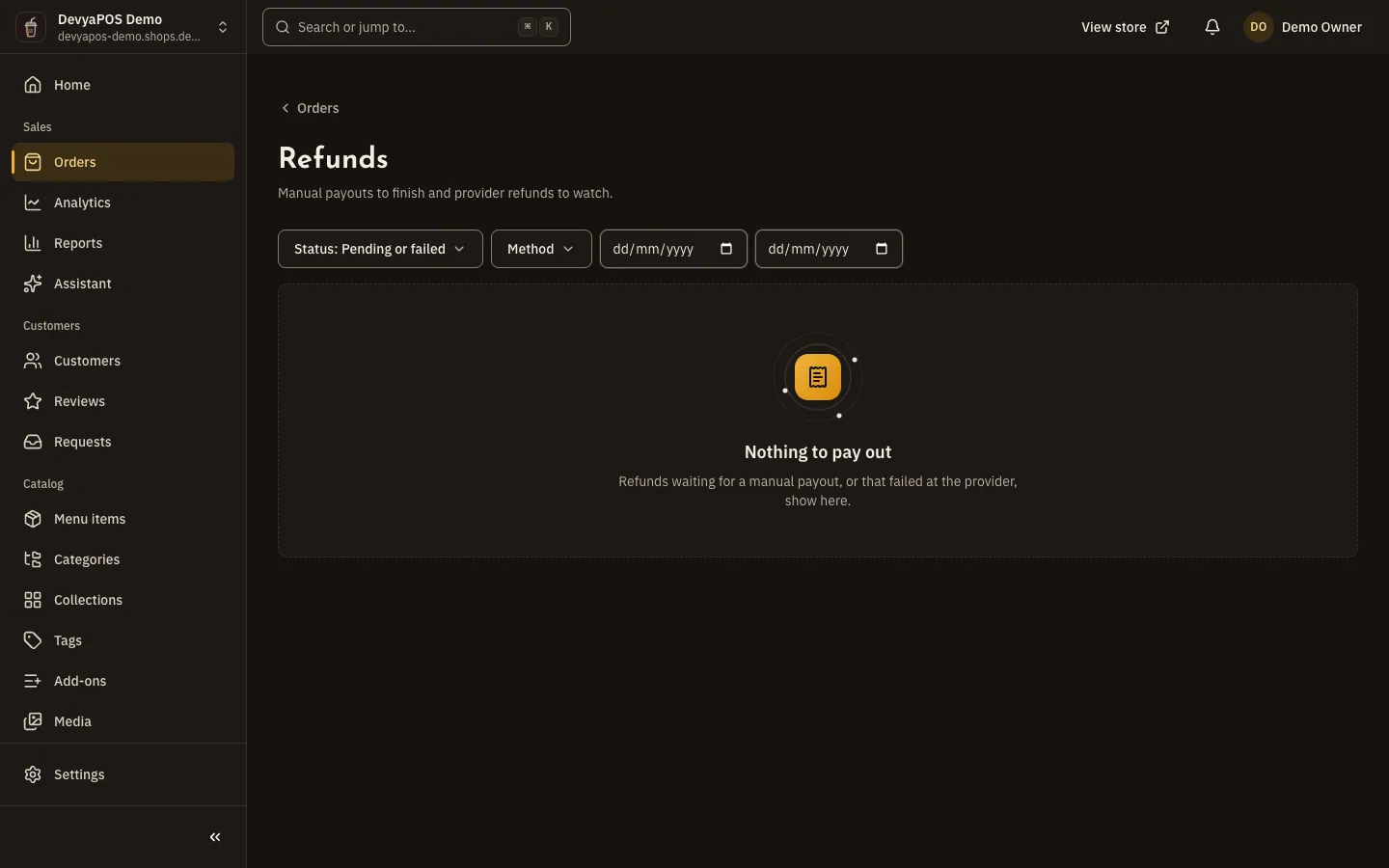
Fig. 5 —A manual refund waits for you to confirm the payout; a card refund runs through the payment provider.
Stock
Step 1: Review low stock
From Inventory › Stock (or Branches › Stock in a restaurant) filter by the state Low or Out of stock. Select the rows and click Adjust selected, choose How to change it: Receive stock for what arrived from the supplier, or Set the counted quantity after a count, then Save. Every change is recorded under Movements. The walkthrough is Track stock and stock movements.
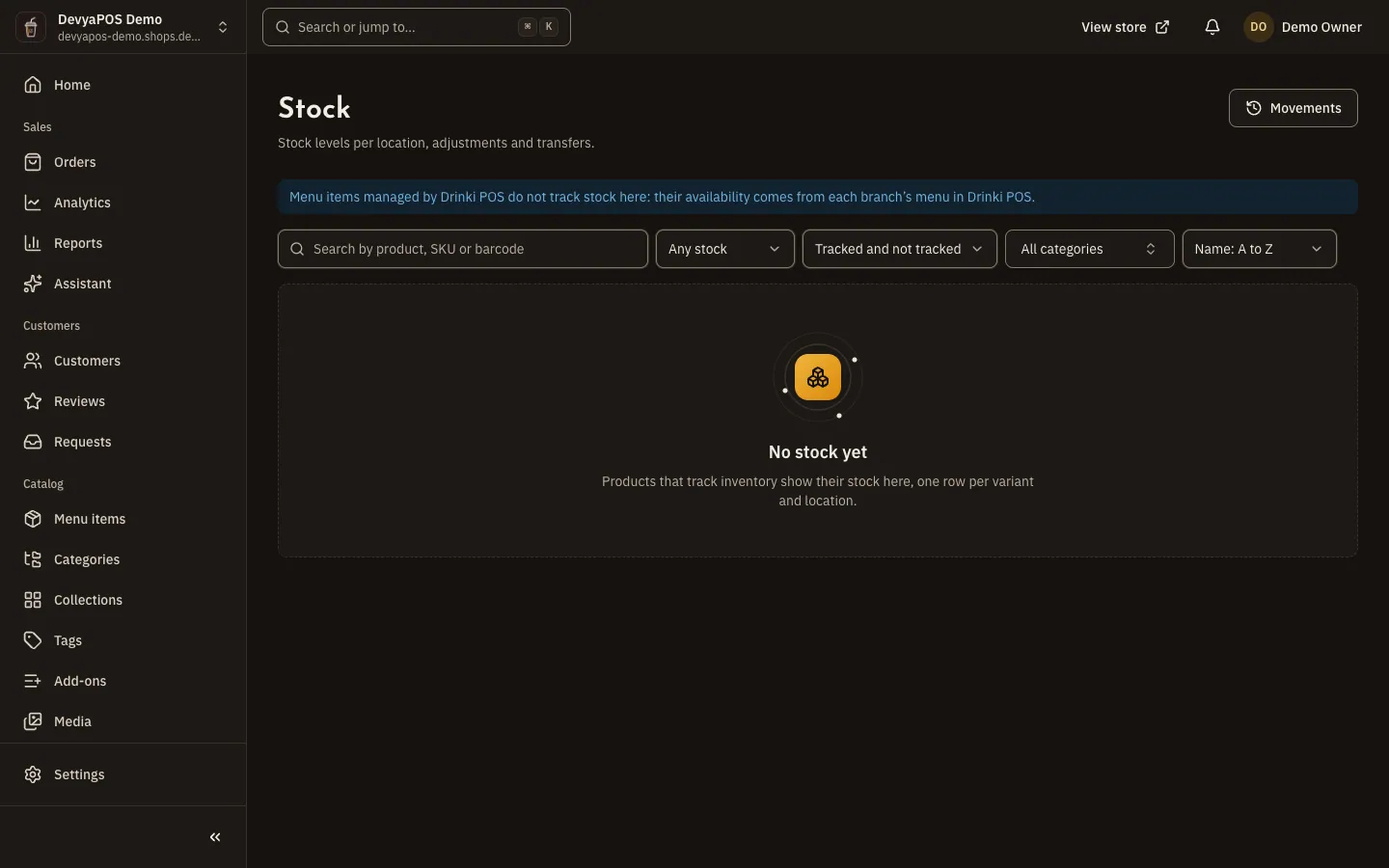
Fig. 6 —“Reserved” is what sits in orders not yet fulfilled; “Available” is what a customer can order now.
Customers
Step 1: Answer requests and approve reviews
From Customers › Requests open what is under To do, write your reply and click Reply and resolve; a request that came by phone or WhatsApp you log yourself. From Customers › Reviews approve what is Pending or reject it with a reason. The walkthrough is Moderate reviews and answer customer requests.
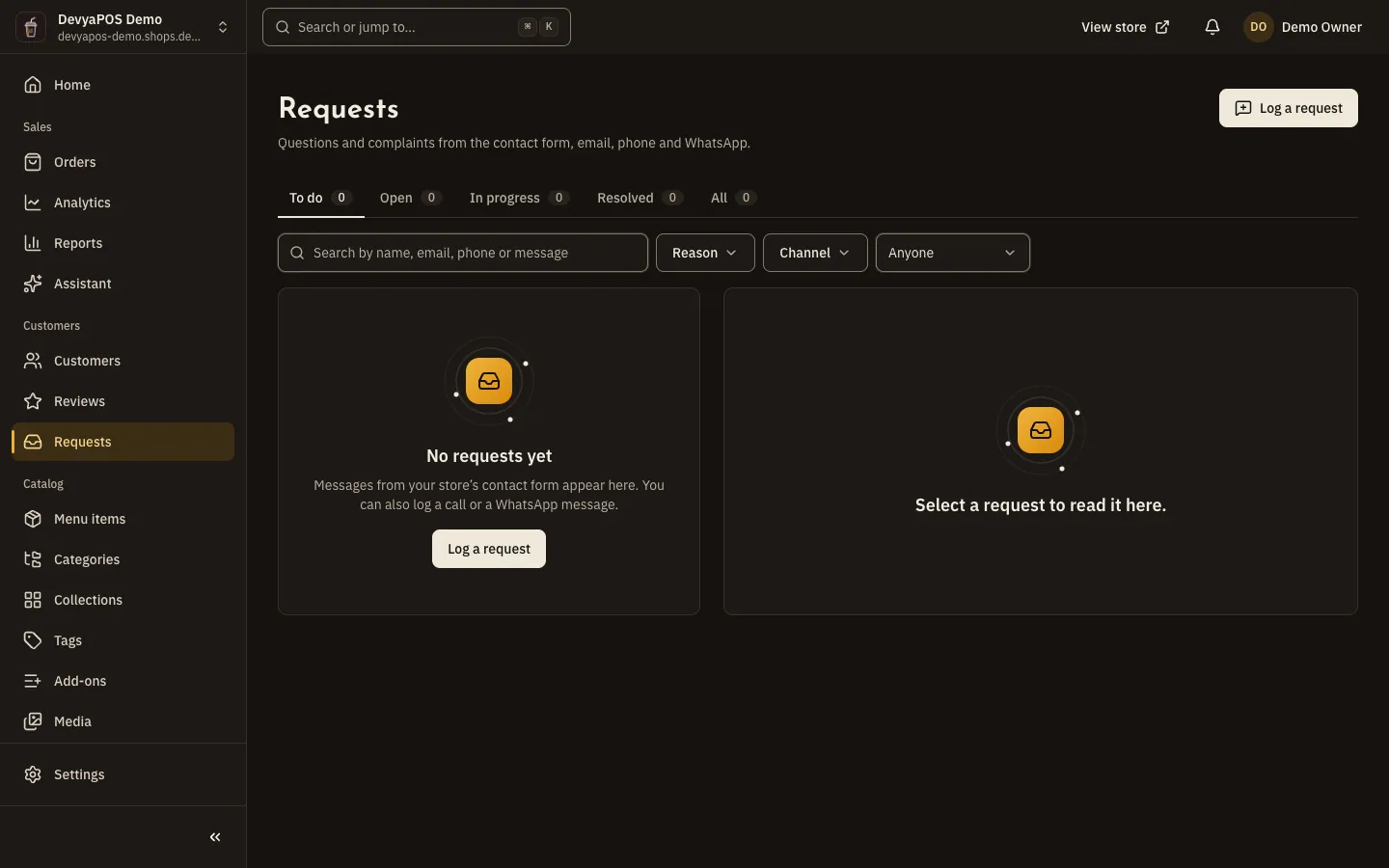
Fig. 7 —The reply goes to the customer by email and stays on their profile.
Close the day with the numbers
Step 1: Run the day's report
From Sales › Reports choose Sales or Products and the Date range, then Export CSV if the accountant wants a file. Comparing with yesterday and last week is in Sales › Analytics. The walkthrough is Run and export reports.
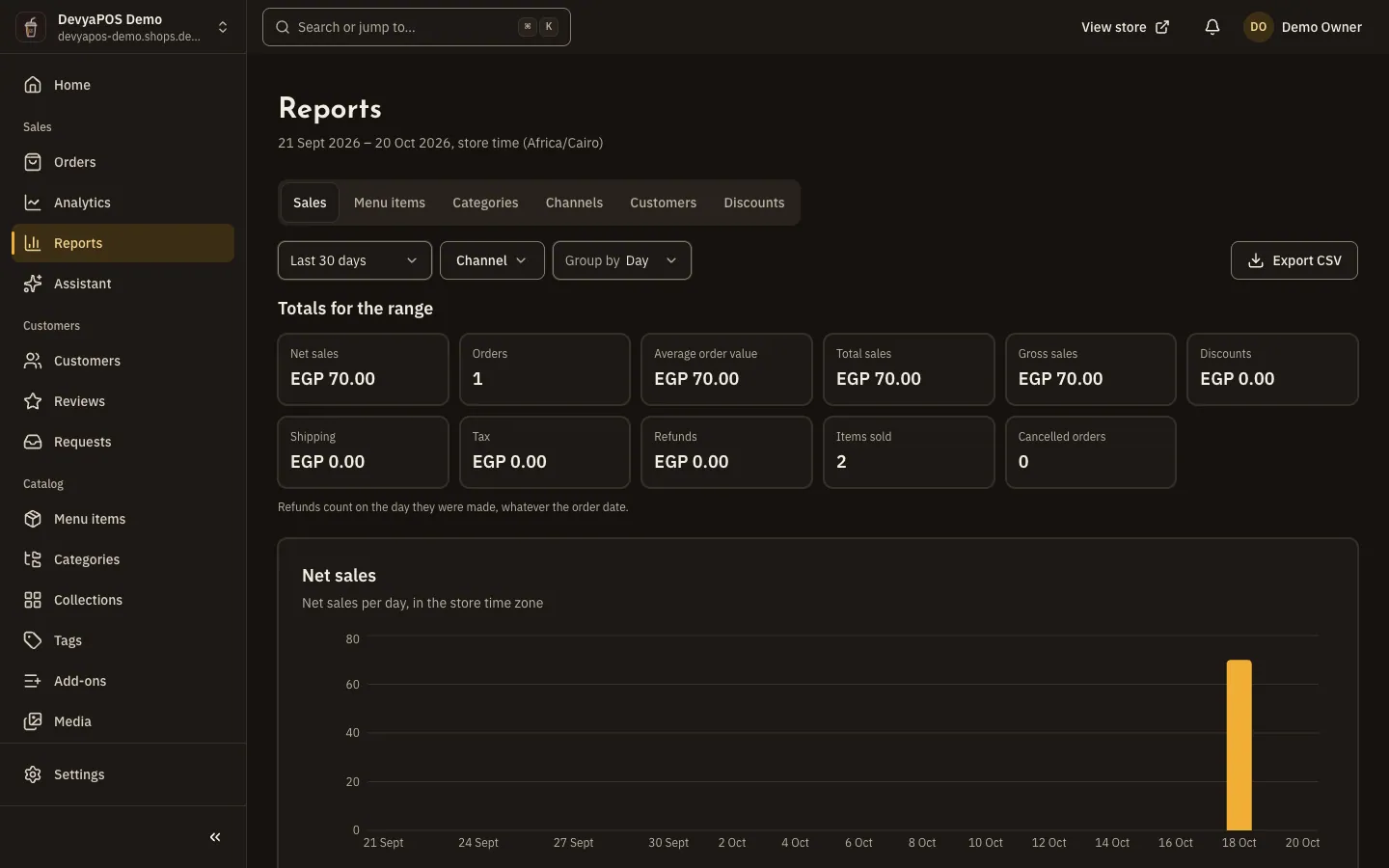
Fig. 8 —A custom range gives you exactly one day when you only want today's report.
How do I know a new order arrived without staying on the page?
Turn on the New-order sound from the order list on the device that stays open, and add your email to the Recipients under Settings › Notifications › Staff alerts with the New order alert.
The branch is swamped. How do I pause orders for an hour?
From the branch's page under Branches › Branches click Pause orders and choose Until I resume or Until tomorrow's opening, then Resume orders once it calms down. It needs the Pause or resume orders at a location permission — see Manage locations and branches.
Who confirms a bank transfer?
Whoever has the Confirm manual payments permission: open the order that is Awaiting payment, check the Transfer proof if the customer uploaded one, and click Mark as paid with the Amount received and the Bank reference.