Moving StoresChecked against the product on
The shopper: from browsing to ordering on your store
What your customer sees, step by step, on your store: the home page, the menu, a product page, the order, checkout, the account, then order tracking — so you know what they are asking about when they call.
On this page
Before you start
- A launched store. The pictures here are from the demo store, which is a restaurant; a shop store uses the same words with “bag” instead of “order” and “shipping” instead of “delivery”.
This journey is from the other side: what the customer sees on your store and does there. Know it so you can answer “where do I type the coupon?” or “how do I find my order?”.
They browse
Step 1: They land on the home page
They see the banner and the sections you arranged from Online store › Home layout. In a restaurant they also see the order bar above everything: Pickup from your branch and Ready in ~ the preparation minutes you set, and switch from it to Delivery to their area.
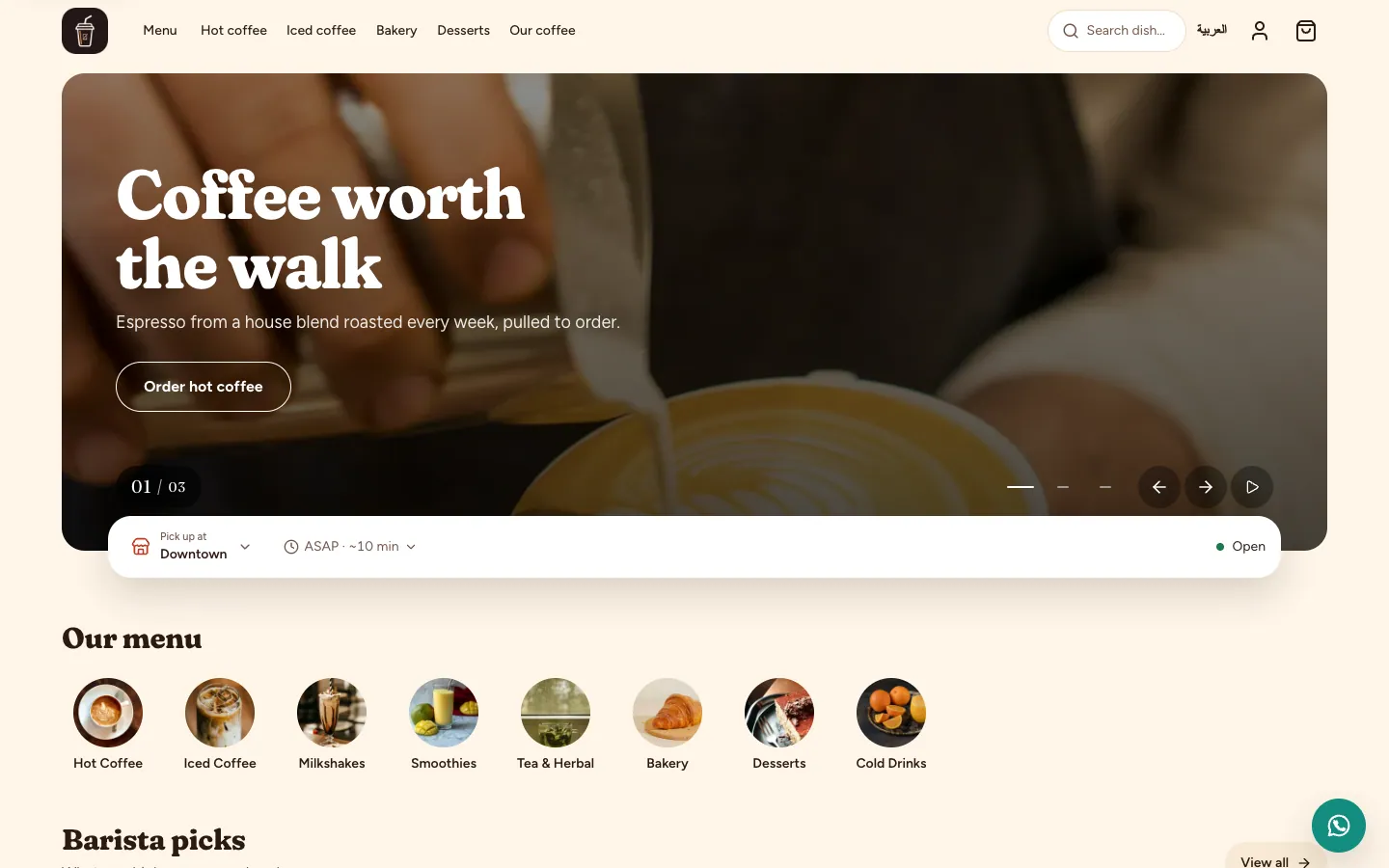
Fig. 1 —The order bar reads the preparation time and the delivery areas from your branch settings. Step 2: They open the menu
The Menu page (or all products in a shop) has a search box, quick chips that show whenever one applies — Available now, Offers, Popular and New — and a Filters button for category, price and Sort. The categories you turned Show in the store menu on for are the header links.
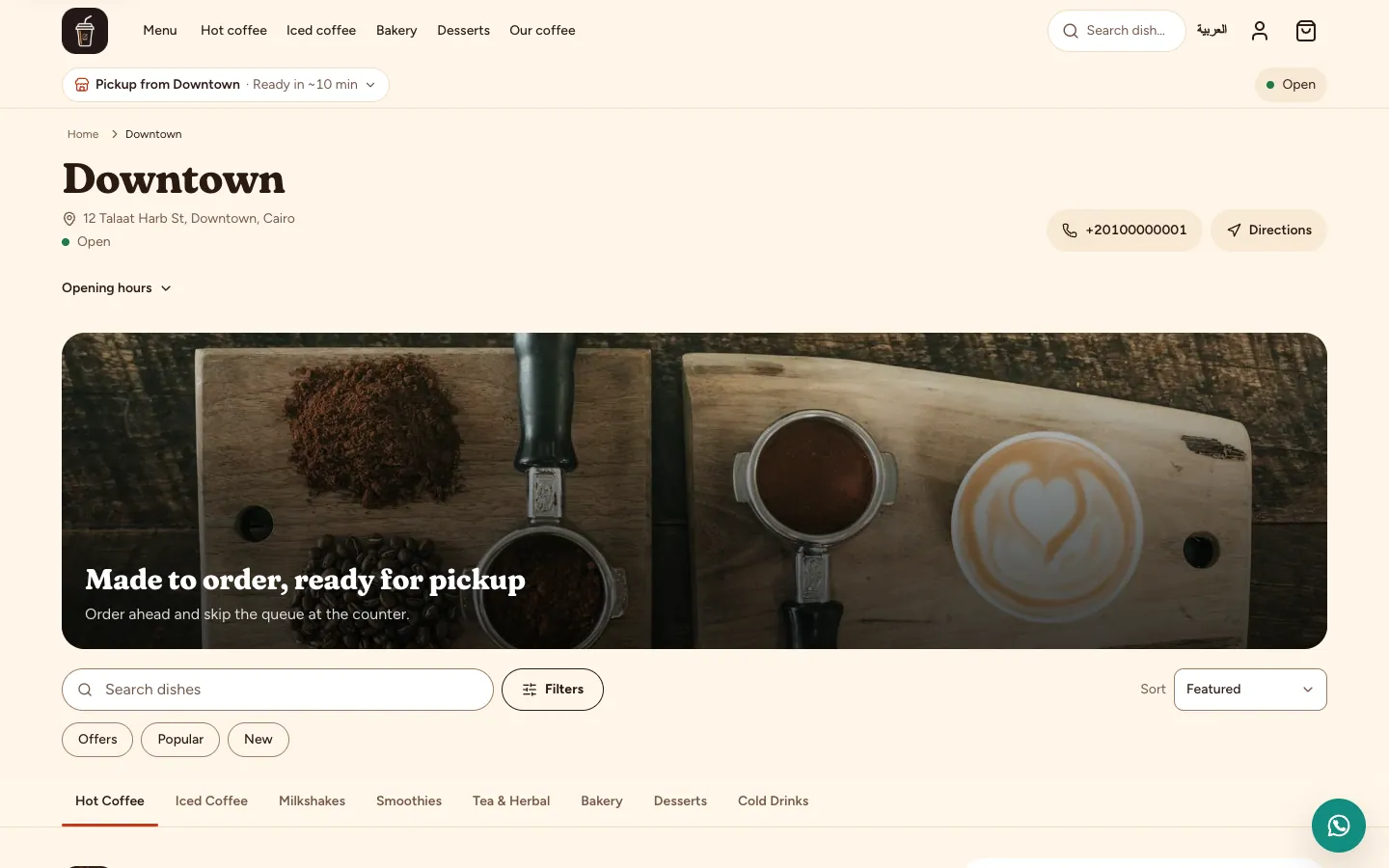
Fig. 2 —“From” before a price means the dish has sizes at different prices. Step 3: They open the dish
The product page shows the photos and the description, the sizes as buttons with their prices, Special instructions in a restaurant, the quantity, then Add to bag · price. Under the button they see how they can pay (Cash on delivery, say) and a Secure checkout badge, and the heart beside the name saves the product to their Wishlist.
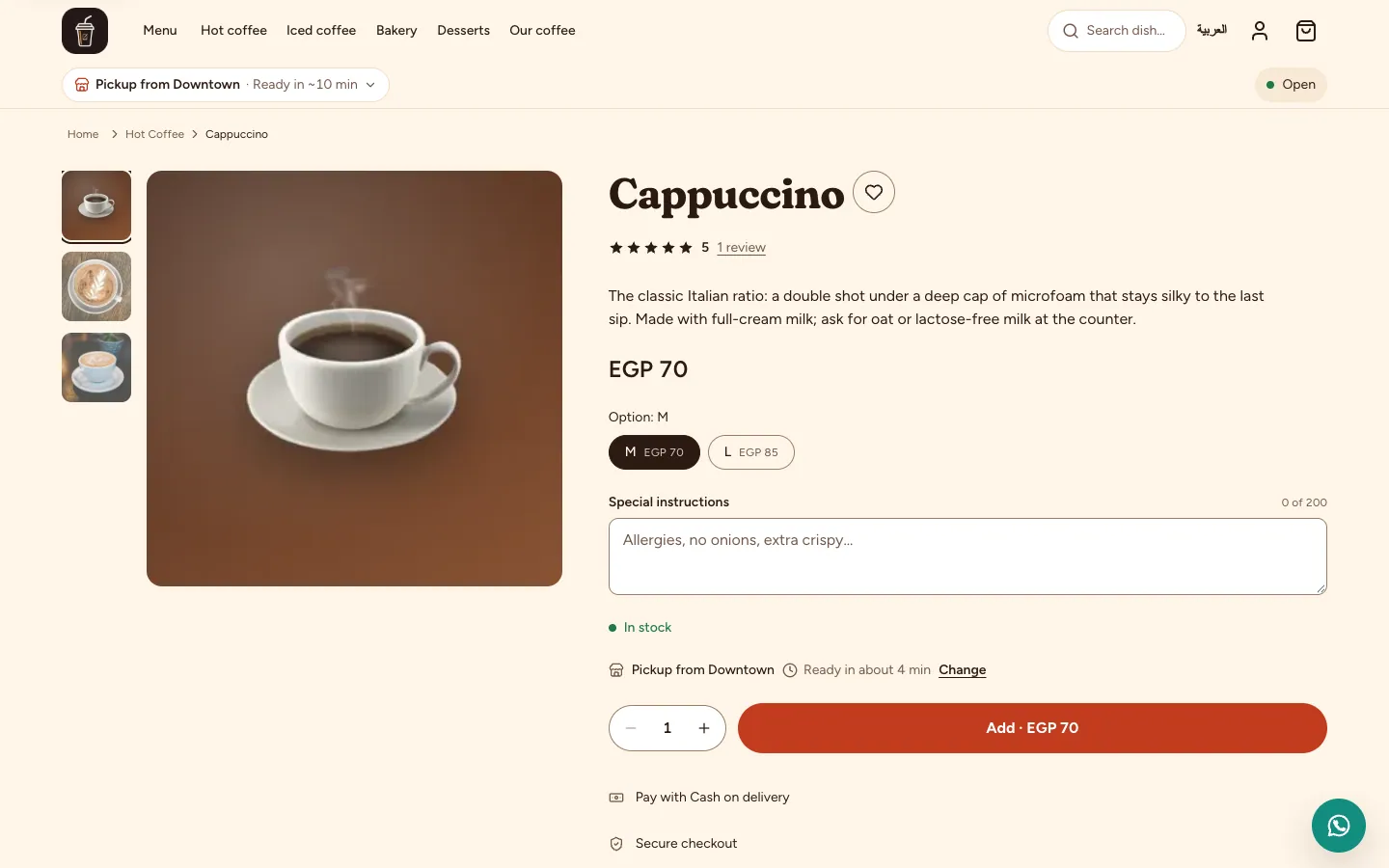
Fig. 3 —The add-ons you attached to the item appear here between the size and the quantity.
They order
Step 1: They review their order
From the bag icon in the header they open Your order: the items with their quantities, the Summary, and a note that the Delivery fee and taxes at checkout. While it is empty they see Your order is empty and Browse the menu with Popular right now.
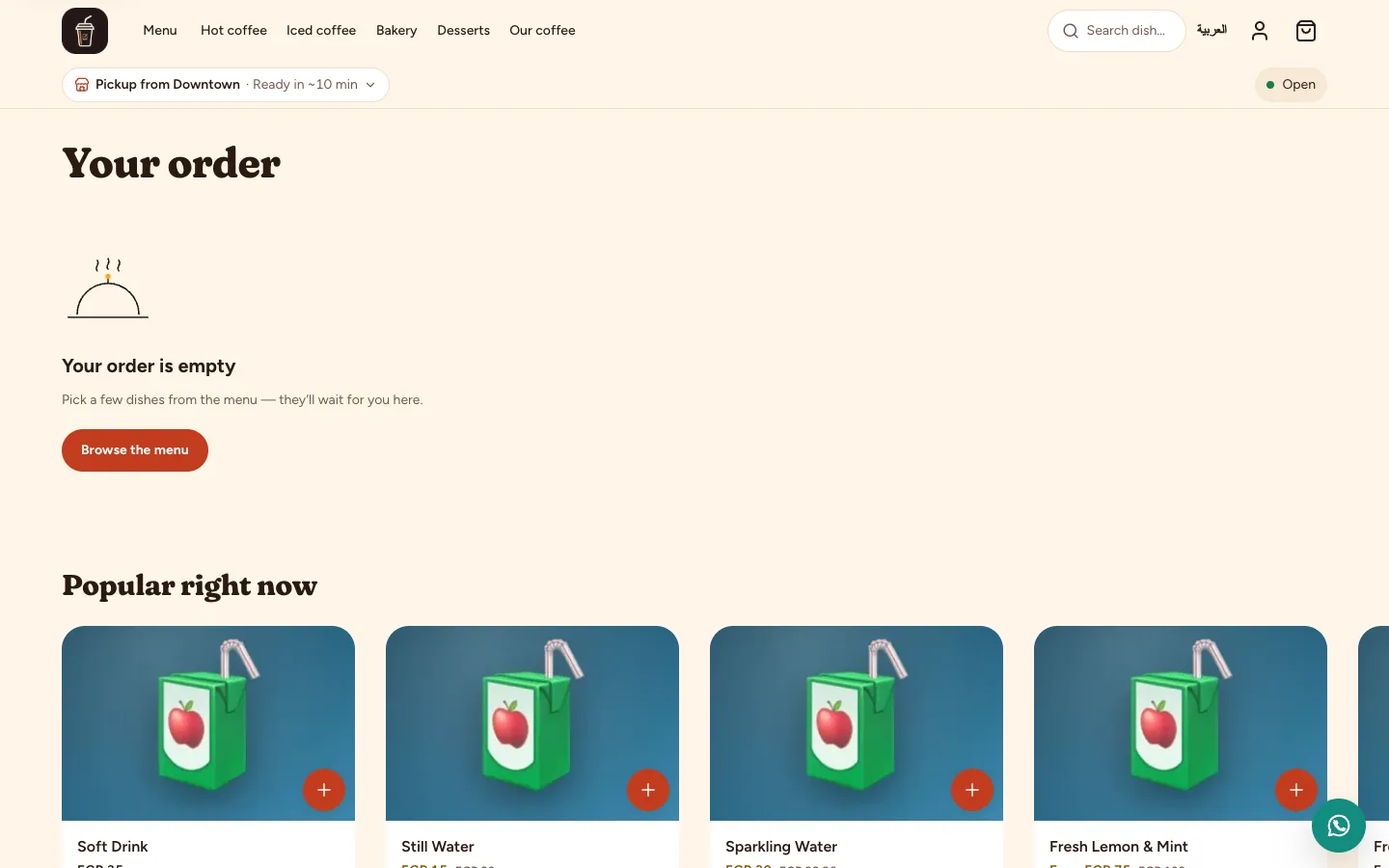
Fig. 4 —The picture is from a visitor who has not added anything yet; after adding, the items and the summary show here. Step 2: They check out
The Checkout page is enclosed: Contact (and they can Continue as a guest if you kept Guest checkout on under Settings › Selling › Checkout), then Delivery or pickup or the Address and Delivery method, then Payment with the methods you turned on, then Review and place order. Paying by card takes them to a secure payment page and brings them back — Accept online card payments.
Step 3: They get the confirmation
The confirmation page shows their order number and We sent a confirmation to their email, and they receive the Order confirmation email you edit under Settings › Notifications › Customer emails. Every status after that sends one too: Order accepted, Ready for pickup, Order shipped and Order delivered.
Their account and their orders
Step 1: They create an account or sign in
From the account icon they reach Sign in or Create your account. The account keeps their Orders, Addresses, Wishlist and Reviews; the sign-in page itself offers the hurried In a hurry? — Continue as a guest. The details are in Understand shopper accounts.
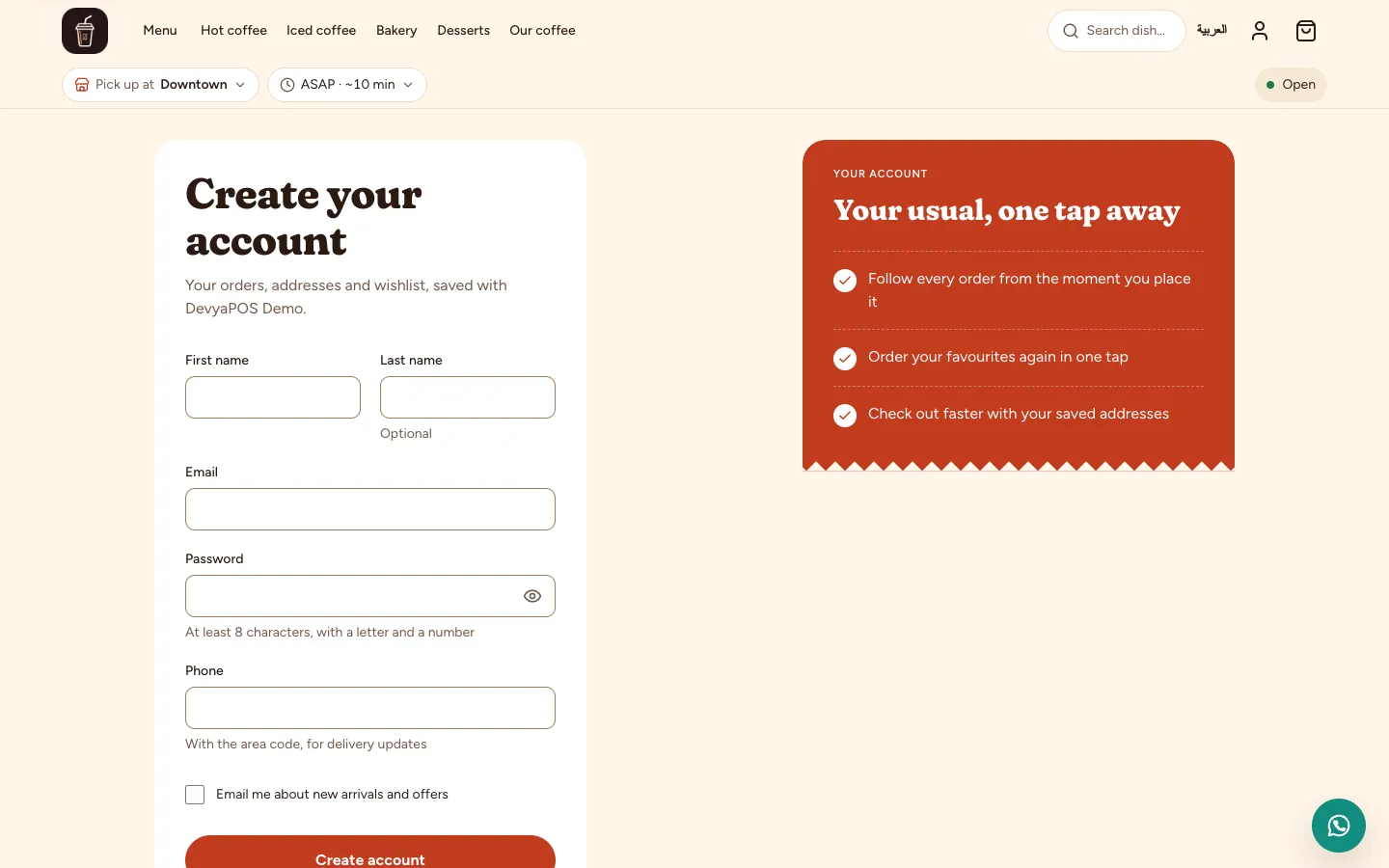
Fig. 5 —The account is optional as long as guest checkout is on. Step 2: They track their order
From the Track your order link in the footer they type the Order number and the Email or phone and click Find my order, and see the order's status, its Updates and the Tracking number if it shipped. An account holder also finds it under Orders in their account.
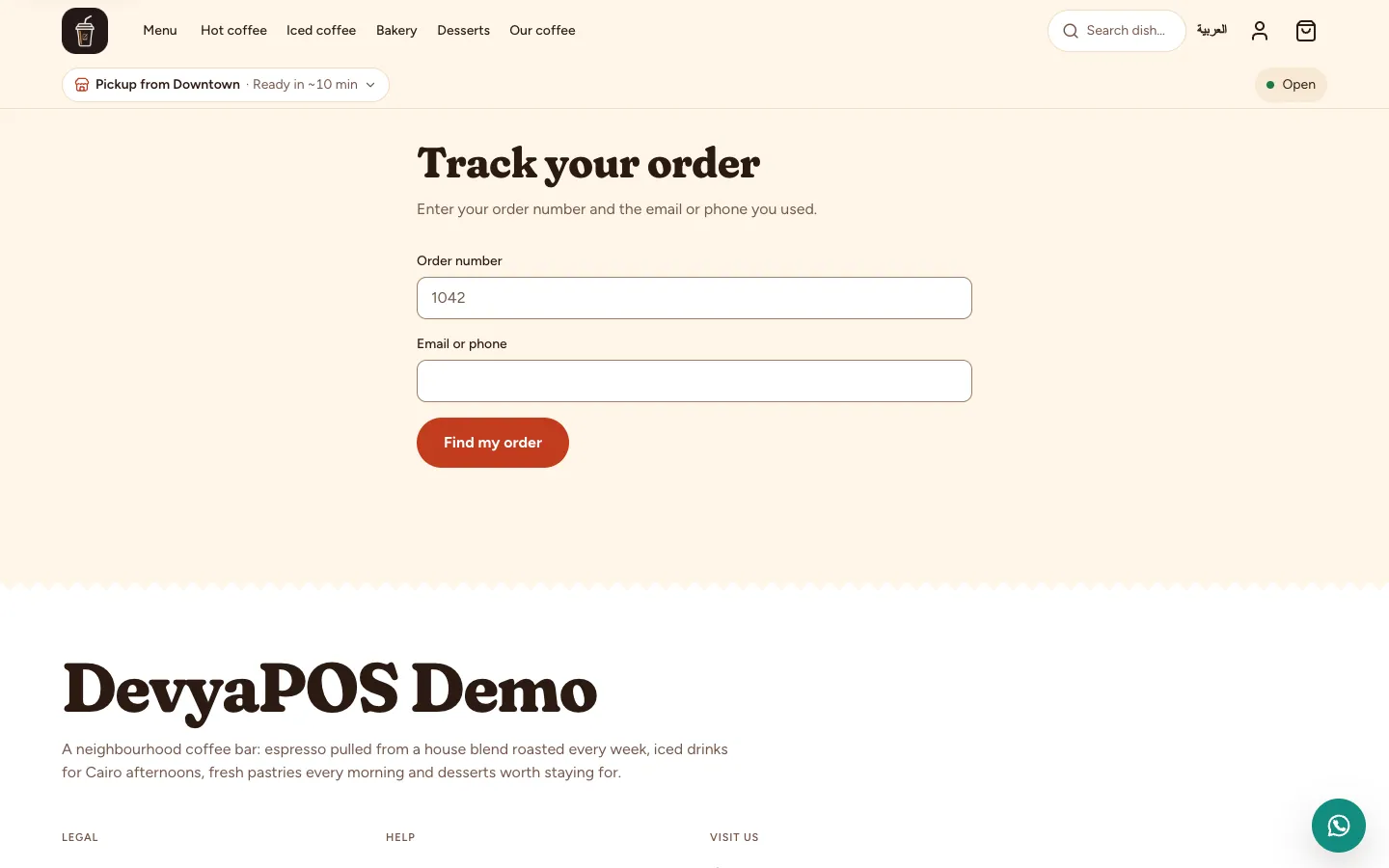
Fig. 6 —The order number is the same one you see in your order list.
Does a customer need an account to order?
No, as long as Guest checkout is on under Settings › Selling › Checkout. If you want accounts to be required, turn it off there — see Set checkout.
Where does the customer type the coupon?
At Checkout, in the coupon field before Review and place order. Automatic discounts and promotions apply without typing anything.
Why can't the customer see card payment?
Because Paymob is not on in Live mode under Settings › Payments — see Connect Paymob.