Moving StoresChecked against the product on
The marketer: launch a promotion and follow its effect
From the idea to the numbers: choose between a coupon and an automatic promotion, create it, announce it with a banner and home-page sections, check it on the store, then read its effect in analytics and stop it when it ends.
On this page
Before you start
- A role with the coupons and promotions permission: Owner, Admin or Manager by default.
- To add banners and home-page sections: the Manage home page, banners & menus permission.
A campaign in Moving Stores is three things: what the customer gets (a coupon or a promotion), where they see it (a banner and sections), and how you measure it (analytics and reports). This journey takes them in order.
Make the offer
Step 1: Choose the tool
A coupon when you want a code the customer types (Discount code) or a discount applied on its own under conditions (Automatic discount). A promotion when you want a richer rule: Buy X get Y, a Bundle at a price, a Tiered discount by Amount spent, Free shipping from a subtotal, or a timed Flash sale. Every type is in Run an automatic promotion.
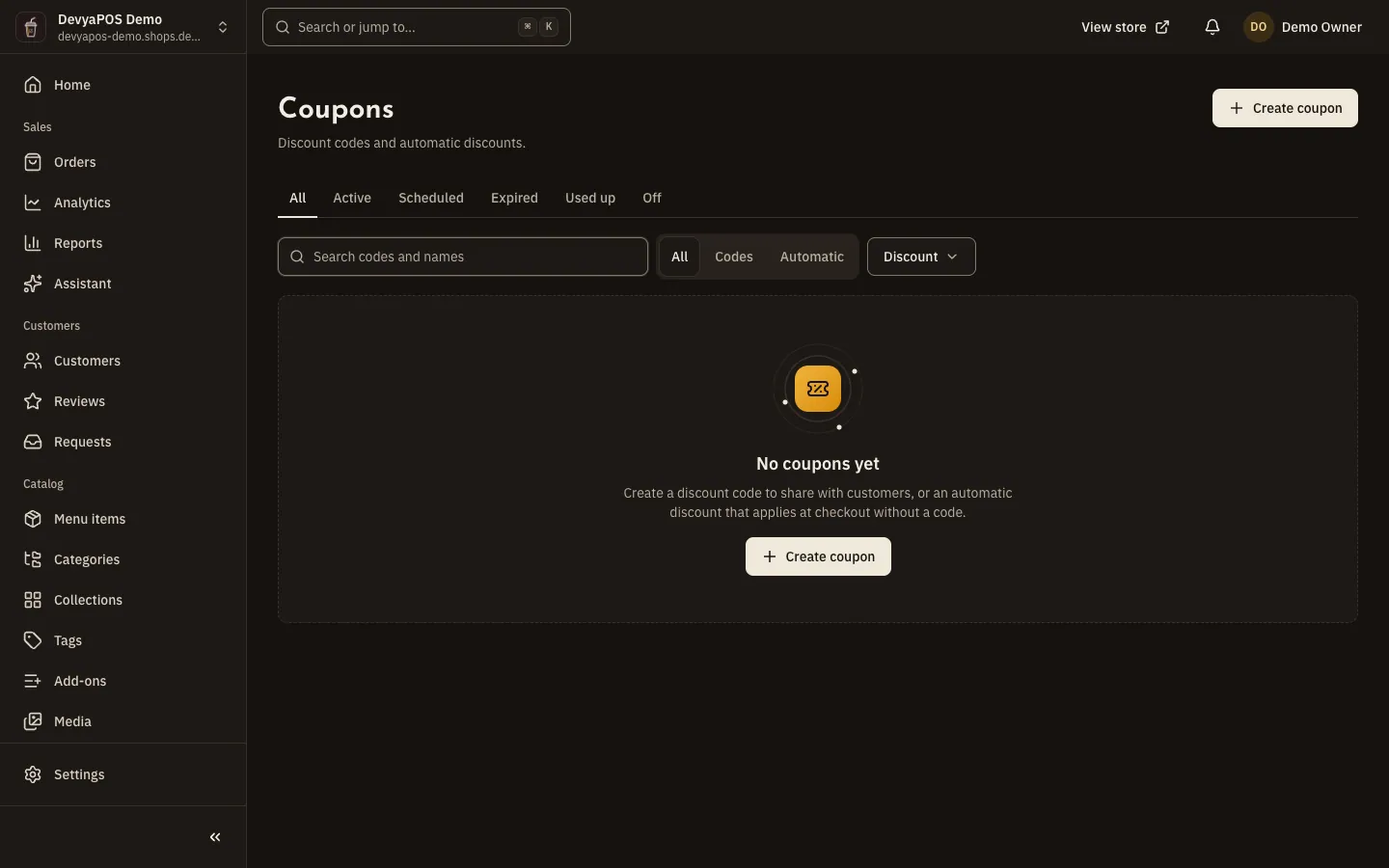
Fig. 1 —The list counts each coupon's uses, so it is the first place you measure. Step 2: Create the coupon
From Marketing › Coupons click Create coupon. Choose How customers get it, type the Code or click Generate, the Discount type (Percentage, Fixed amount or Free shipping), Applies to (Whole order or Specific items), then the Terms: Minimum eligible subtotal, First order only and Uses per customer, and Starts and Ends. Every field is in Create a coupon.
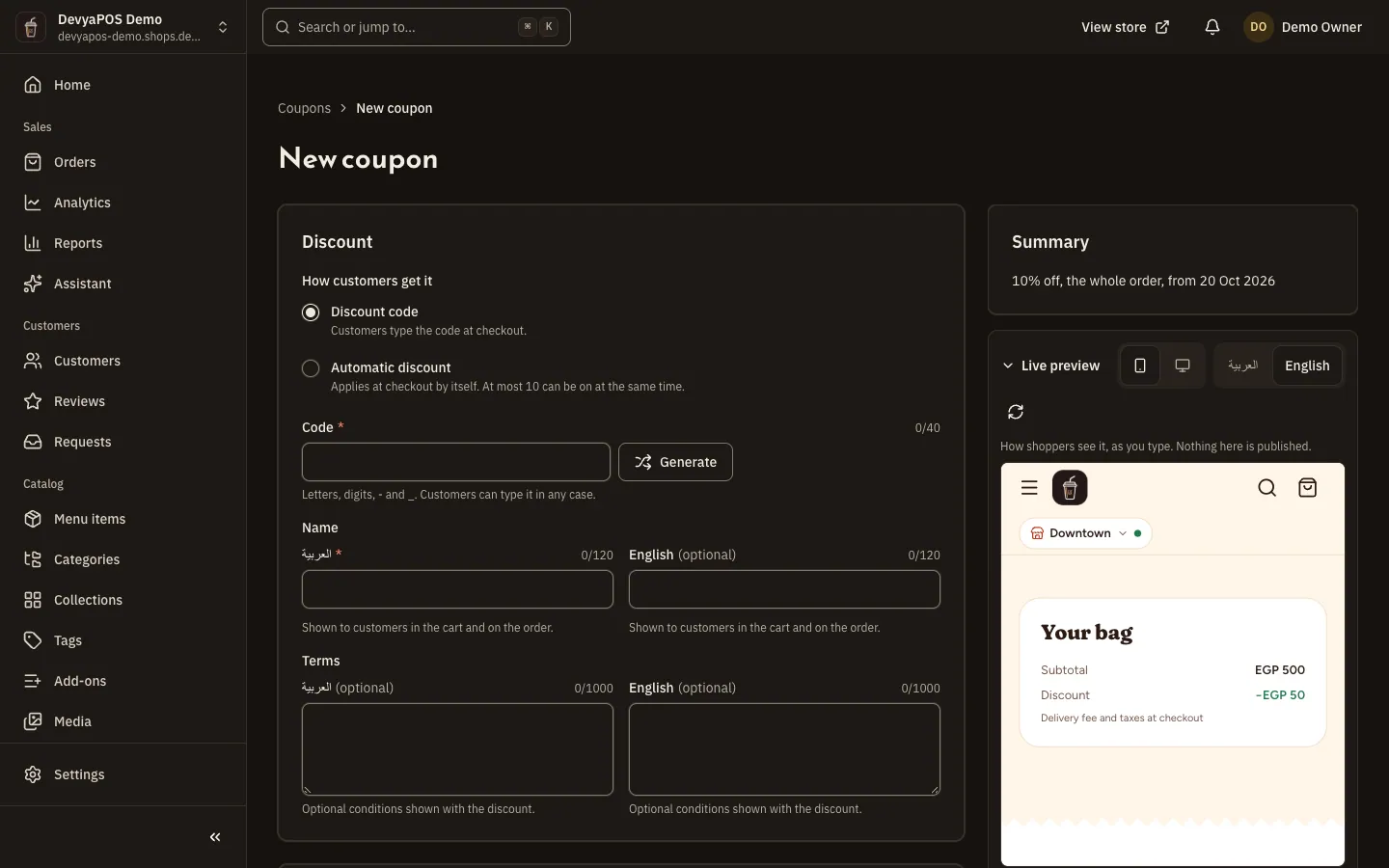
Fig. 2 —The maximum discount protects your margin when the discount is a percentage. Step 3: Or create an automatic promotion
From Marketing › Promotions click Create promotion and choose the Promotion type. Fill in the Details (the Name, the Badge and the Banner text the customer sees), the Offer, Who can get it (Everyone, Returning customers, Customers with tags…), the limits and Starts and Ends, then Priority and stacking.
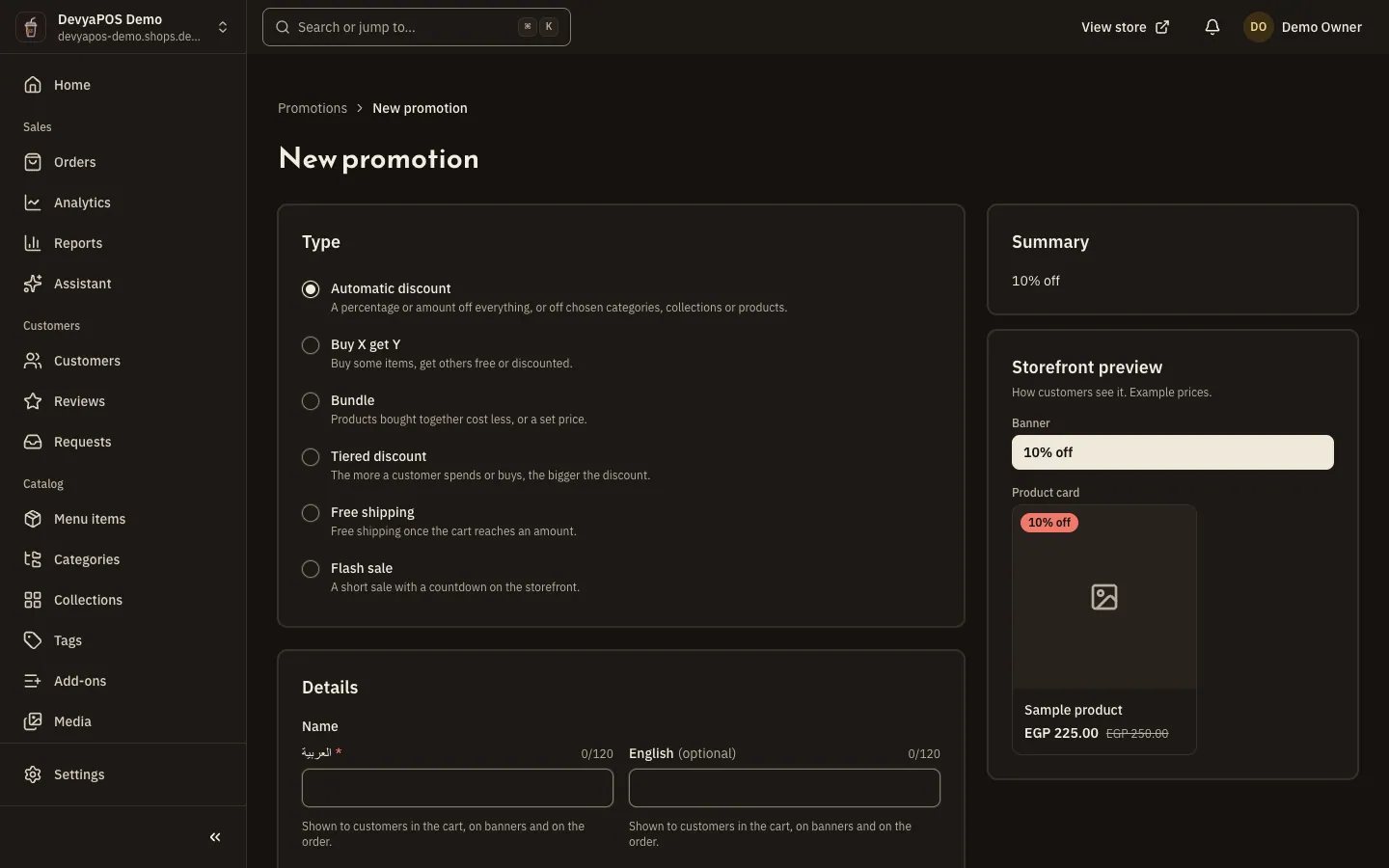
Fig. 3 —The badge and banner text appear on the product in the store without any design work.
Announce it in the store
Step 1: Add a banner
From Marketing › Banners click Add banner: the Headline, Button label and Link to the collection or category, the Desktop image and Phone image, then under Where and when choose Show on: Home hero, Home strip or Top of listings, and Starts and Ends on the promotion's own dates. The walkthrough is Arrange home sections and add banners.
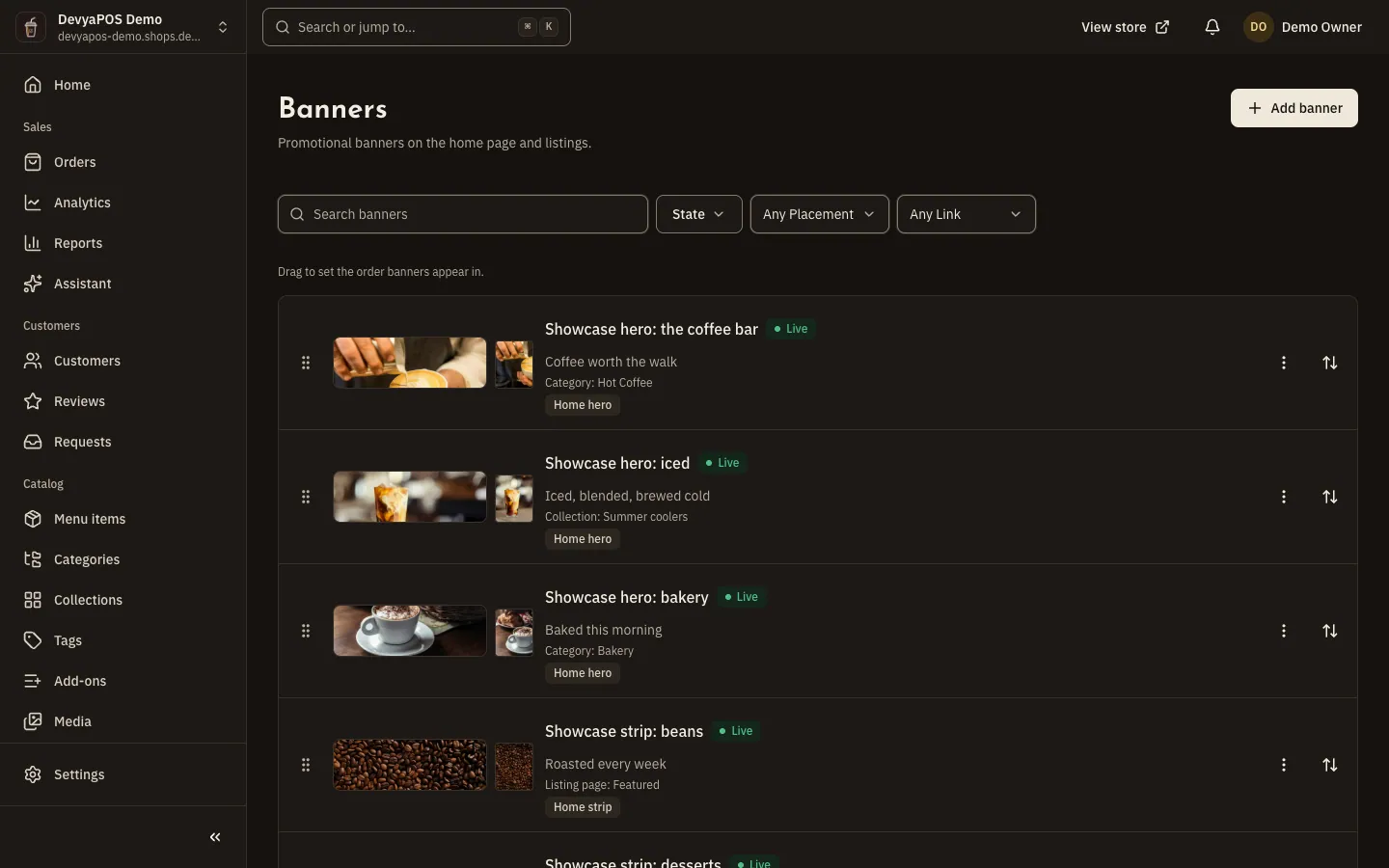
Fig. 4 —A banner with an end date disappears on its own when the promotion ends. Step 2: Put the promoted products up front
Gather the campaign's products in a collection from Catalog › Collections with a Visibility window, then from Online store › Home layout click Add section, choose Collection rail or Promotion banner, and drag it to the top. Collections are in Organise products.
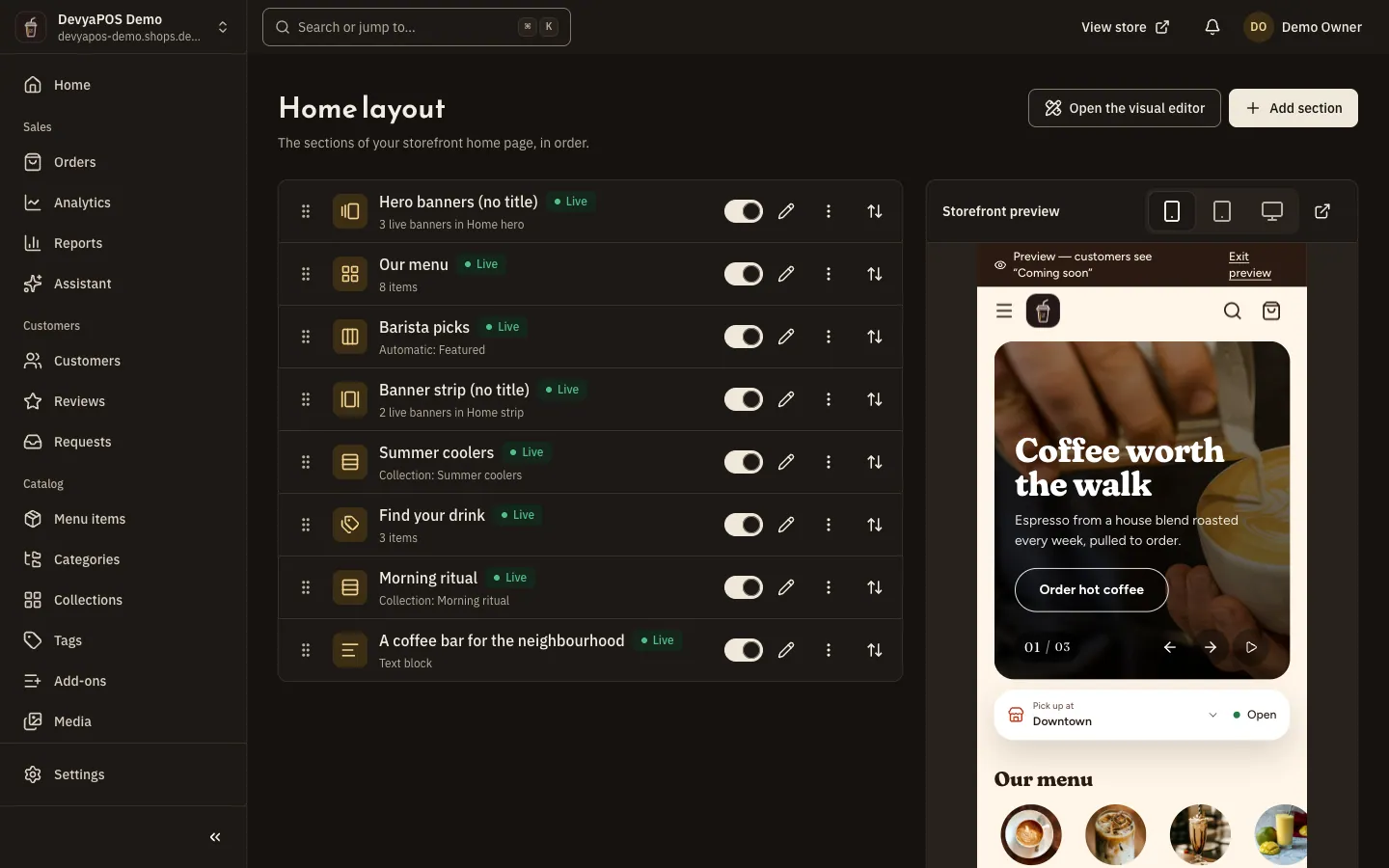
Fig. 5 —The Visible switch hides the promotion's section after it ends without deleting it. Step 3: Check it on the store
Open your store the way a customer does: the banner in its place, the badge on the product, and the coupon accepted at Checkout. Try it on a phone too; the banner has its own image there.
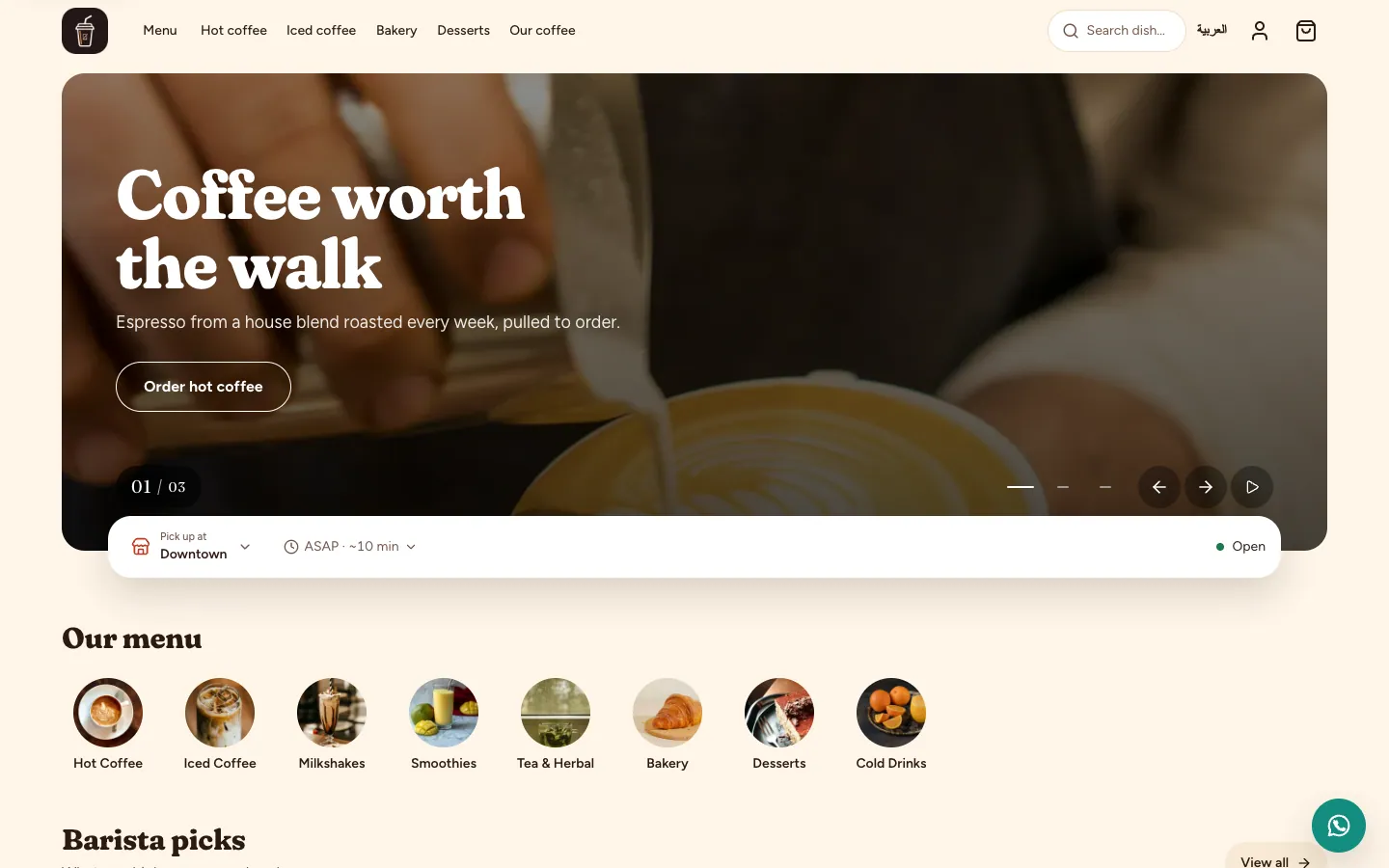
Fig. 6 —What the customer sees is the final judge of the campaign.
Measure the effect
Step 1: Read the numbers
In Sales › Analytics pick the campaign's period and Compare with the Previous period: Net sales, Orders, Average order value and Conversion, and the Conversion funnel from Visits to Ordered. In Sales › Reports the Discounts tab breaks down each coupon and promotion. The walkthrough is Analyse your sales.
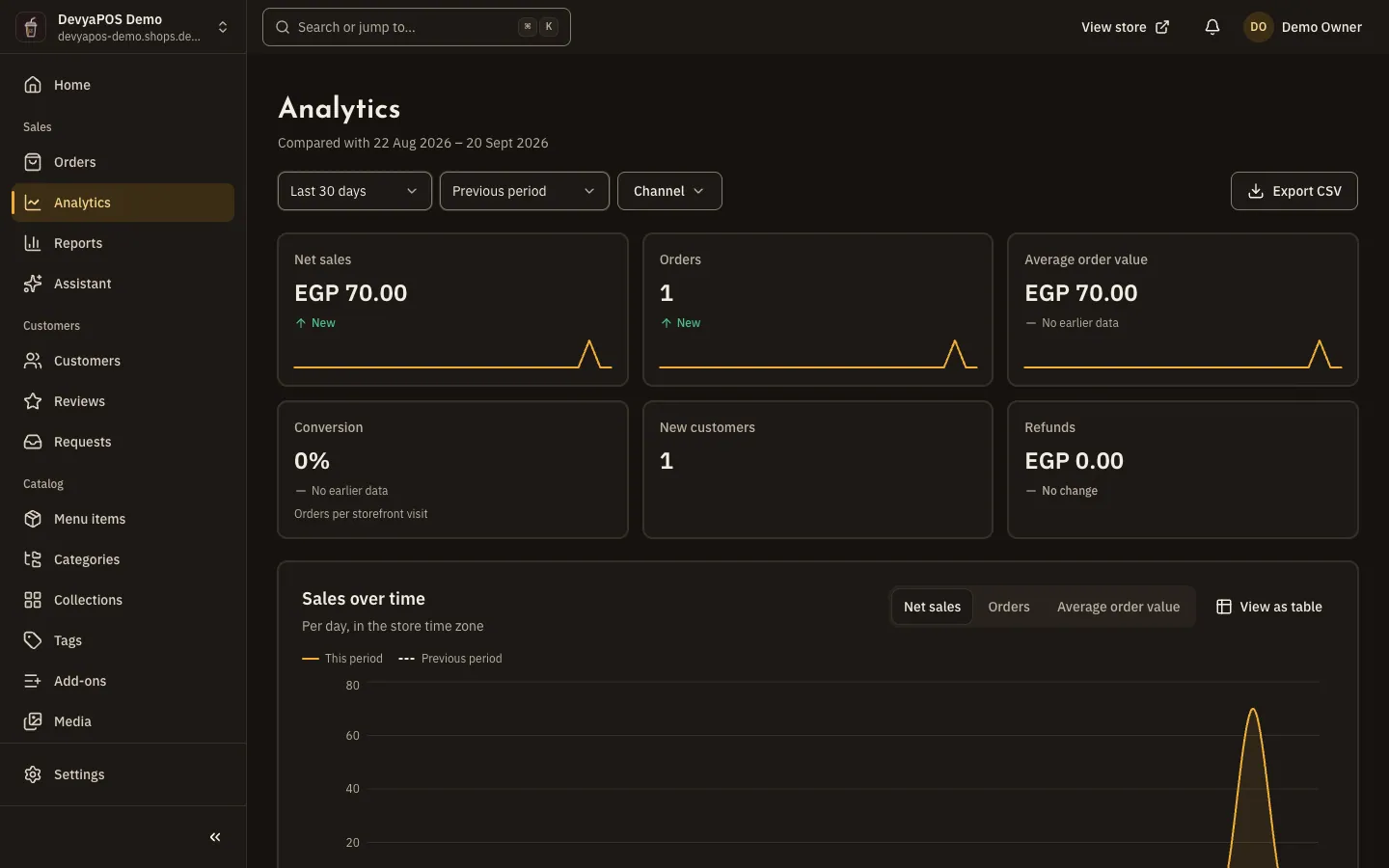
Fig. 7 —Compare the campaign's period with the same length before it, not with the whole month. Step 2: Stop it when it ends
A coupon with an Ends date stops on its own and shows in the list as Expired; to stop it early, switch its status to Off. A promotion likewise from Marketing › Promotions. The banner either ends on its date or you hide it.
Do a coupon and an automatic promotion combine on the same order?
The promotion's Priority and stacking setting decides. The full rule is in How promotions and coupons combine.
How do I aim a promotion at returning customers only?
Under Who can get it choose Returning customers, or Customers with tags after tagging customers from Customers › Customers — see Manage your customer list and profiles.
Do I need a designer for the banner?
The banner is an image you upload with the Headline and Button label drawn over it; the promotion's badge and banner text are two strings the store sets in its own design.